
With the newest release you are able to create and also invite new Organizations by yourself.
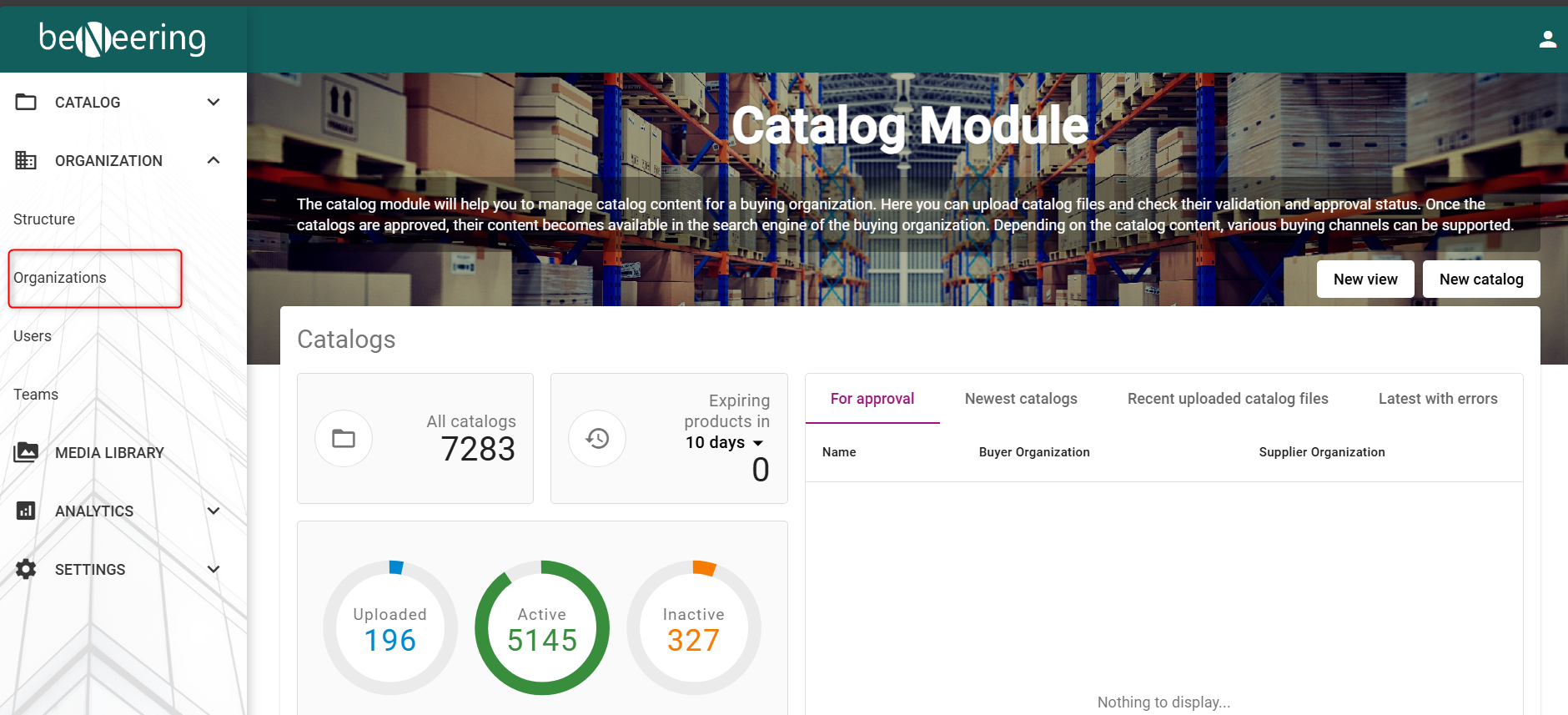
To start a Supplier Onboarding please login to our System and search for the Organization Tab:
Step 1: Create a new Organization:
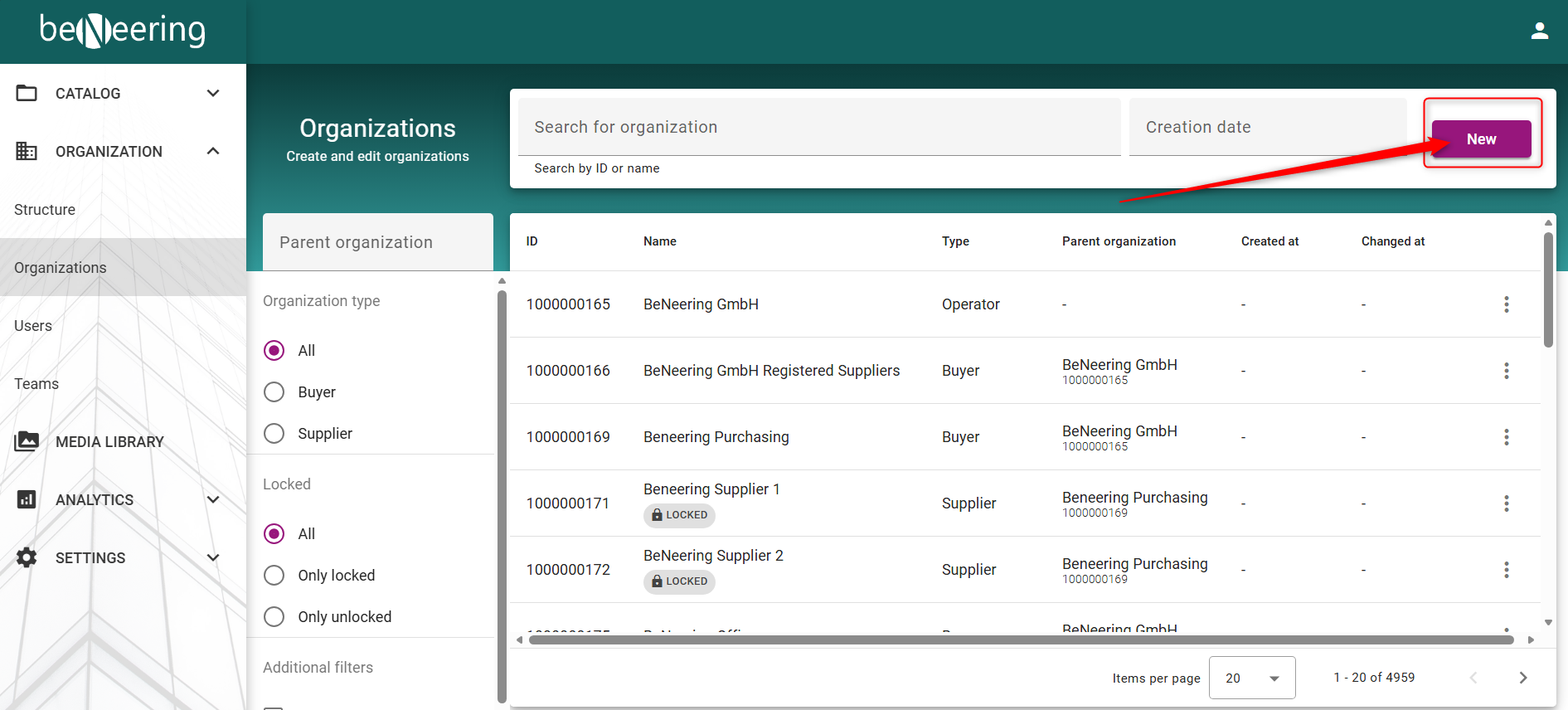
Inside the Organization Tab please click on the “New” Button:
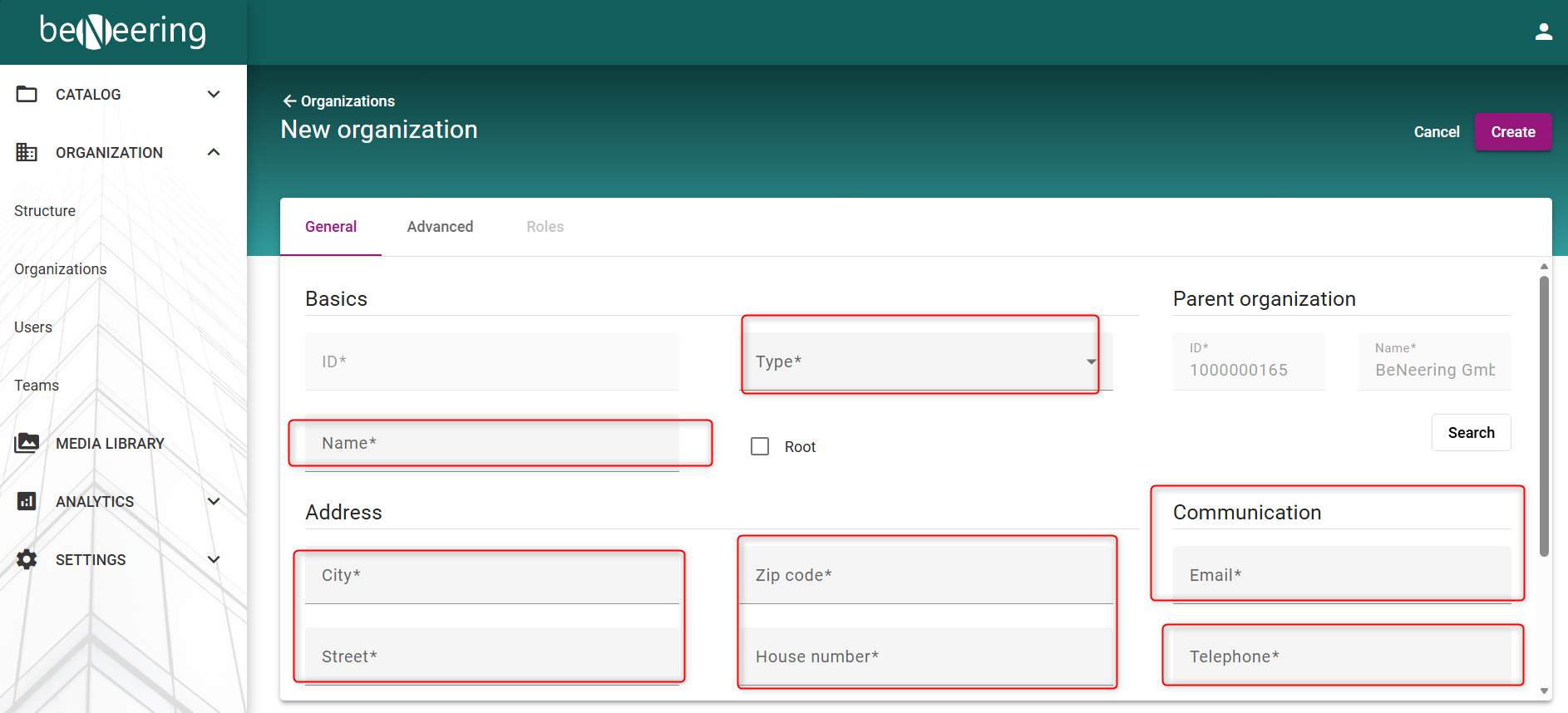
In the next Step you have to fill out all the information you have from the new Supplier. Most importnatly is to fill out the E-Mail address of
the contact person. This will be important in the last step by sending out the inivtation. (Step 3)
Step 2: Fill out the general Information about the new Organization:
|
Field |
Value |
|---|---|
|
Name |
The Name for the new Organization |
|
City |
The City where the Organizaiton is located |
|
Street |
The Street where the Organization is located |
|
Country |
The Origin Country of the Organization |
|
Zip Code |
The ZIP Code of the Organization |
|
House number |
The House number of the Organization |
|
|
The contact person Email address |
|
Telephone |
The Telephone number of the contact person |
Please dont forget to select the Type = Supplier since it will be a Supplier Organization:
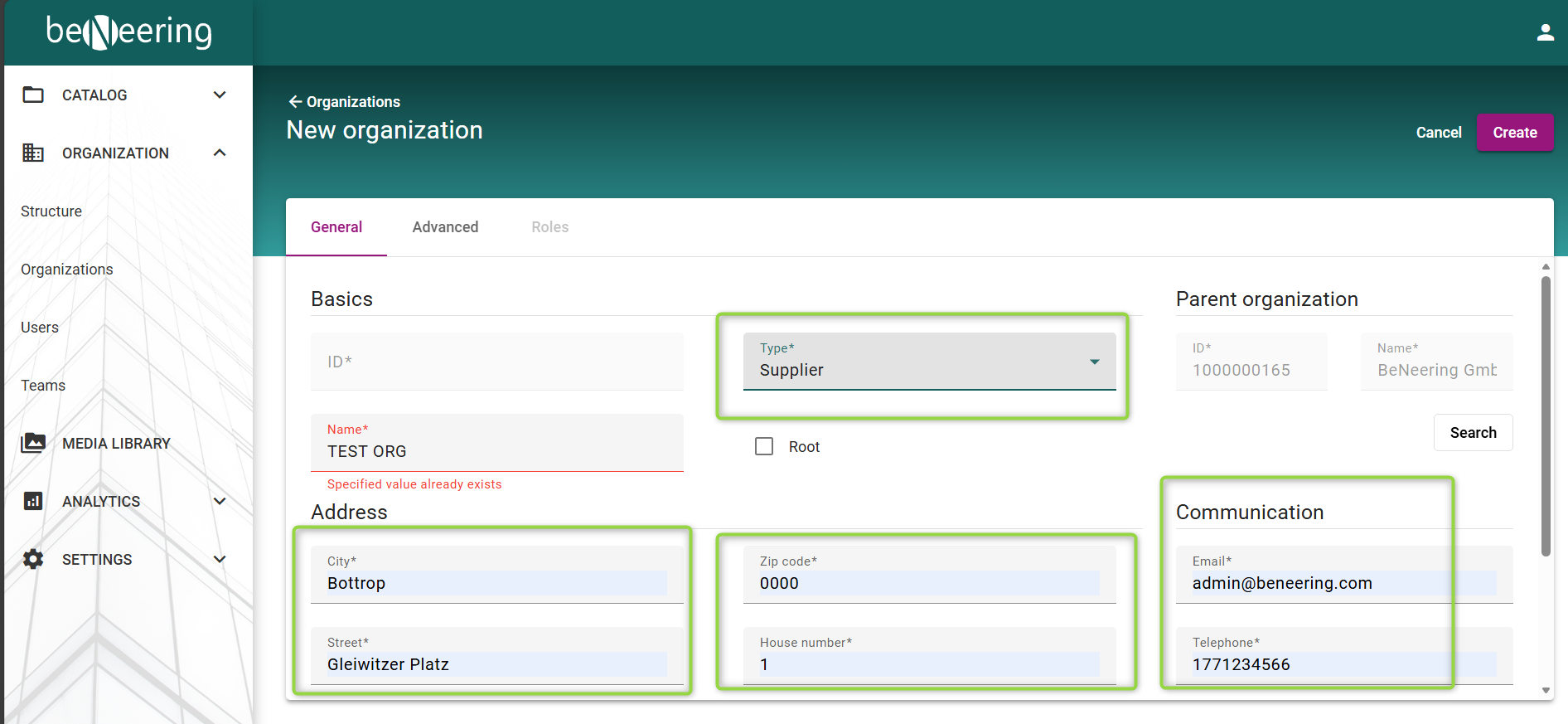
Do not forget that there is another page after this which also needs to be filled out
Here you need to select the Language and Currency as well as an Approval workflow from your Organization:
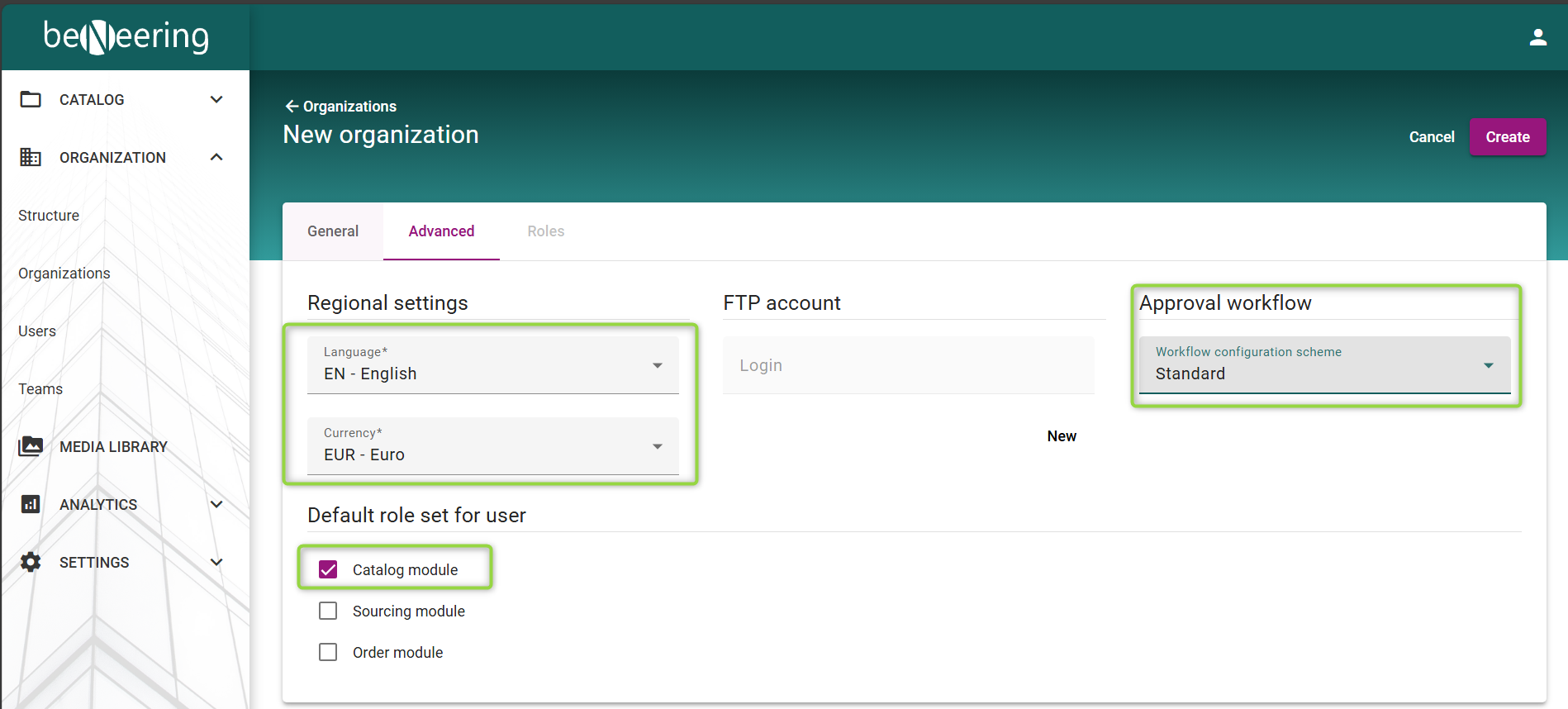
Most important is to select the role set for the Organization to assure that all the processes can work properly.
What are the role sets for the Organization?
|
Role set/module |
Explanation |
|---|---|
|
Catalog module |
All roles for an Organization which uploads catalog content (Standard) |
|
Sourcing Module |
All roles for an Organization which is working with (RFX) Sorucing Requests |
|
Order module |
All roles for an Organization which uses Service Entry Sheets (SES)* |
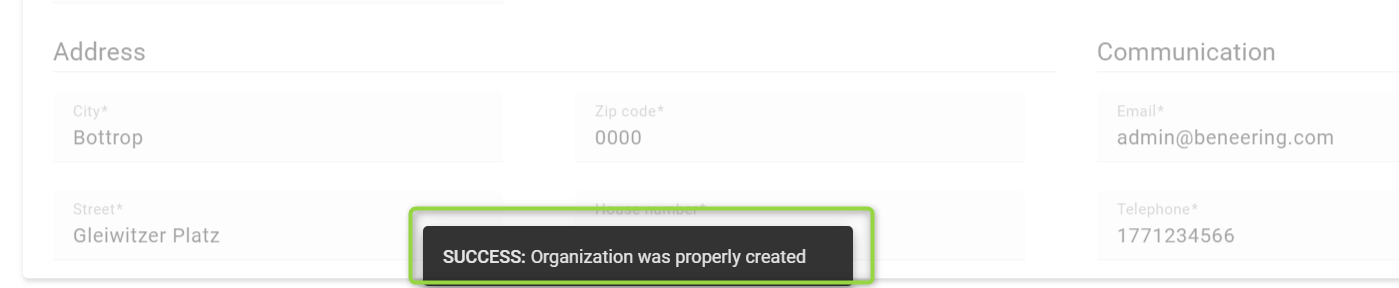
After everything was filled out correctly you will see the message that the organization has been created sucessfully:
Step 3: Send an Invitation to the new Organization contact:
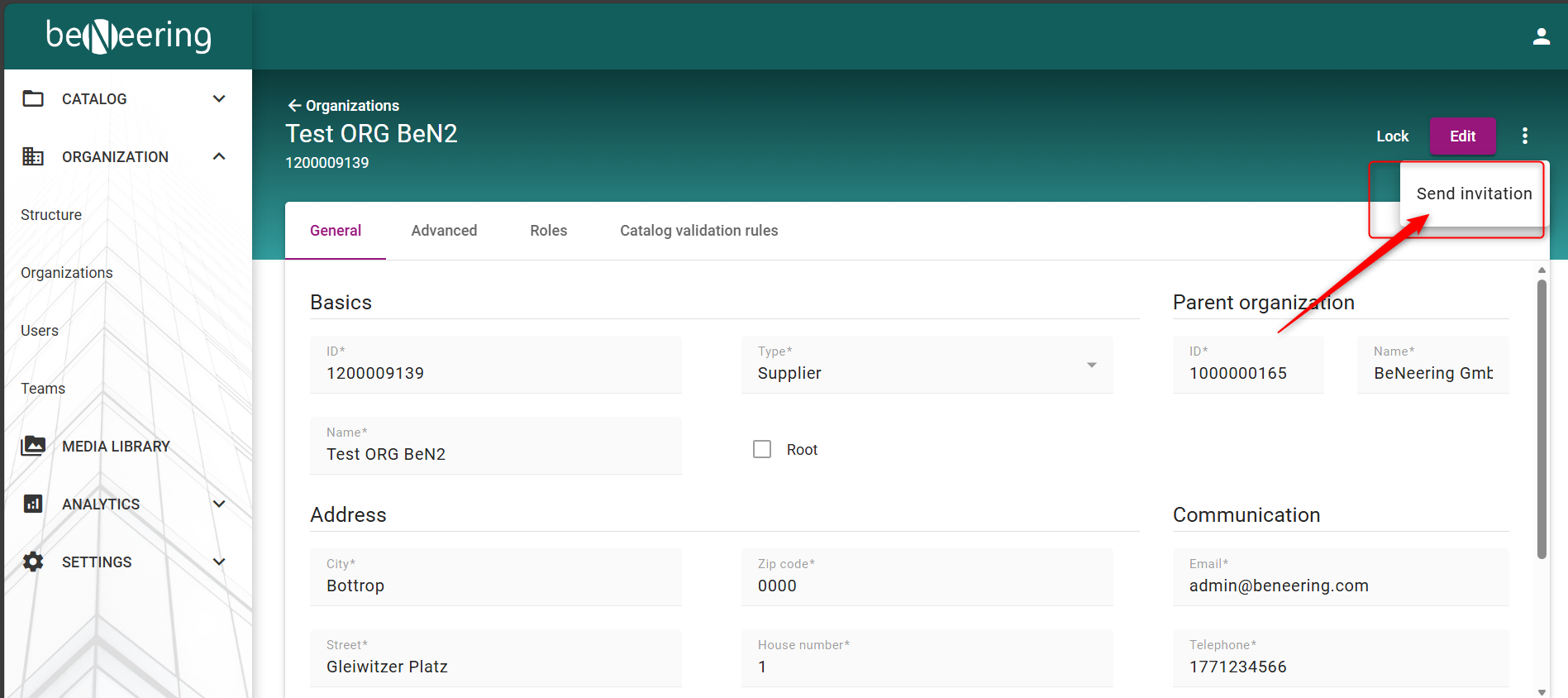
Now you are able to send an inviation to the new Organization created by selecting the “three dots” Button next to the Edit Button in the Top right corner and then select “Send Invitation” an invitation will then be send to the contact E-Mail address:
Important Notes:
Once the supplier organization is active, the supplier administrator must create users for his own organization. These users must be assigned a role too.
The Invitation mail sometimes is been send to the SPAM-Folder. The new Organization admin should check the SPAM-Folder for the Inviation Mail, too.
For setting up an Order module Organization there needs to be also a Set-Up for the SES Busniess Partner* Please see the documentation “SES Business Partners”