This document explains how to configure automatic user creation within the Amazon Marketplace by setting up user groups and verifying your organization’s domain.
👤 Customer-Side Configuration
🛠️ Step 1: Open Business Settings
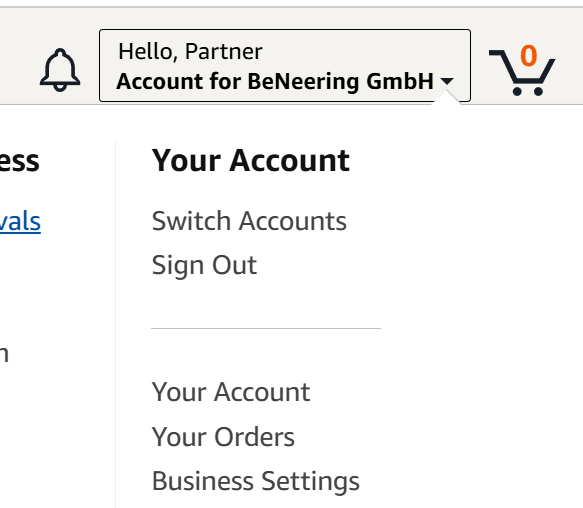
Go to Business Settings from your Amazon Business account.
👥 Step 2: Navigate to Groups
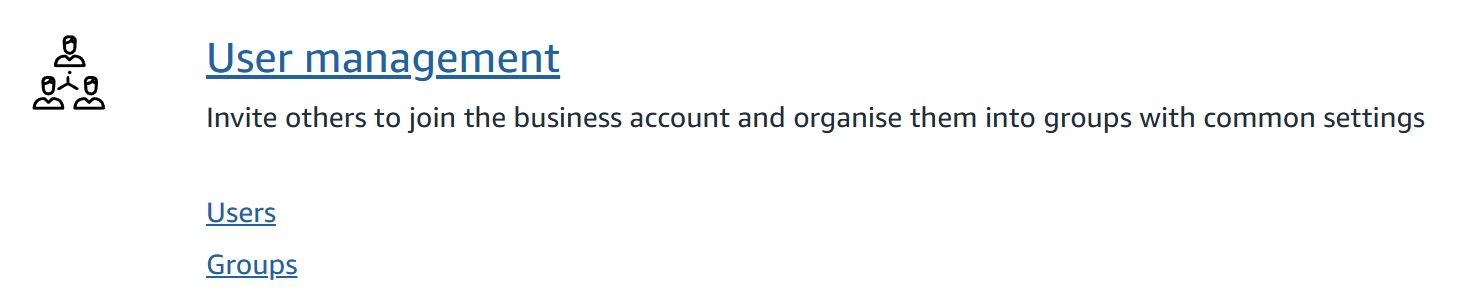
In the Business Settings menu, select Groups.
➕ Step 3: Create a New Group
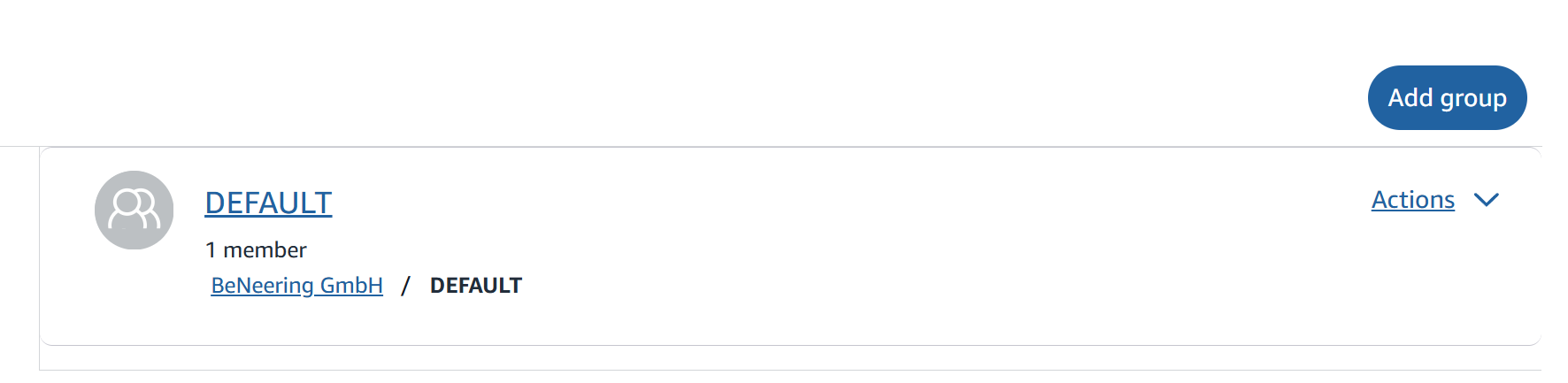
Click Add Group and enter a name aligned with your internal structure
(e.g., companyCode).
🌐 Domain Verification Setup
🏷️Step 4: Open Domain Verification
Return to Business Settings and select Domain Verification.
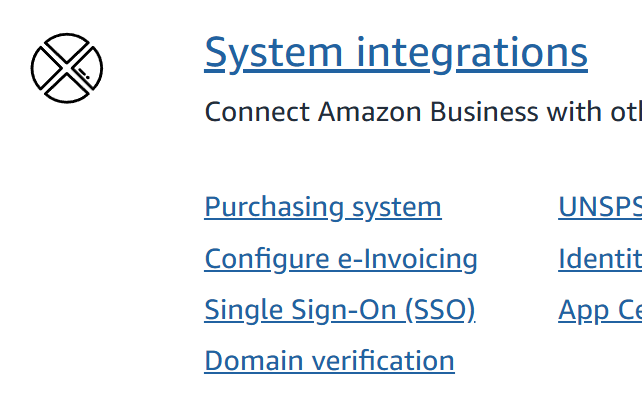
🌍 Step 5: Add Your Organization’s Domain
Click Add Domain and enter the domain used for your employees' email IDs.
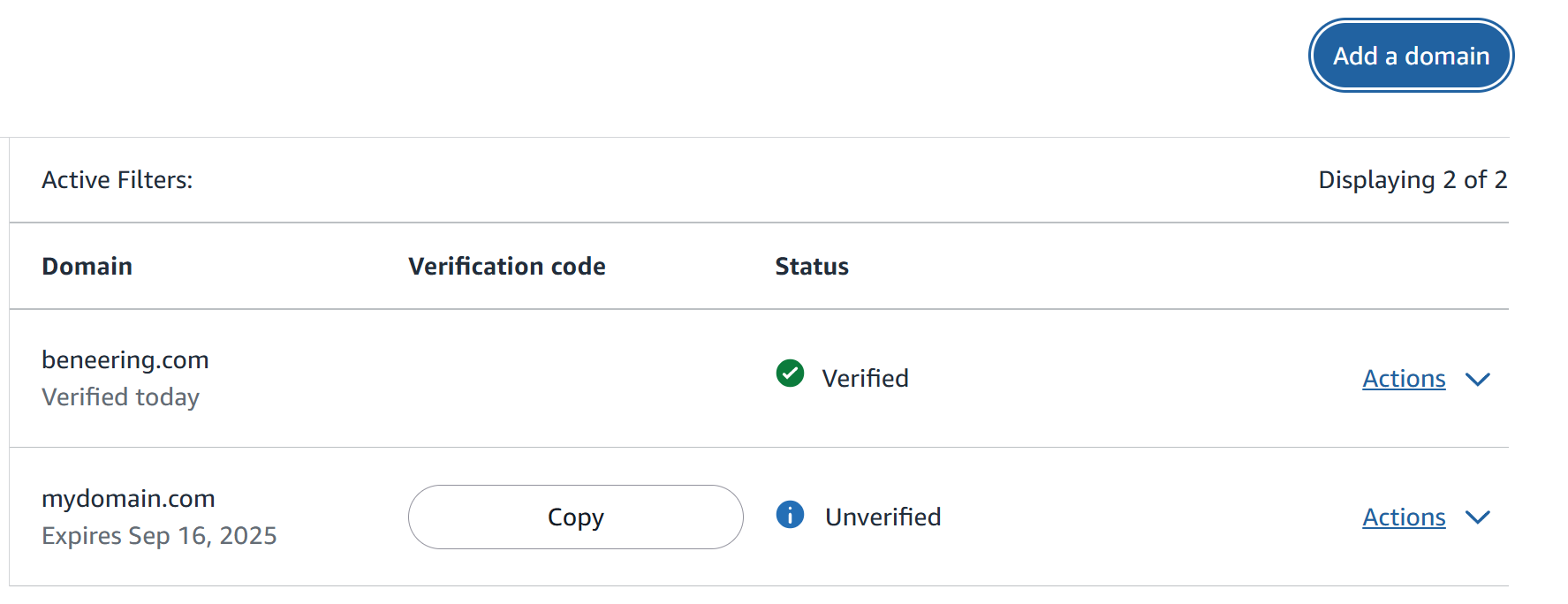
🔑 Step 6: Configure Domain Verification
Amazon generates a unique verification code.
You must add this code to your DNS TXT records, prefixed text with:

-
The exact procedure depends on your DNS service provider.
-
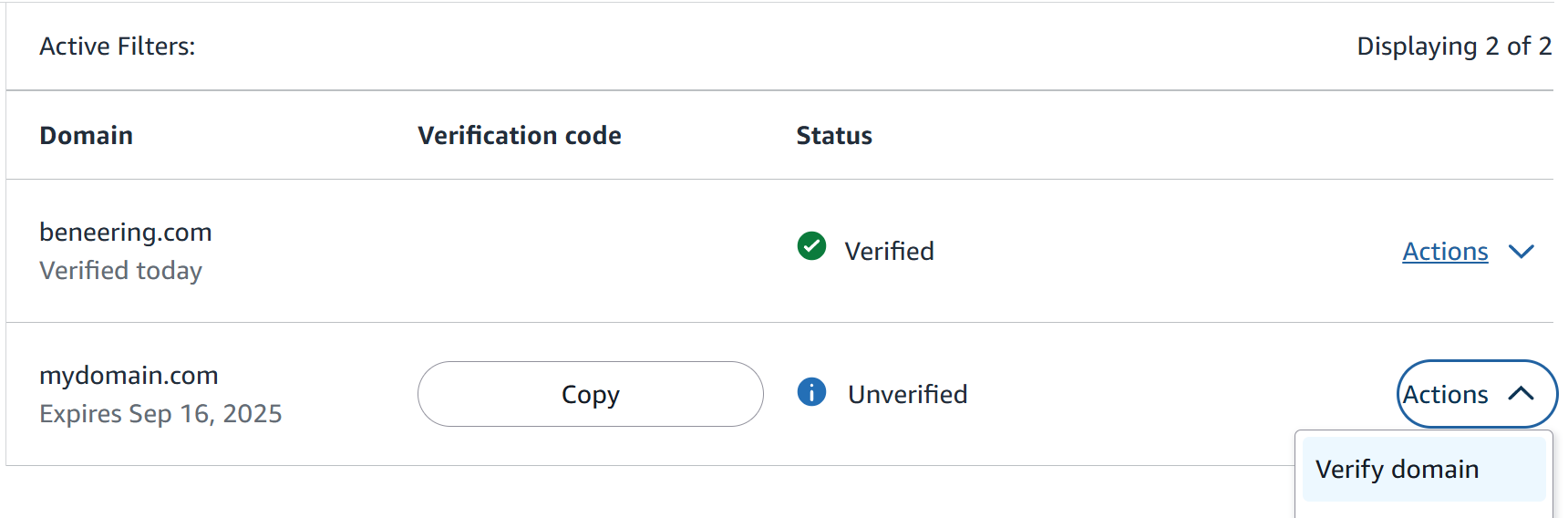
After adding the TXT record, go back to Amazon → Actions → Verify Domain.
🟩 Tip
Adding the TXT record correctly ensures Amazon can automatically validate your domain.
✔️ Step 7: Confirm Verification
If the setup is correct, your domain status will switch to Verified.
Verified domains appear at the top of the list.