Team

You will find the documentation of the old platform CatalogCloudServices at the end of this page. Following description is belonging to the new Buyer portal.
Team in new Buyer App
On this page you will learn how to create a new team and how to maintain an existing team.
A team provides a new way to group users and employees in BeNeering Cloud. A Team is used to support several functions across a group of users, by assigning them to a team.
Example use cases for Teams function:
a team can be used for the determination of responsibility in the approval workflow
from the approval Inbox, you can forwarde work items not only to single users, but also to whole teams
shopping lists can be shared accross teams
On BeNeering Cloud, we distinguish between an employee profile and a user profile. Be careful to understand the purpose of both profiles when assigning an employee or a user to a team.
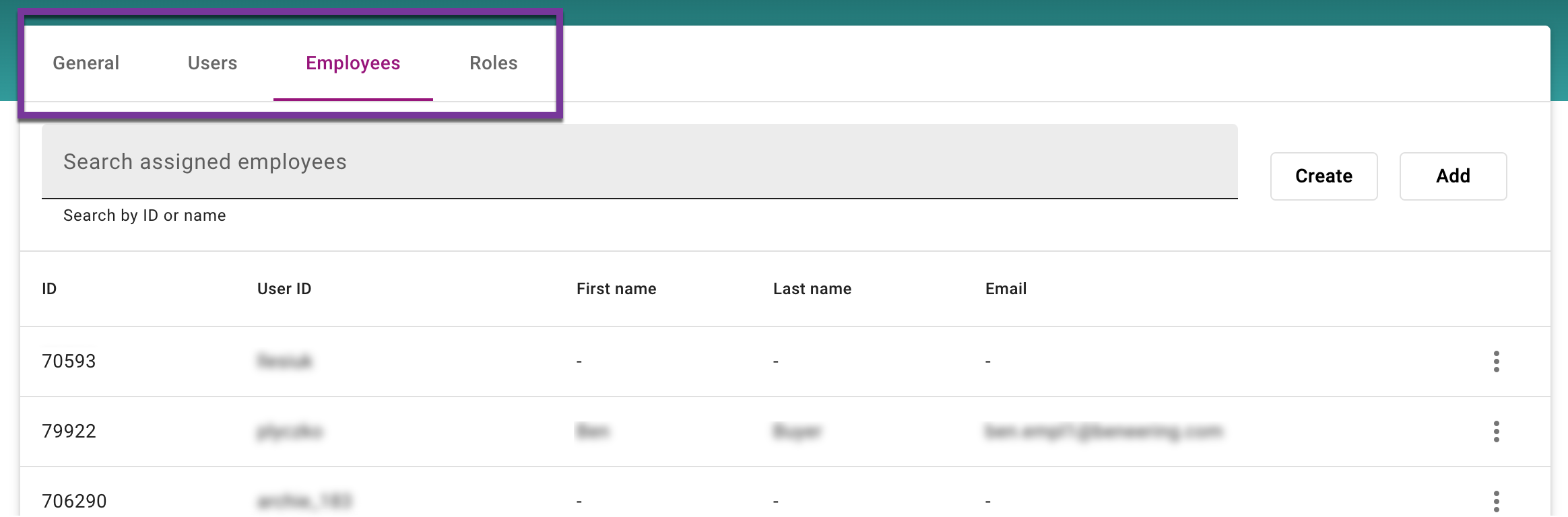
EMPLOYEE tab - represents typically an employee on customer/buyer side, i.e. the organization who is buying. An employee can logon to BeNeering Cloud only via Single-Sign-On. Employee management is done on customer side.
USER tab - represents external users, typically users on supplier side who are using BeNeering Cloud for Catalog Management, Sourcing and Order collaboration.
Step-by-step guide
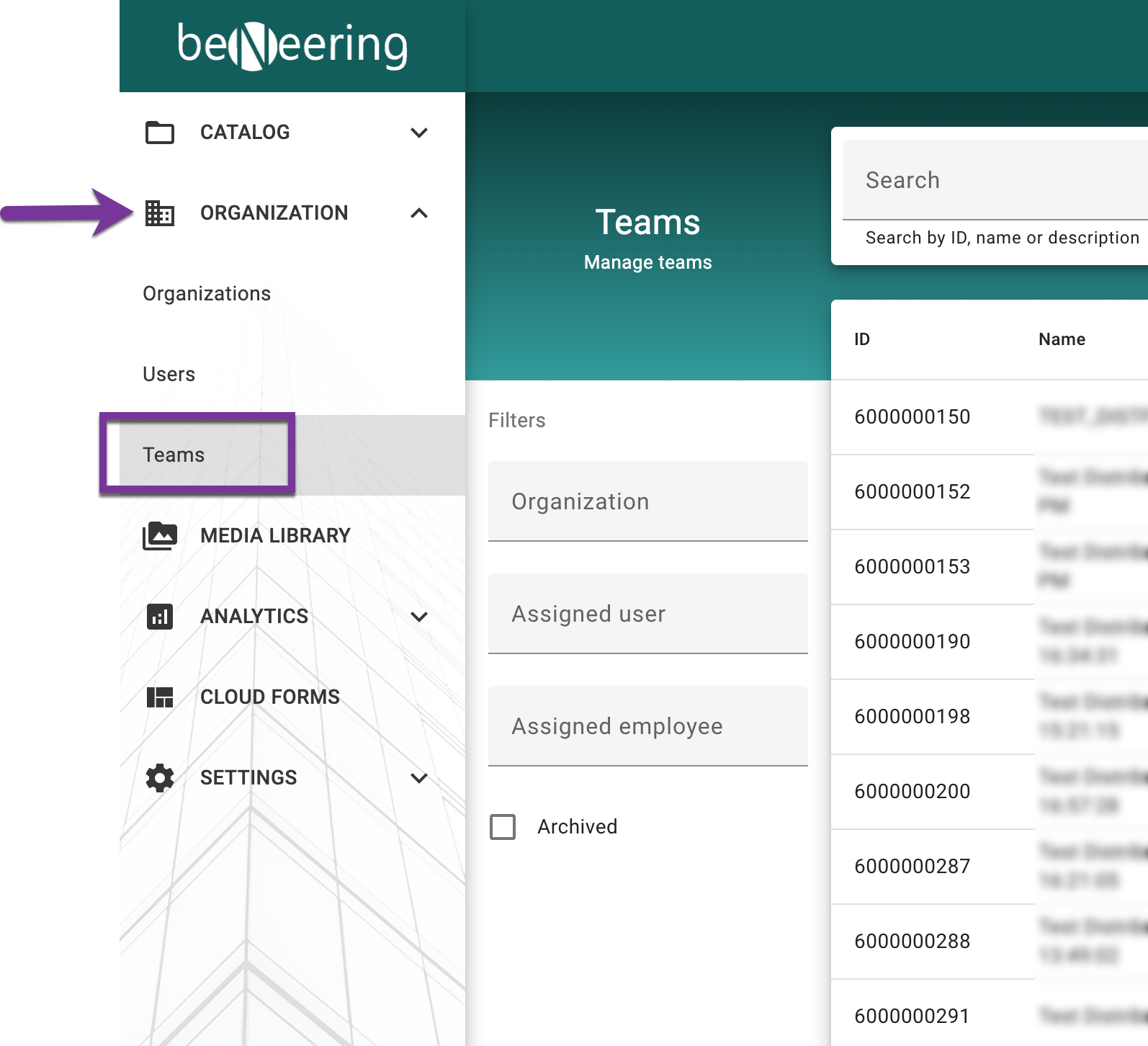
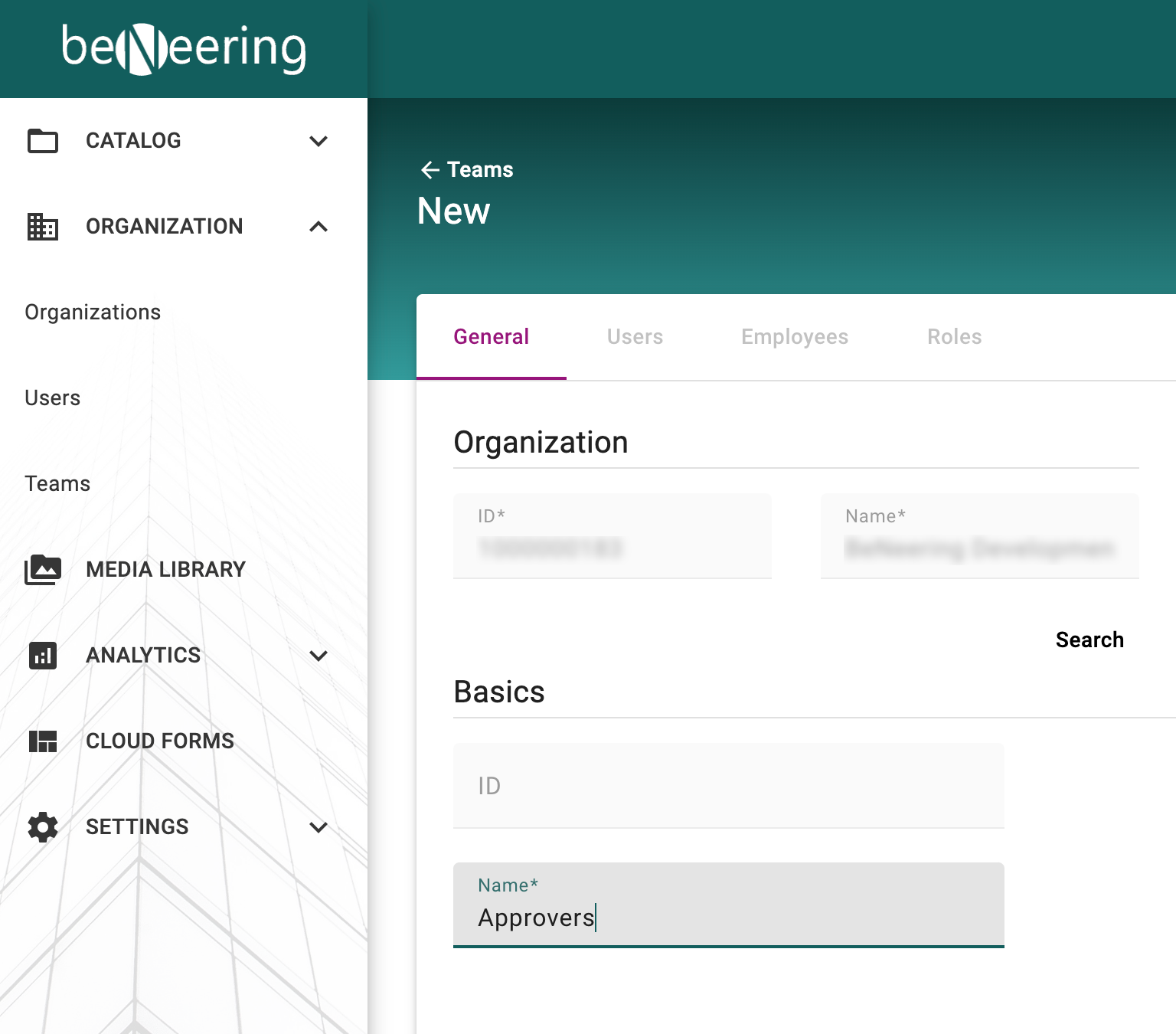
Teams are created by adding existing users by their username or employee name/id.
If an employee does not exist, the admin can create the employee from the wizard if he is given the necessary authorization.
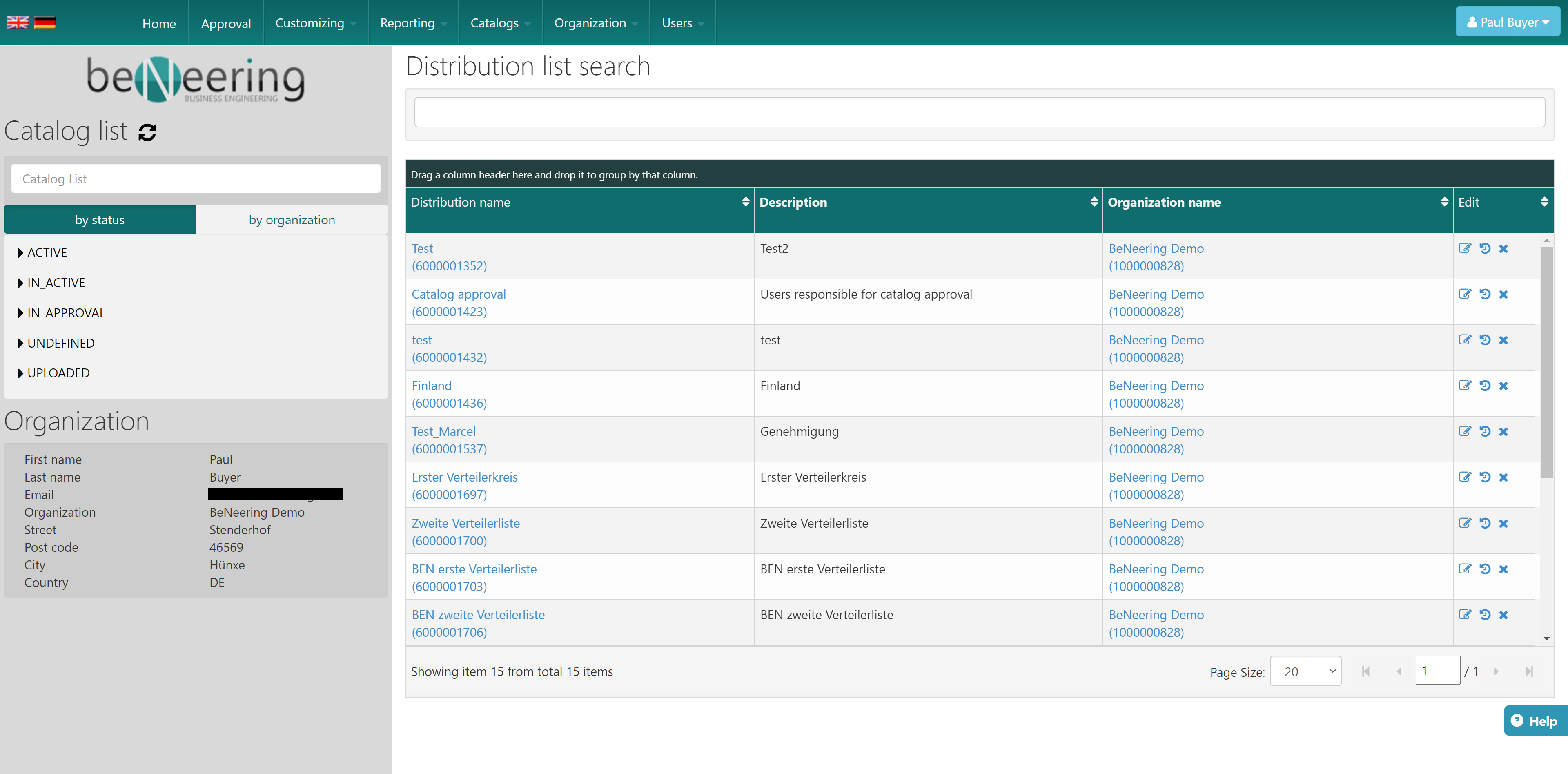
RETIRED - Distributionlist in CatalogCloudServices
Description
A Distributionlist is a group of CCS users, which can notified all together.
Step-by-step guide
Create a team
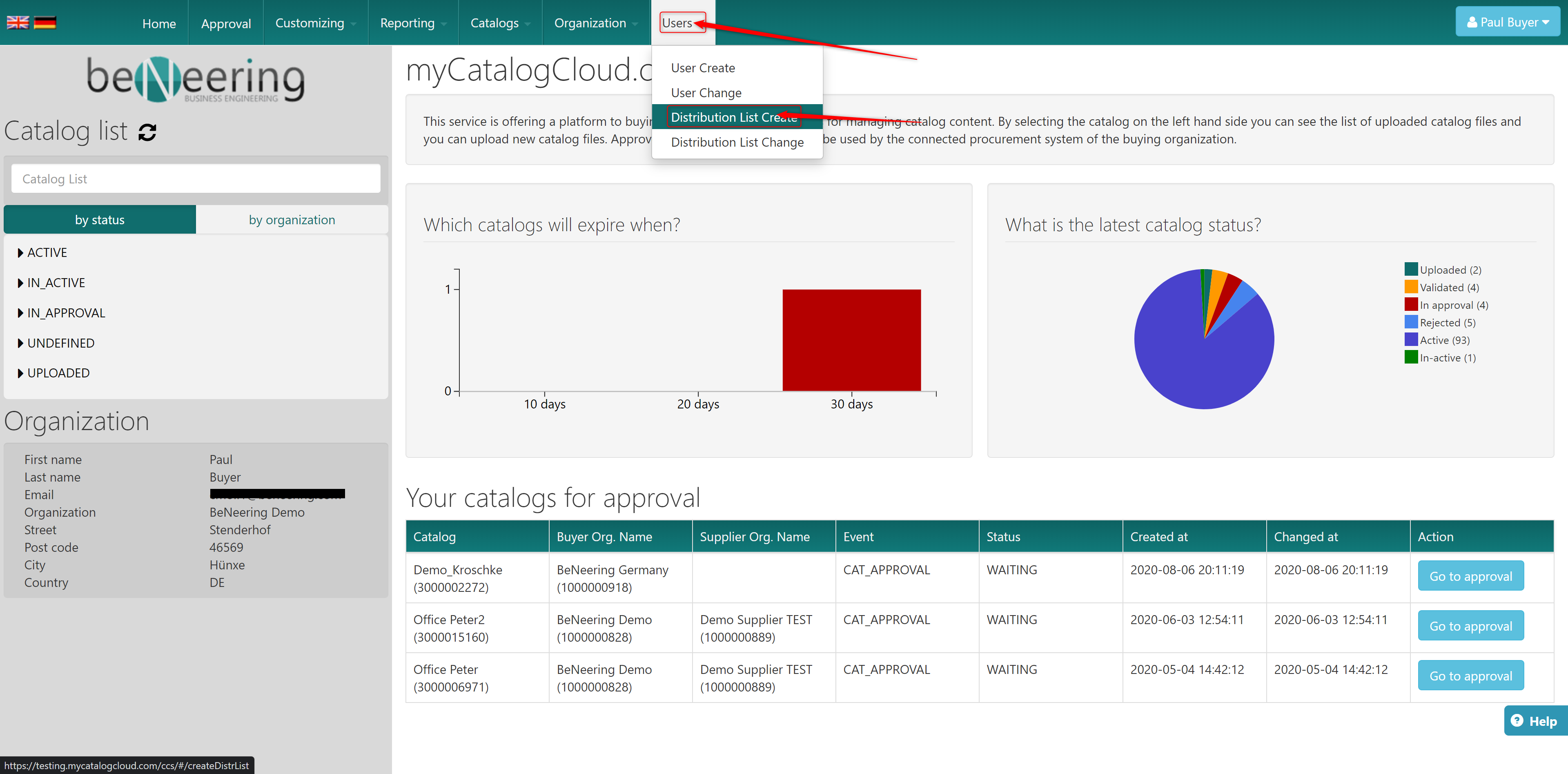
Click on the Tab "Users" and then on "Distribution List Create"
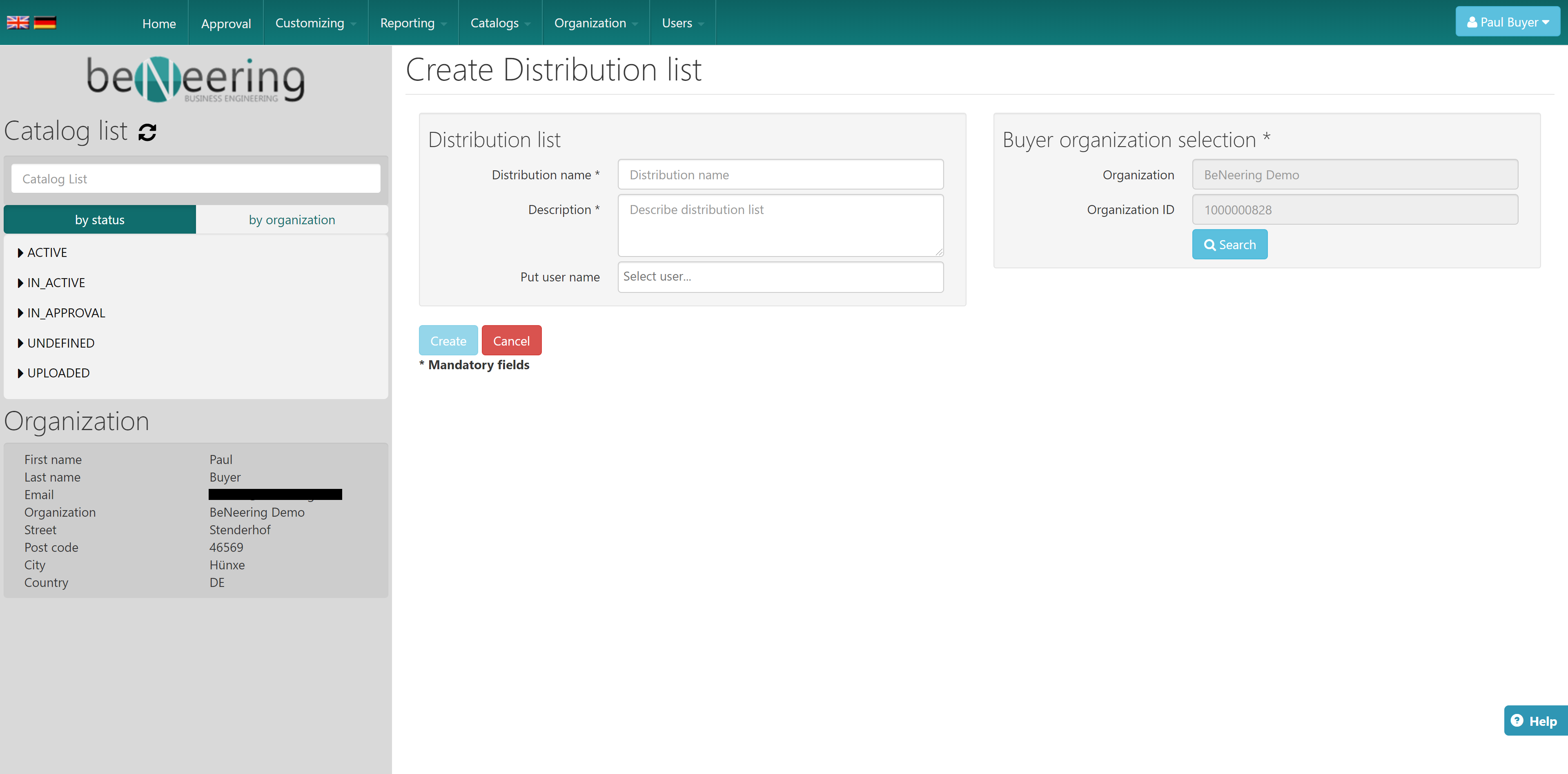
On the new screen you can fill out all mandatory fields for the new user group. Please keep in mind, that you can only see the users and organisations below you.
User change
Click on the tab "Users" and then on "Distribution List Change"
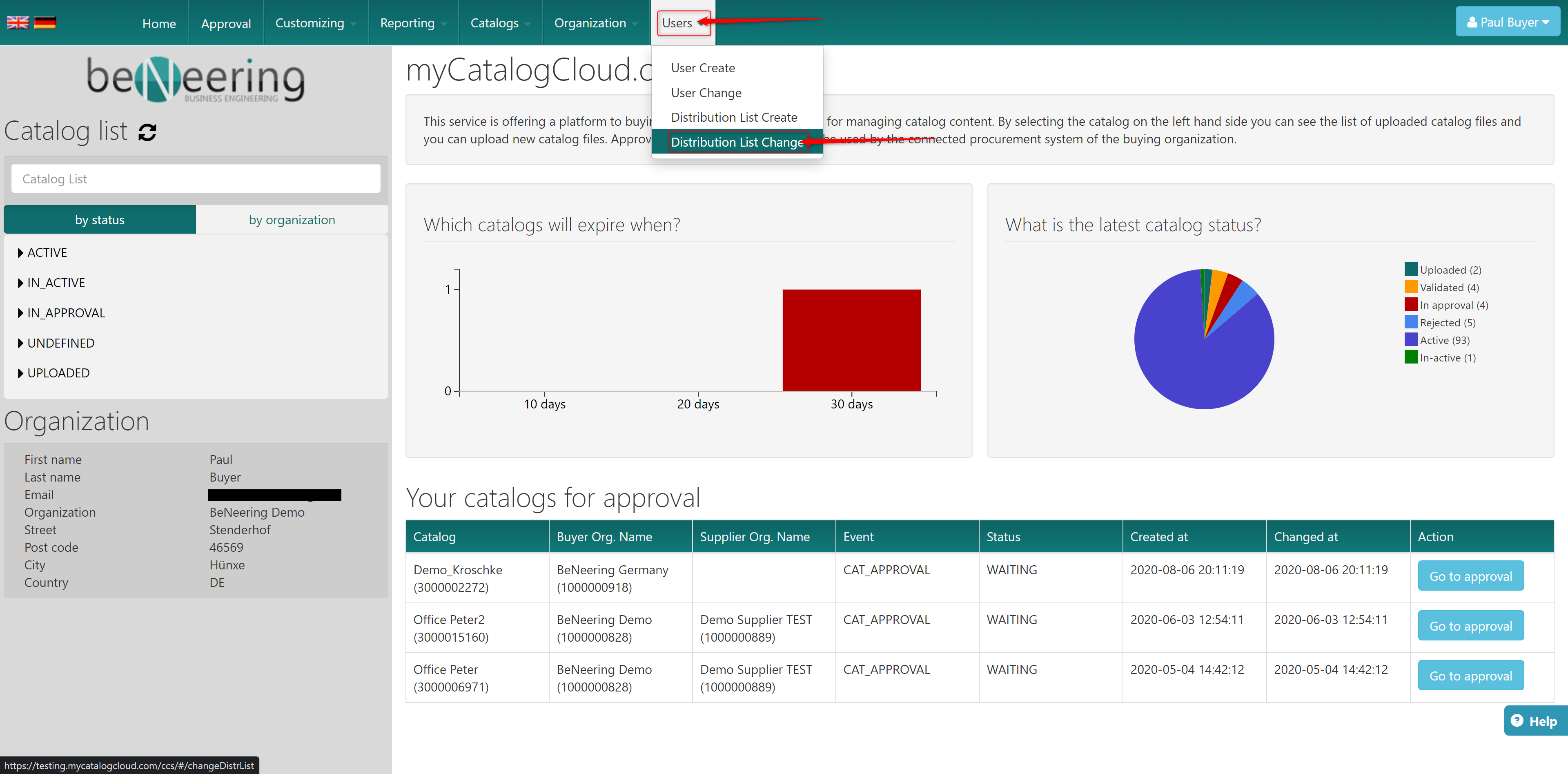
On the new screen you will find all users groups under your organisation. On this screen you can click on the right side on "Edit", "History" and "Remove".