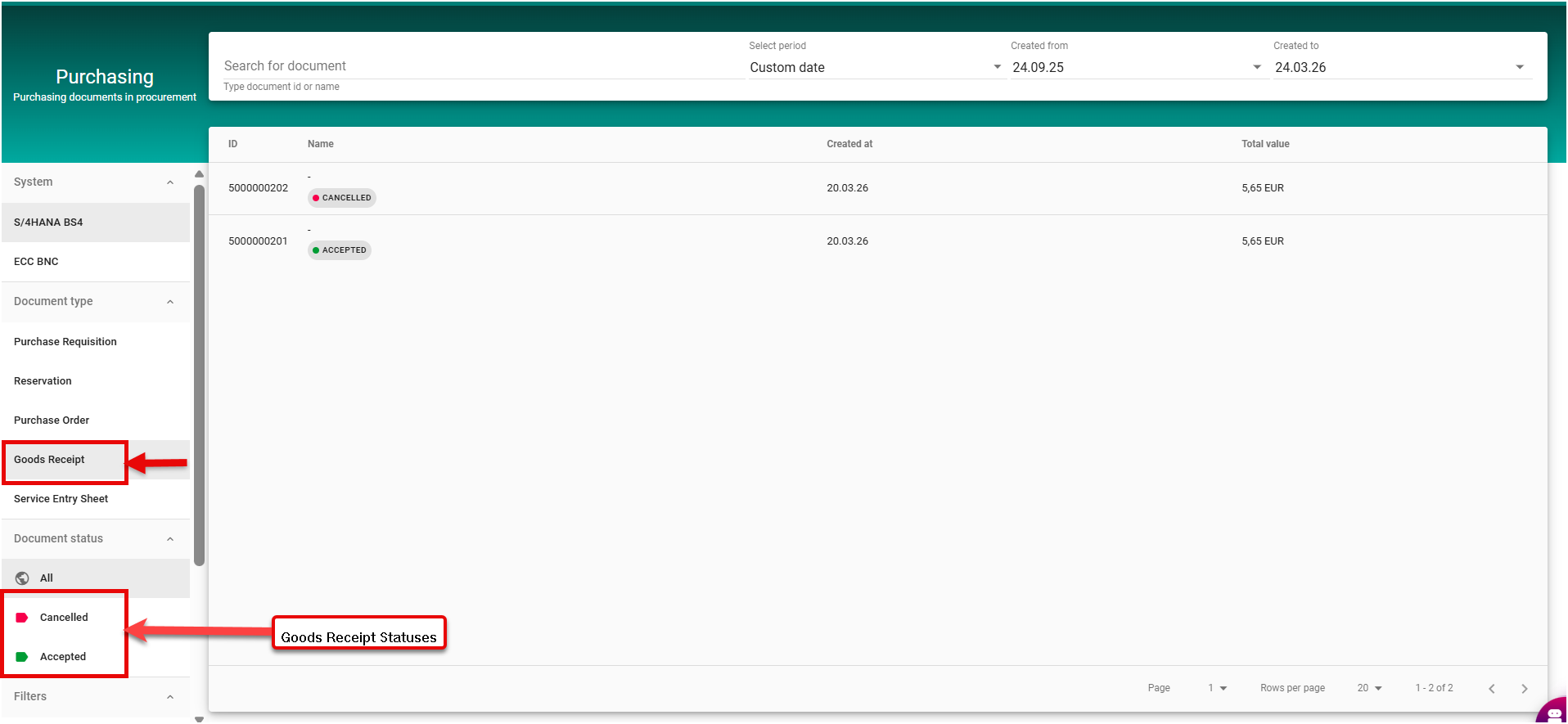
Goods Receipt (GR) is the step where the system is updated to confirm that ordered goods have been physically received.
Prerequisites:
-
This feature has been activated for your organization
-
Purchase Order item has been created in SAP
Mandatory GR Posting
-
In most cases, posting a GR is mandatory to allow invoice verification and payment.
-
Exception: If the SAP configuration specifies that GR confirmation is not mandatory, the user can skip posting the GR.
-
This exception must be defined in SAP MM by your organization’s configuration.
Book/Post Good Receipt
-
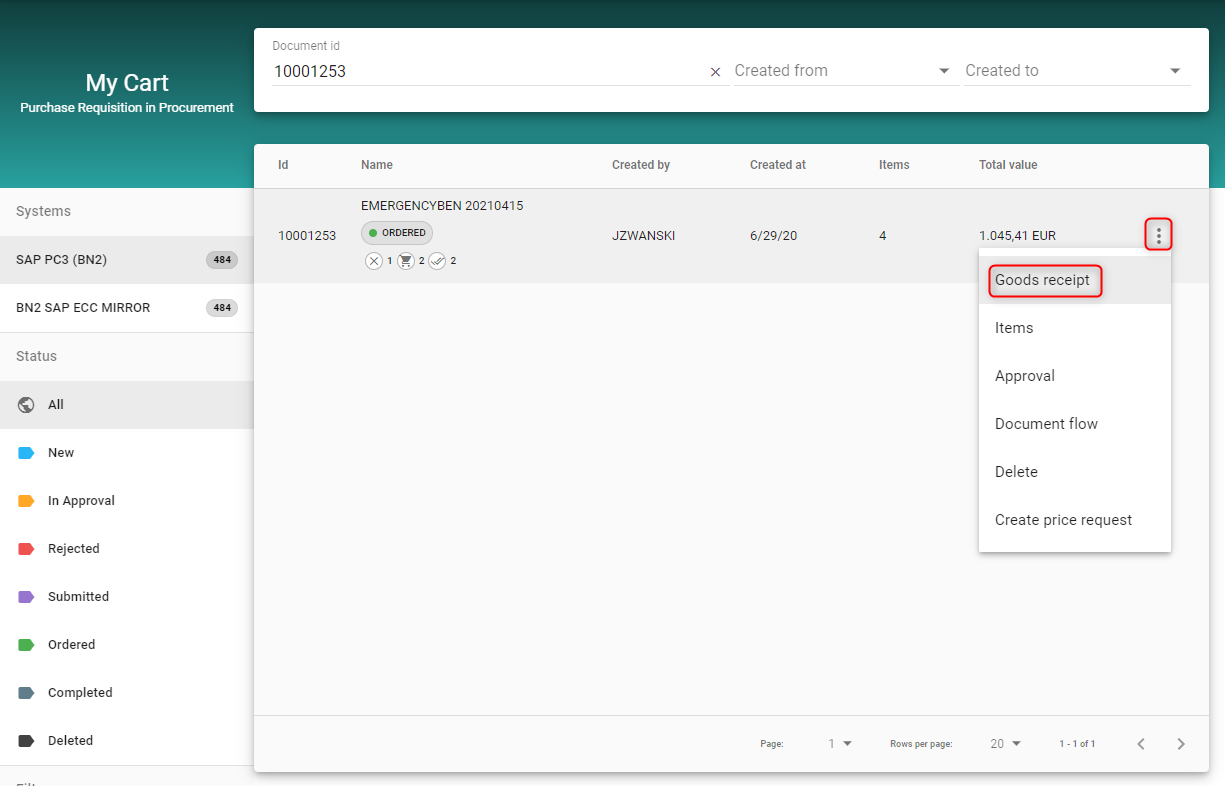
You can access a creation of a Goods Receipt via the MyCart list via the three points on the right side of a purchase requisition. There you will find the point "Goods receipt".
-
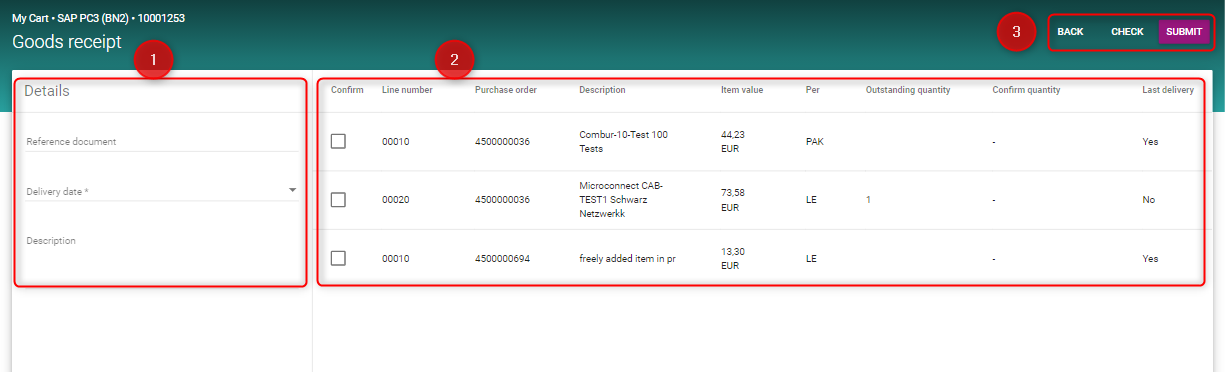
After clicking on this point a new screen will load.There you have a details area (1), a list of the purchase orders (2) and final buttons (3).
-
Please fill in as much information as you want to be detail the Goods Receipt. The fields with a * have to be filled.
|
Filter name |
Description |
|---|---|
|
Reference document |
ID or name of the reference document for this Goods receipt |
|
Delivery date |
When was the item delivered? |
|
Description |
Any further description of the Goods Receipt |
-
Please choose a purchase order from which the items were delivered. In the list of the purchase orders you have the following columns:
|
Column name |
Description |
|---|---|
|
Confirm |
Checkbox which purchase order you want to choose |
|
Line number |
Line number of the purchase order |
|
Purchase order |
ID of the purchase order |
|
Description |
Description of the item |
|
Item value |
Value of the item with price and currency |
|
Per |
Order unit of the item |
|
Outstanding quantity |
Outstanding quantity of the item |
|
Confirm quantity |
When checked the checkbox a quantity can be placed on the new line |
|
Last delivery |
Was the item delivered? |
-
After you checked the item which were delivered, you have three buttons to continue:
|
Button name |
Description |
|---|---|
|
BACK |
Back to the previous page |
|
CHECK |
Check button to send Goods Receipt to backend (The Goods Receipt will be validated against business rules) |
|
SUBMIT |
Submit button to accounting |
Goods Receipt Status
The screens for Goods Receipt list and their document detail screens will show the document status ‘Accepted’ and ‘Cancelled’ as applicable. This differentiation is also reflected in the document flow.