
Dieser Prozess erklärt, wie eine Quellklassifizierung einer Zielklassifizierung zugeordnet wird. Die Klassifizierungszuordnung wird in der Regel verwendet, wenn Kataloge unter Verwendung von Standardklassifizierungen wie ECLASS oder UNSPSC geliefert werden und an ein internes Klassifizierungssystem angepasst werden müssen.
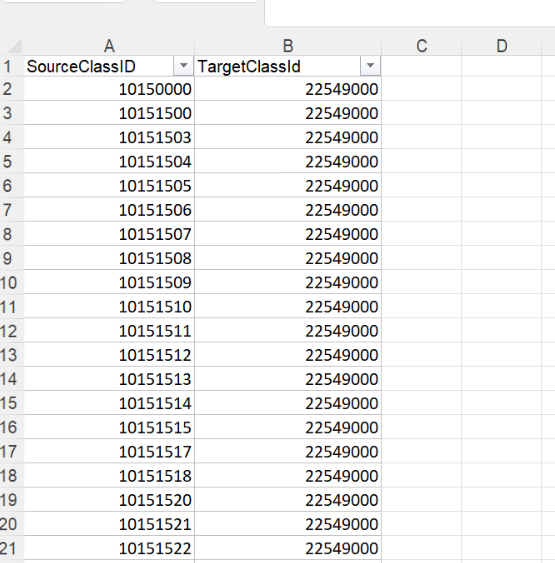
Klassifizierungszuordnungsvorlage
Um eine Zuordnung zu erstellen, müssen Sie zunächst die Vorlage „Klassifizierungszuordnung“ verwenden.
-
Laden Sie die Vorlage über den folgenden Link herunter:
Mapping Source to Target template.xlsx -
Behalten Sie die Zuordnung bei, indem Sie Zuordnungs-IDs zuweisen, die Quellklassifikationen mit Zielklassifikationen verknüpfen..
Hochladen der Klassifizierungszuordnung
Befolgen Sie die folgenden Schritte, um eine Zuordnung zwischen Quell- und Zielklassifizierung hochzuladen.
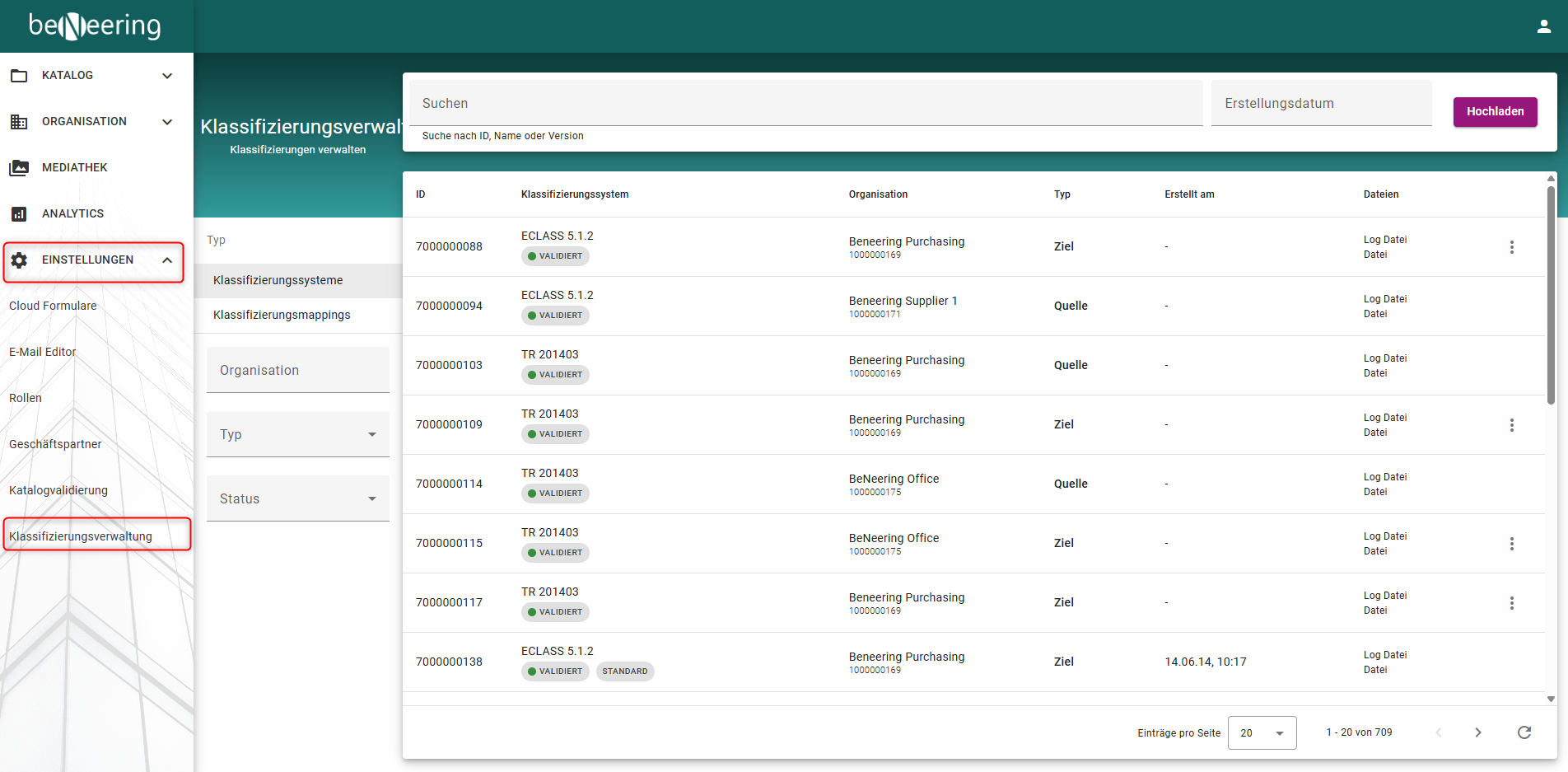
Schritt 1: Navigieren Sie zu „Klassifizierungsverwaltung“.
-
Öffnen Sie den Abschnitt „Einstellungen“ im Navigationsmenü auf der linken Seite.
-
Wählen Sie „Klassifizierungsverwaltung“ aus dem Dropdown-Menü aus.
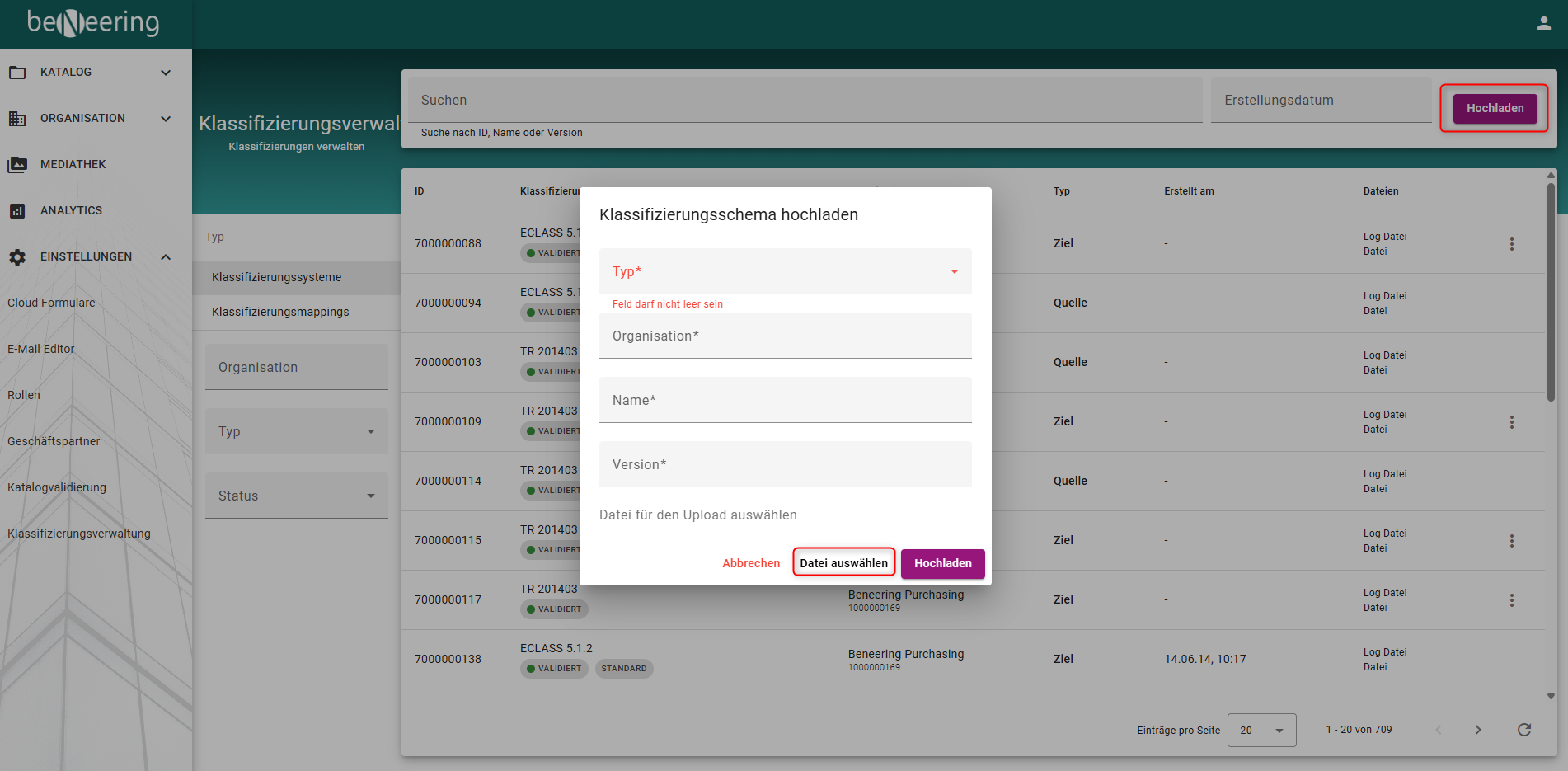
Schritt 2: Klassifizierungssystem hochladen (Ziel)
-
Öffnen Sie die Registerkarte „Klassifizierungssysteme“.
-
Wählen Sie oben rechts „Hochladen“ aus.
-
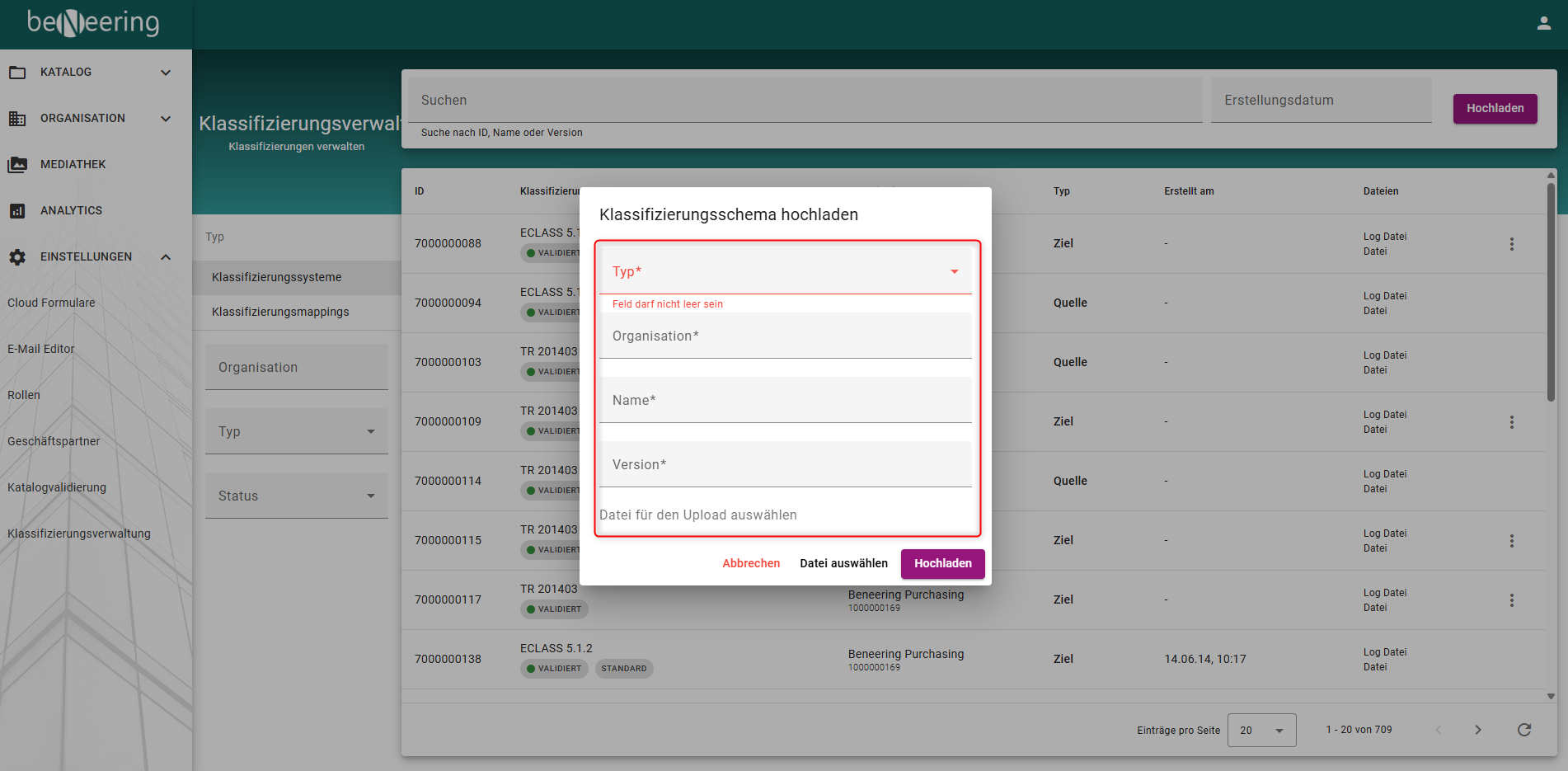
Geben Sie die erforderlichen Informationen ein:
-
Zielorganisation
-
Name der Datei
-
Klassifizierungstyp
-
Klassifizierungsversion
-
-
Wählen Sie die Klassifizierungsdatei aus.
-
Wählen Sie „Hochladen“, um den Vorgang abzuschließen.
Schritt 3: Klassifizierungszuordnung hochladen
-
Öffnen Sie die Registerkarte „Klassifizierungszuordnungen“.
Wählen Sie die Zielorganisation aus.
Geben Sie einen Namen für den Upload ein.
Wählen Sie den geeigneten Zuordnungstyp aus.
Wählen Sie die Quellklassifizierung und die Zielklassifizierung aus.
Wählen Sie die vorbereitete Zuordnungsdatei aus.
Klicken Sie auf „Hochladen“ und warten Sie, bis die Dateiüberprüfung abgeschlossen ist.
Validierung und Fertigstellung
Sobald der Upload abgeschlossen und erfolgreich validiert ist, steht die Klassifizierungszuordnung für die Katalogverarbeitung und Klassifizierungsanpassung zur Verfügung.