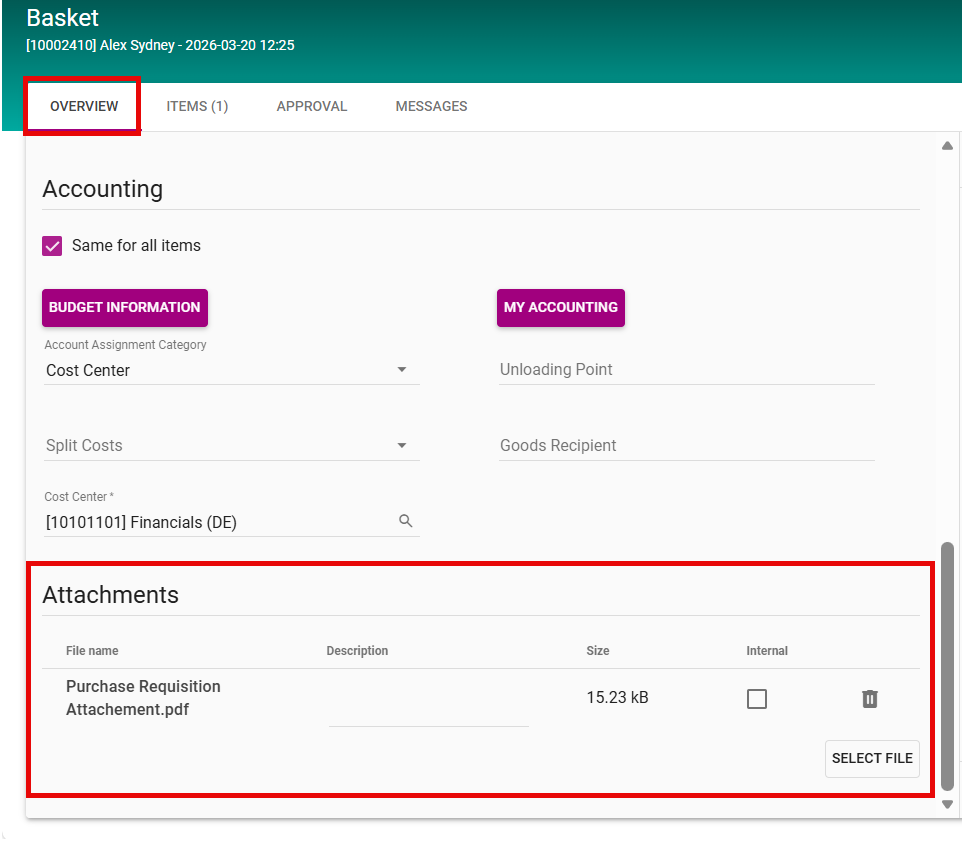
When a user adds an attachment to a message related to a Purchase Requisition, the system allows this attachment to be transferred to the Basket when the Purchase Requisition is in edit mode.
Once transferred, the attachment can be placed at the header level of the Purchase Requisition, making it visible and accessible for the entire document rather than being limited to a specific line item.
How to Transfer the Attachement from Message to the Basket.
Prerequisite
-
The message/conversation must contain at least one attachment.
How to transfer the Attachement from Message to Basket Header
-
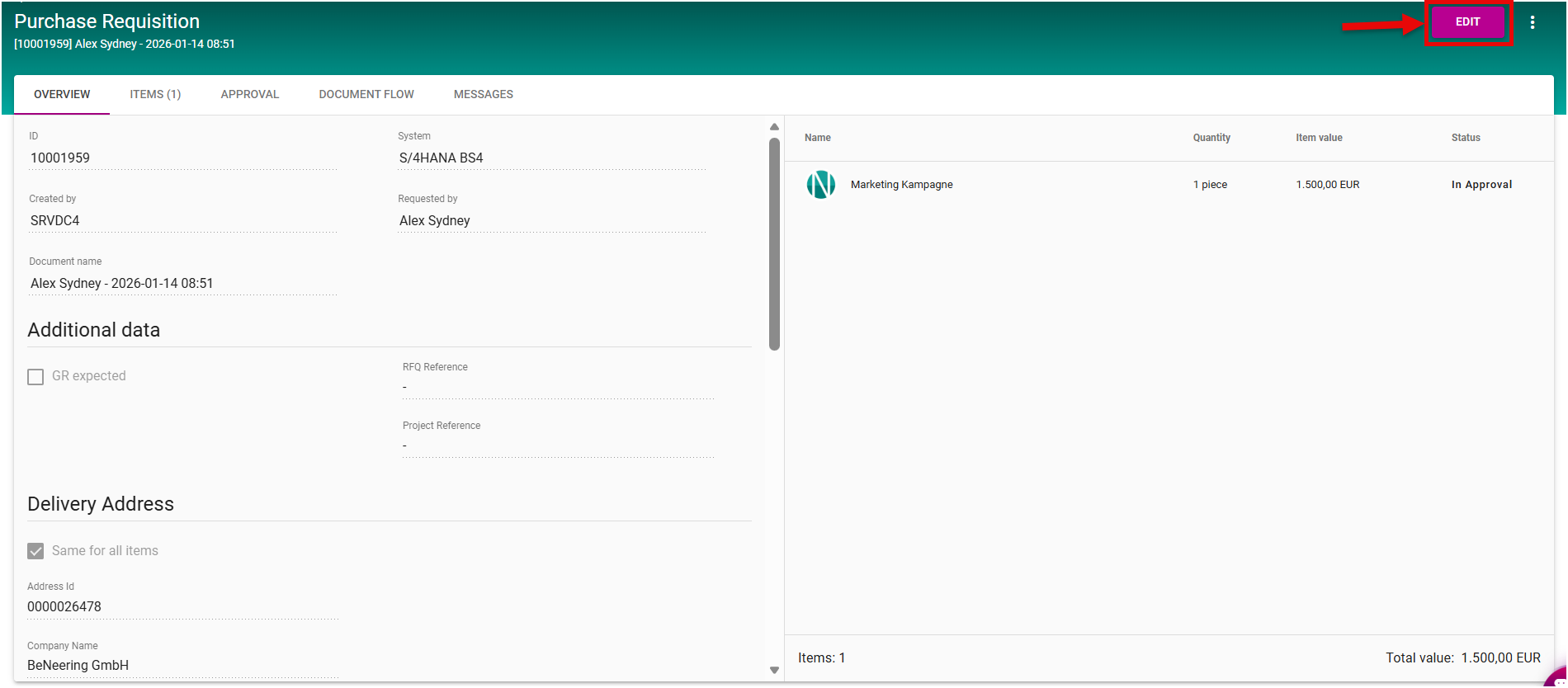
Open your Purchase Requisition.
-
Switch to Edit mode to access the Basket.
-
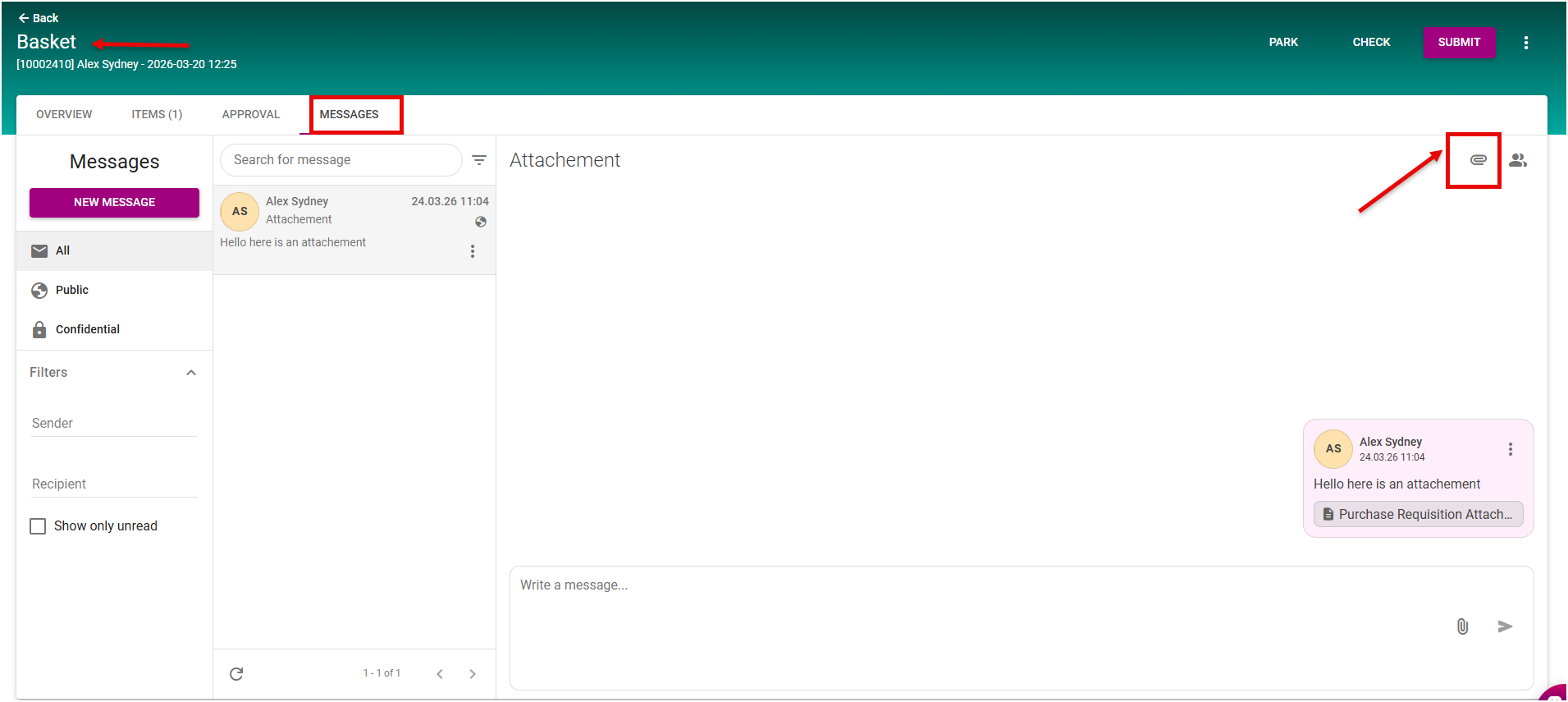
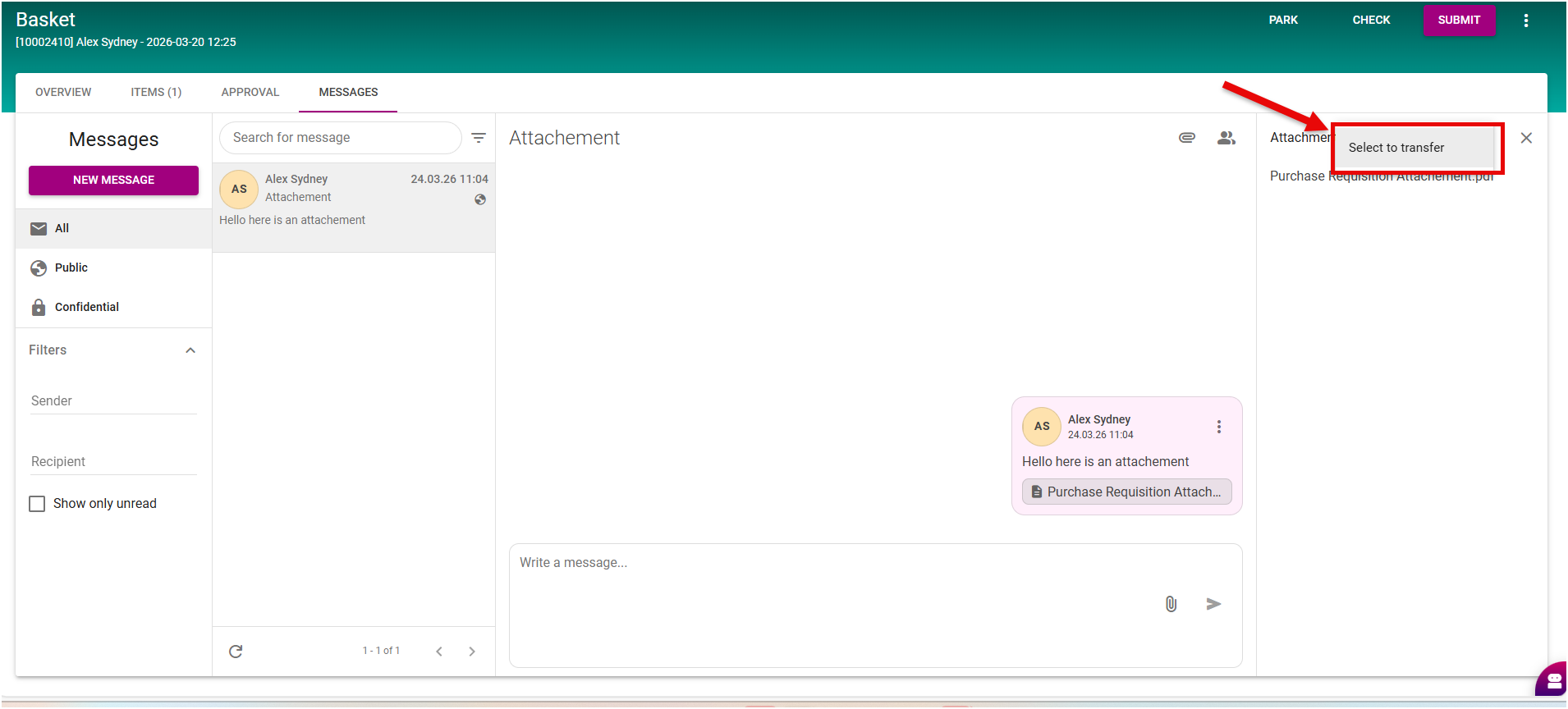
In the Basket, go to the Messages tab and open the relevant message.
-
Click the attachment icon in the corner of the message to display all attachments.
-
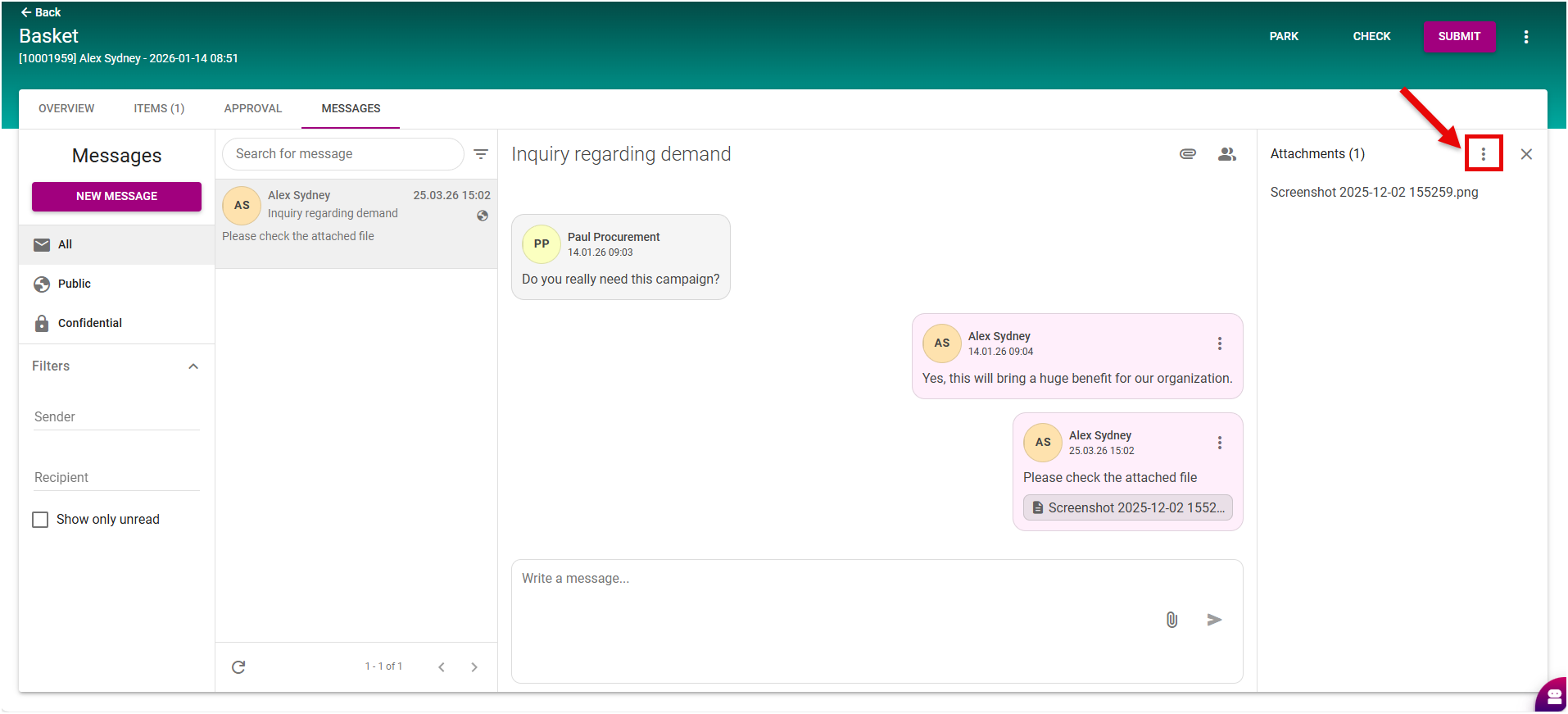
Click the three-dot menu next to the attachment you want to transfer.
-
Select Transfer to move the attachment to the PR Header.
-
After a successful transfer, you will be redirected automatically to the Basket Header/Overview, and the transferred attachment(s) will appear in the Attachment section.