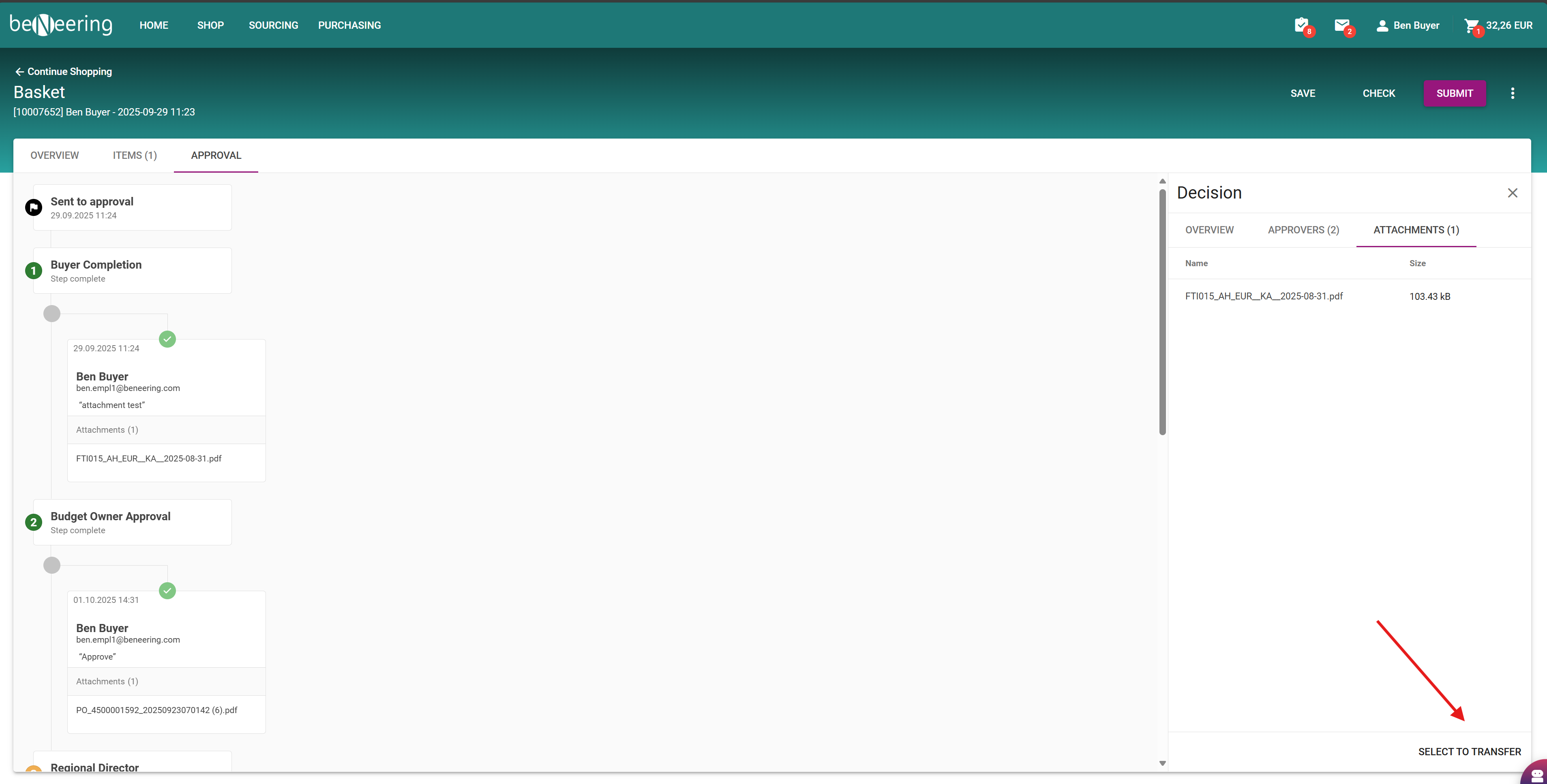
Process: Add Attachments During Approval or Rejection
Overview
This new functionality allows Buyers and Approvers in the BeNeering Central Workflow (Approval Inbox) to add attachments while approving or rejecting a work item.
Attachments added at this stage can, according to customer-specific logic, be transferred to SAP and automatically linked with the corresponding Purchase Requisition (PR) in SAP.
This feature enhances traceability and ensures that any additional documents (such as justifications, approvals, or supporting evidence) are stored together with the PR in SAP.
Who Can Use This Functionality
-
Buyers
-
Approvers
who have access to the Approval Inbox (BeNeering Central Workflow)
Step-by-Step Instructions
Step 1: Access the Approval Inbox
-
Navigate to the Approval Inbox (BeNeering Central Workflow) from your home screen.
-
Select the work item awaiting your approval or rejection.
Step 2: Open the Work Item Details
-
Click on the work item to open its details view.
-
Review all relevant information such as:
-
Purchase Requisition number
-
Description
-
Requestor
-
Items and values
-
Step 3: Add an Attachment
-
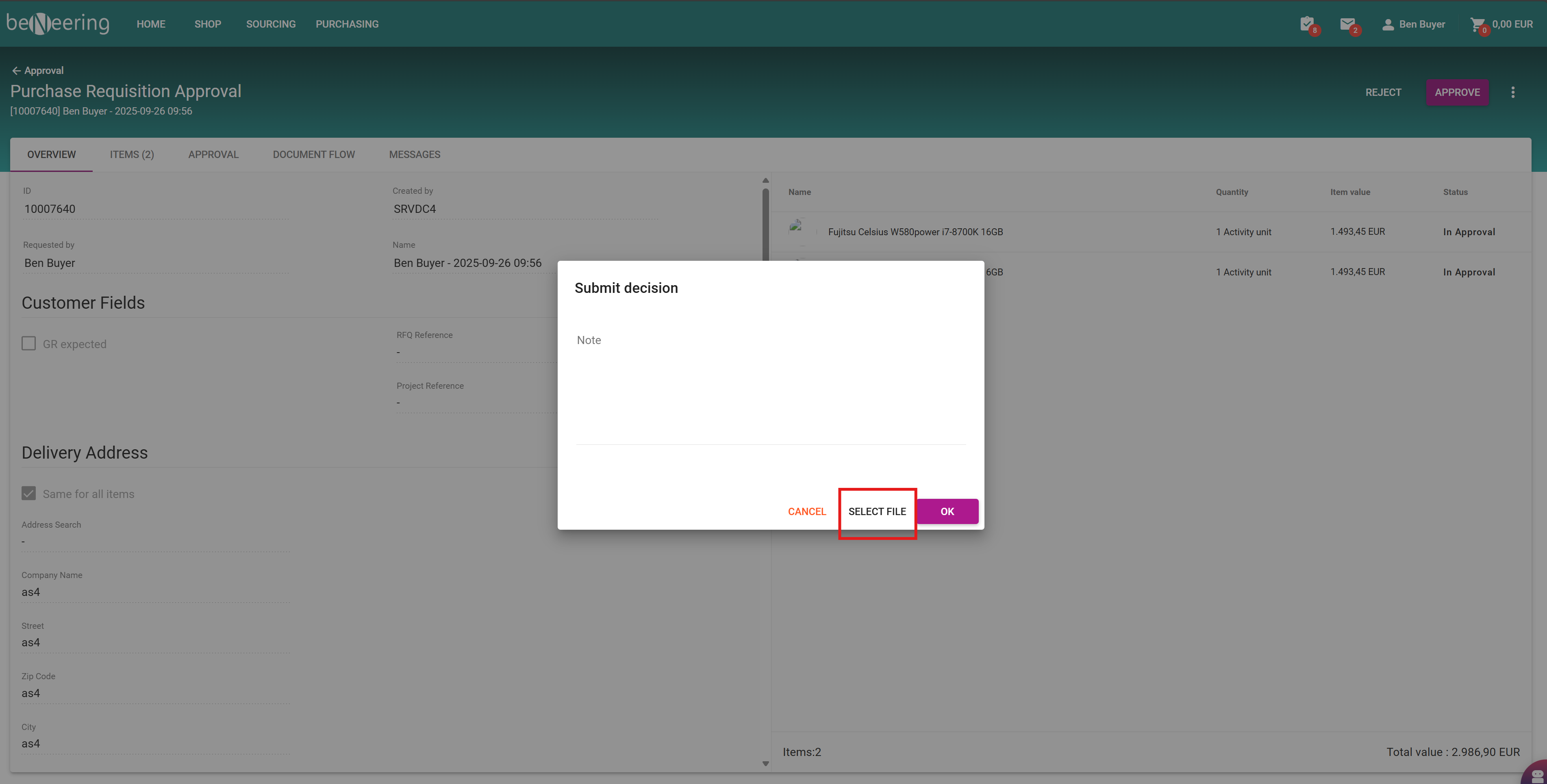
Scroll to the Attachments section within the approval dialog.
-
Click Add Attachment (📎 icon or “+ Add” button).
-
Select one or more files from your local drive to upload.
-
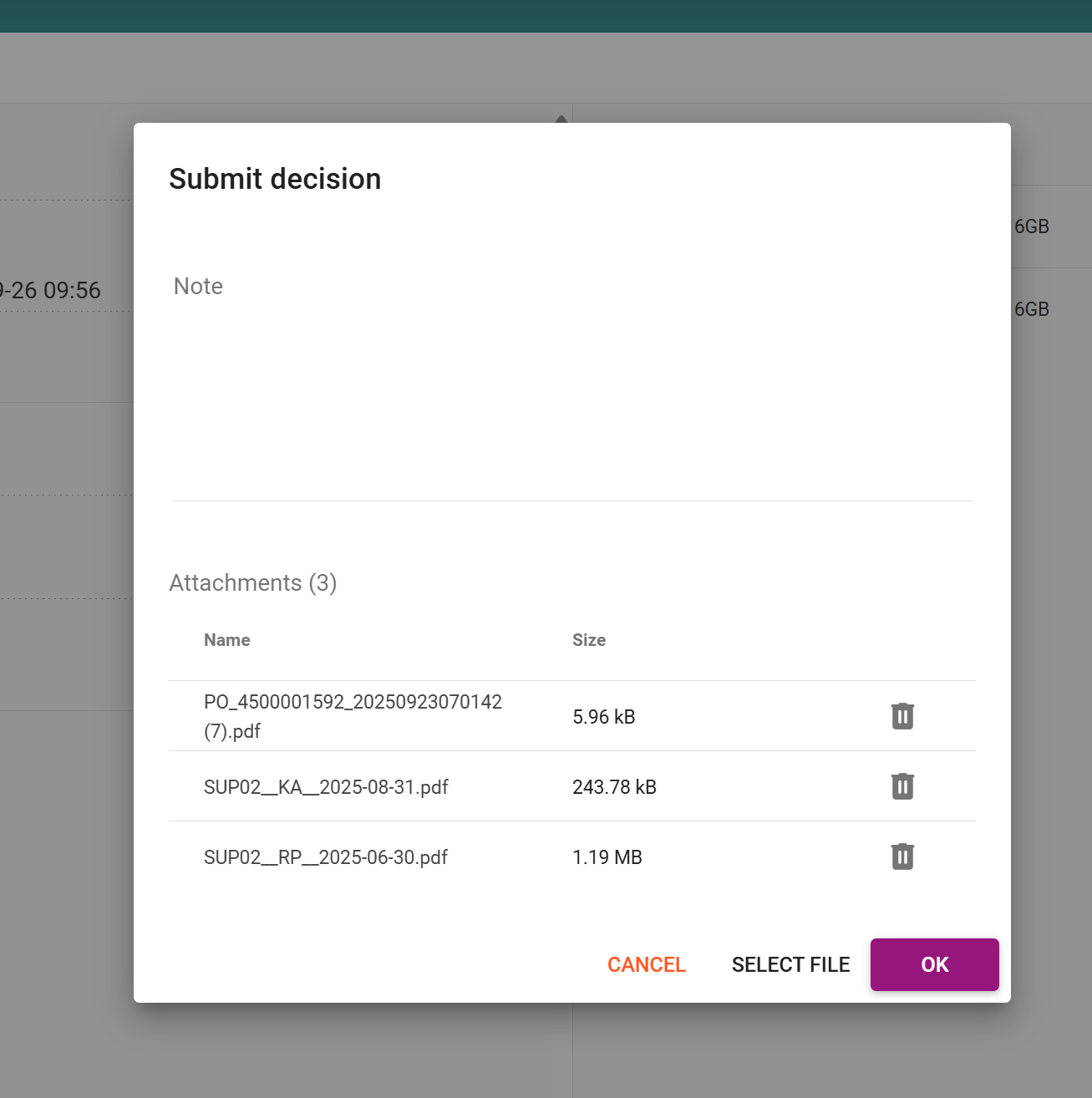
The uploaded files will appear in the attachment list below.
|
Field/Action |
Description |
|---|---|
|
Add Attachment |
Opens file browser to upload documents |
|
File List |
Displays all attached files with name and size |
|
Remove (🗑️) |
Deletes an attachment before submission |
Note : You can add multiple attachments (size not exceeding 5 MB / file and 20 MB/Purchase request)
Step 4: Approve or Reject the Work Item
-
Once the attachment(s) are added, select the appropriate action:
-
Approve
-
Reject
-
-
Optionally, enter a comment in the text field explaining your decision.
-
Click Submit to finalize your action.
Step 5: Attachment Transfer to SAP
-
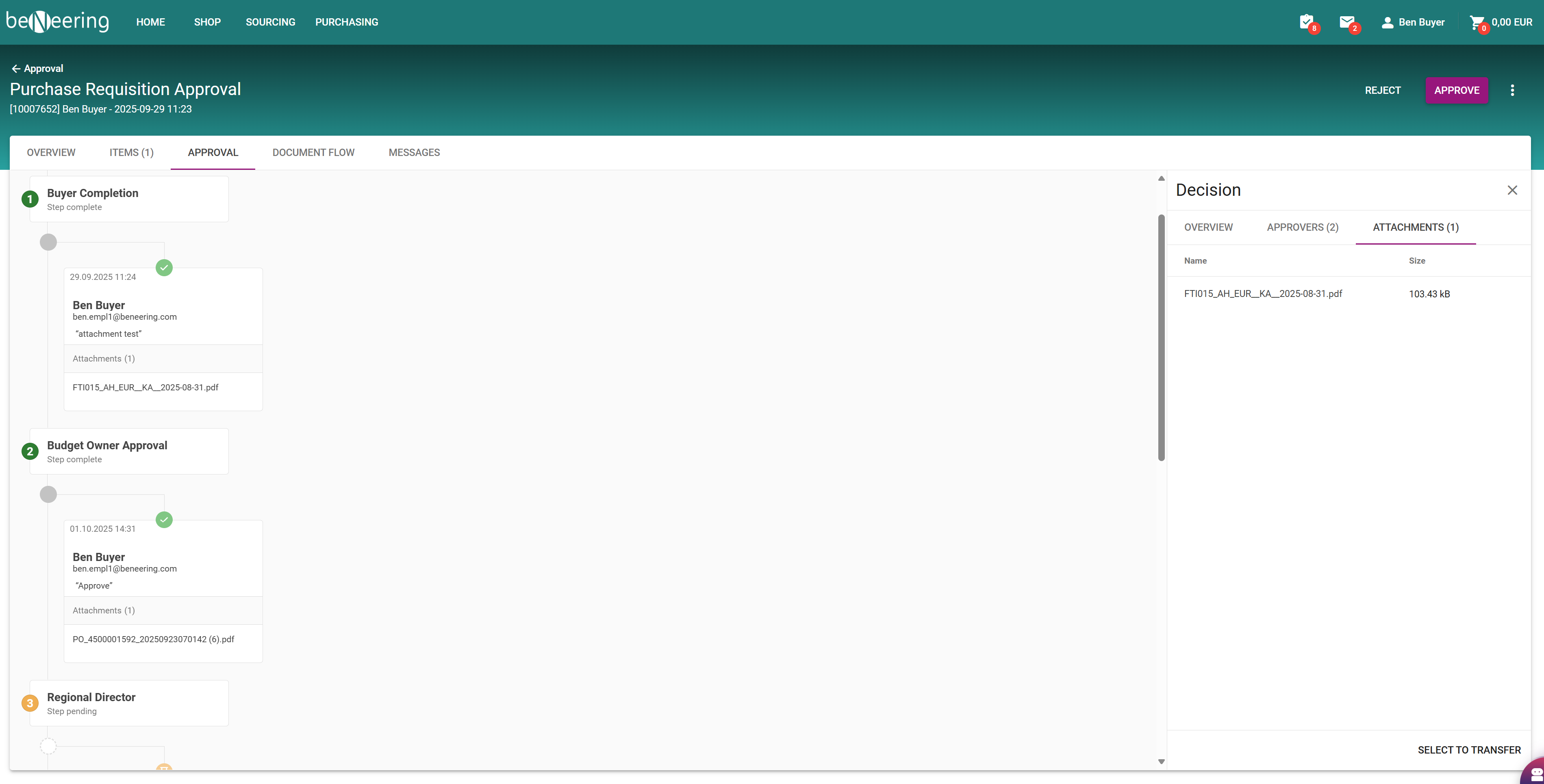
After approval or rejection, the attachment(s) added will be:
-
Stored in the BeNeering workflow record, and
-
(Depending on customer configuration) transferred to SAP and automatically linked with the related Purchase Requisition.
-
Result
-
The work item is approved or rejected successfully.
-
Any attachments added are stored and, if applicable, transferred to SAP.
-
Users can view the attachment history within the workflow or SAP PR display.