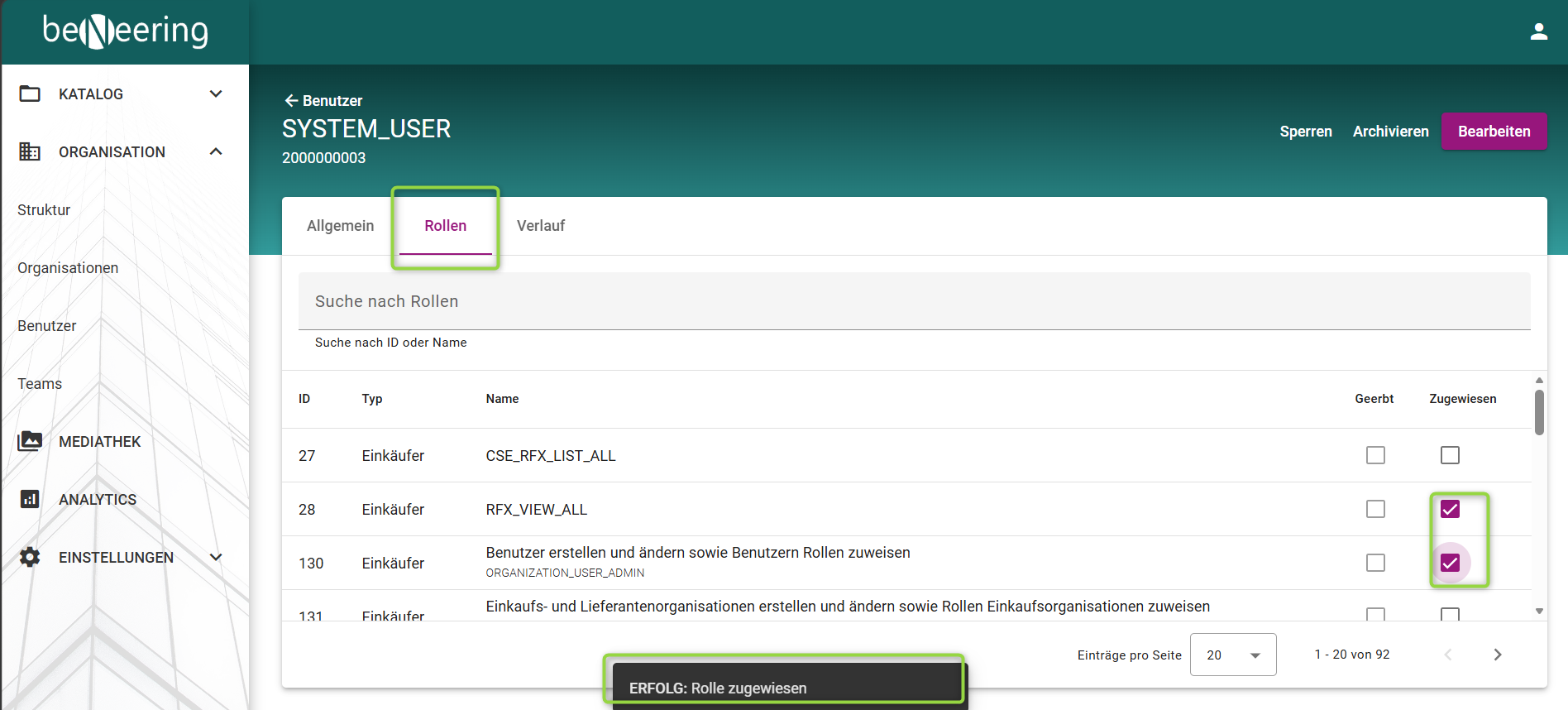
Rollen legen fest, was jeder Benutzer in der BeNeering-Lösung sehen und tun kann. Sie dienen dazu, den Zugriff auf Funktionen, Daten und Aktionen entsprechend den Zuständigkeiten eines Benutzers im Beschaffungsprozess zu steuern.
Durch die Zuweisung von Rollen können Unternehmen sicherstellen, dass Aufgaben wie das Erstellen von Bestellanforderungen, das Anlegen von Beschaffungsvorgängen, das Genehmigen von Dokumenten, die Verwaltung von Lieferanten und Katalogen oder das Anzeigen von Berichten von den richtigen Personen ausgeführt werden – was eine stärkere Governance, Sicherheit und Compliance fördert.
Rollen in der Einkaufsanwendung können Organisationselementen und Teams zugewiesen werden. Alternativ können sie einem Benutzer ad hoc über das Single-Sign-On-Verfahren zugewiesen werden.
Einige dieser Rollen können einem Stellvertreter zugewiesen werden, sofern Ihre Organisation für diese Rollen autorisiert ist. Siehe auch Zuweisung von Stellvertretern
|
Modul |
Funktion |
Dem Stellvertreter zuweisen |
Rolle |
Rollenbeschreibung |
|
|
Organisations Management |
Einkäufer |
|
ORGANIZATION_USER_ADMIN |
Benutzer anlegen und ändern sowie Benutzern Rollen zuweisen |
|
|
|
ORGANIZATION_ORG_ADMIN |
Käufer- und Lieferantenorganisationen anlegen und ändern, den Käuferorganisationen Rollen zuweisen |
|
||
|
|
ORGANIZATION_TEAM_ADMIN |
Teams anlegen und ändern, Mitarbeiter für die Einkaufsanwendung zuweisen, Benutzer für die Verwaltung zuweisen |
|
||
|
|
ORGANIZATION_INVITE_CATALOG_SUPPLIER |
Neue Lieferanten einladen, sich für die Katalogverwaltung bei BeNeering zu registrieren |
|
||
|
|
ORGANIZATION_INVITE_SOURCING_SUPPLIER |
Einen neuen Lieferanten einladen, sich für die Beschaffung bei BeNeering zu registrieren |
|
||
|
|
ORGANIZATION_INVITE_ORDER_SUPPLIER |
Einen neuen Lieferanten einladen, sich für die Zusammenarbeit bei Aufträgen auf BeNeering zu registrieren, z. B. damit Lieferanten Leistungsblätter hochladen können |
|
||
|
Lieferant |
|
ORGANIZATION_ORG_ADMIN |
Änderung der Lieferantenorganisation, einschließlich Name, Adresse und Kontaktdaten |
|
|
|
|
ORGANIZATION_USER_ADMIN |
Lieferantenbenutzer anlegen und ändern |
|
||
|
Katalog Management |
Einkäufer |
|
CATALOG_ADMIN |
Katalogcontainer, Katalogansichten und Katalogfreigaben erstellen und verwalten |
|
|
|
CATALOG_APPROVER |
Der Benutzer kann Kataloge genehmigen |
|
||
|
|
CATALOG_CONTENT_CREATOR |
Kataloge hochladen, Bilder hochladen, Gültigkeitsdauer von Katalogen verlängern, Kataloganreicherung verwalten |
|
||
|
Lieferant |
|
CATALOG_CLASSIFICATION |
Lieferantenspezifische Quellklassifizierung pflegen |
|
|
|
|
CATALOG_CONTENT_CREATOR |
Kataloge, Bilder und andere MIME-Objekte hochladen |
|
||
|
MEDIA LIBRARY |
Einkäufer |
|
MEDIA_ADMIN |
MIME-Objekte hochladen, verschieben, umbenennen und löschen |
|
|
Lieferant |
|
MEDIA_ADMIN |
MIME-Objekte hochladen, verschieben, umbenennen und löschen |
|
|
|
Sourcing |
Einkäufer |
|
SOURCING_RFQ_LIST |
Sourcing Event erstellen und Lieferanten zur Einreichung von Angeboten einladen |
|
|
Lieferant |
|
SOURCING |
Lieferantenrolle im Beschaffungsprozess, die Anfragen prüfen und dem Kunden Angebote unterbreiten kann |
|
|
|
PURCHASING |
Einkäufer |
|
PURCHASING_DEMAND_OWNER |
Auf die Bedarfsliste zugreifen und Details bearbeiten |
|
|
|
PURCHASING_DEMAND_MANAGER |
Auf die Bedarfsliste zugreifen, Details bearbeiten, auf das Bedarfscenter zugreifen, über das Mitarbeiter Artikel in den Warenkorb legen können |
|
||
|
|
PURCHASING_RESERVATION |
auf die Reservierungsliste und die Details zugreifen |
|
||
|
|
PURCHASING_BASKET_ADMINISTRATION |
Das Support-Team kann einen Warenkorb von einem Benutzer übernehmen und diesen manuell bearbeiten und weiterleiten, wobei die Validierungslogik des Kunden umgangen wird. ACHTUNG: Verwenden Sie diese Funktion nicht, wenn Sie damit nicht vertraut sind. |
|
||
|
|
PURCHASING_BASKET_EDIT_MANDATORY |
Die Schaltfläche „quick submit“ im Warenkorb deaktivieren und den Nutzer dazu zwingen, den Warenkorb zunächst zu bearbeiten, bevor er die Bestellung abschickt |
|
||
|
ja |
PURCHASING_PR_LIST |
Zugriff auf die Liste der Bestellanforderungen |
|
||
|
ja |
PURCHASING_PR_EDIT |
Bestellanforderung bearbeiten |
|
||
|
|
PURCHASING_PR_LIST_ITEMS |
Zugriff auf Positionen in Bestellanforderungen |
|
||
|
|
PURCHASING_ADVANCED_SEARCH_DISPLAY |
Wenn Sie einer Einkaufsorganisation oder einem Einkaufsteam zugeordnet sind, erhalten Sie Zugriff auf alle Dokumente innerhalb Ihrer Organisation. Filter für Buchungskreis, Werk und Einkaufsorganisation werden entsprechend Ihrem Benutzerprofil angewendet. |
|
||
|
|
PURCHASING_ADVANCED_SEARCH_EDIT |
Wenn Sie einer Einkaufsorganisation oder einem Einkaufsteam zugeordnet sind, erhalten Sie Zugriff auf alle Dokumente Ihrer Organisation und können diese bearbeiten. Filter für Buchungskreis, Werk und Einkaufsorganisation werden entsprechend Ihrem Benutzerprofil angewendet. |
|
||
|
|
PURCHASING_PR_POST_EDIT |
Mitarbeitern ermöglichen, die Bestellanforderung nach der Genehmigung und der Erstellung der Bestellung zu bearbeiten |
|
||
|
|
PURCHASING_PR_HISTORY |
Auf den Verlauf (Historie) der Bestellanforderungen zugreifen |
|
||
|
|
PURCHASING_PO_DISPLAY |
Bestellung im Anzeigemodus aufrufen |
|
||
|
|
PURCHASING_PO_EDIT |
Bestellung bearbeiten |
|
||
|
|
PURCHASING_PO_LIST |
Auf die Liste der Bestellungen zugreifen |
|
||
|
|
PURCHASING_PO_LIST_ITEMS |
Auf die Liste der Bestellpositionen zugreifen |
|
||
|
|
PURCHASING_GR_LIST |
Auf die Liste der Wareneingänge zugreifen |
|
||
|
|
PURCHASING_GR_DISPLAY |
Details zum Wareneingang aufrufen |
|
||
|
|
PURCHASING_CONFIRMATION_CREATE |
Bestätigung erstellen |
|
||
|
|
PURCHASING_GR_CANCEL |
Schaltfläche „Stornieren“ im Wareneingangsdetail und in der Wareneingangsübersicht |
|
||
|
|
PURCHASING_SES_DISPLAY |
Zugriff auf die Liste und die Detailansicht der Leistungserfassungsblätter (Service-Entry-Sheets) |
|
||
|
|
PURCHASING_SES_ACCEPTANCE |
Service-Eingabeblatt in SAP annehmen, SES in SAP widerrufen, wenn es den Status „angenommen“ hat, SES in SAP löschen, wenn es nicht den Status „angenommen“ hat |
|
||
|
|
PURCHASING_SES_DOWNLOAD |
Download von Leistungserfassungsblättern (Service-Entry-Sheets) aktivieren |
|
||
|
|
PURCHASING_SUBSTITUTION_ADMIN |
die Stellvertretung von Benutzern verwalten |
|
||
|
|
PURCHASING_GLOBAL_FAVOURITES_ADMIN |
Als Administrator auf globale Favoriten zugreifen |
|
||
|
|
EMPL_SETTINGS_CREATE_EMPLOYEE |
Aktivieren Sie in den persönlichen Benutzereinstellungen die Option zum Anlegen eines neuen Mitarbeiters auf der Registerkarte „Vertretung“ (Stellvertreter) |
|
||
|
|
EMPL_SETTINGS_ORGANIZATION_EDIT |
In den persönlichen Benutzereinstellungen kann der Mitarbeiter Organisationsdaten wie Buchungskreis, Werk und Einkaufsorganisation bearbeiten. |
|
||
|
|
EMPL_SETTINGS_DELIVERY_EDIT |
In den persönlichen Benutzereinstellungen kann der Mitarbeiter die Lieferadressen bearbeiten. |
|
||
|
|
EMPL_SETTINGS_ACCOUNTING_EDIT |
In den persönlichen Benutzereinstellungen kann der Mitarbeiter Buchhaltungsdaten wie beispielsweise die Kostenstelle bearbeiten. |
|
||
|
ja |
SUBSTITUTE_SHOP_ON_BEHALF |
Nur bei der Benennung von Stellvertretern: Erteilen Sie einer Person die Berechtigung, in Ihrem Namen Einkäufe zu tätigen |
|
||
|
ORDER |
Lieferant |
|
ORDERING |
Der Lieferant erhält Zugriff auf die vom Kunden eingegangenen Bestellungen, kann diese bestätigen und Leistungserfassungsblätter verbuchen. |
|
|
|
ORDERING_RECEIVE_EMAIL |
Der Lieferant erhält eine E-Mail-Benachrichtigung, sobald eine neue Bestellung des Kunden bei BeNeering eingeht. |
|
||
|
Genehmigungsprozess |
Einkäufer |
ja |
APPROVAL_DEMAND |
Antragsunterlagen genehmigen |
|
|
Einkäufer |
ja |
APPROVAL_PURCHASE_REQUISITION |
Bestellanforderung genehmigen |
|
|
|
Einkäufer |
ja |
APPROVAL_PURCHASE_ORDER |
Bestellung genehmigen |
|
|
|
Einkäufer |
ja |
APPROVAL_SOURCING_RFQ |
Sourcing Event genehmigen |
|
|
|
Einkäufer |
ja |
APPROVAL_SOURCING_RFM |
den Vorschlag des Lieferanten genehmigen |
|
|
|
Einkäufer |
ja |
APPROVAL_SERVICE_ENTRY_SHEET |
Leistungserfassungsblätter (SES) genehmigen |
|
|
|
Einstellungen |
Einkäufer
|
|
SETTINGS_BUSINESS_PARTNER |
Zuordnung von Geschäftspartnern zwischen dem SAP-System des Kunden und der BeNeering Cloud, z. B. eine zwingende Voraussetzung für die Dienstleistungsbeschaffung |
|
|
|
SETTINGS_EMAIL_TEMPLATES |
E-Mail-Vorlagen bearbeiten |
|
||
|
|
SETTINGS_CLOUD_FORMS_LIST |
Zugriff auf die Listen- und Detailansicht der Cloud-Formulare gewähren, jedoch ausschließlich auf „Produkt“-Formulare beschränkt |
|
||
|
|
SETTINGS_CLOUD_FORMS_ADVANCED |
Zugriff auf die Liste und die Detailansicht der Cloud-Formulare gewähren, einschließlich der Produktformulare und aller anderen Formulare, die zur Verwaltung des Systems verwendet werden |
|
||
|
|
SETTINGS_CLOUD_FORMS_EDIT |
Dem Benutzer die Bearbeitung von Cloud-Formularen ermöglichen |
|
||
|
|
SETTINGS_VALIDATION_RULES |
Zuordnung von Regelpaketen und Vorlagen innerhalb des Katalogverwaltungsmoduls ermöglichen |
|
||
|
AI |
Einkäufer |
|
AI_CHATBOT_ITEM_RETRIEVER |
Zugriff auf die Katalog-KI (BenBot) |
|
|
|
AI_CHATBOT_WIKI_CUSTOMER |
Zugriff auf vom Kunden erstellte Unterlagen |
|
||
|
|
AI_CHATBOT_WIKI_BUYER |
Zugriff auf die von BeNeering erstellte Hilfe-Dokumentation zur allgemeinen Nutzung der Plattform |
|
||
|
|
AI_INTAKE_DOC_SCANNER |
Nutzen Sie die Funktion zum Scannen von Dokumenten im Erfassungsassistenten |
|
||
|
|
AI_INTAKE_ITEM_RETRIEVER |
Verwenden Sie die Katalog-KI-Funktion im Intake-Assistenten |
|
||
|
|
AI_INTAKE_FREETEXT |
Verwenden Sie die Funktion „Geführter Freitext“ im Freitext-Assistenten |
|
||
|
|
AI_TOOLS_SUMMARY_BASKET |
Der Name des Warenkorbs wird von der KI unter Berücksichtigung der Zusammenfassung aller Artikel im Warenkorb generiert. |
|
||
|
ANALYTICS |
Einkäufer |
|
ANALYTICS_DEFAULT |
Zugriff auf verschiedene Berichte im Download-Center und die Möglichkeit, neue Berichte zu erstellen |
|
|
|
ANALYTICS_BILLING_REPORT |
Zugriff auf den Abrechnungsbericht (billing report) |
|
||
|
|
ANALYTICS_USER_LOG |
Zugriff auf benutzerspezifische Berichte |
|
Wie weist man einem Benutzer eine oder mehrere Rollen zu?
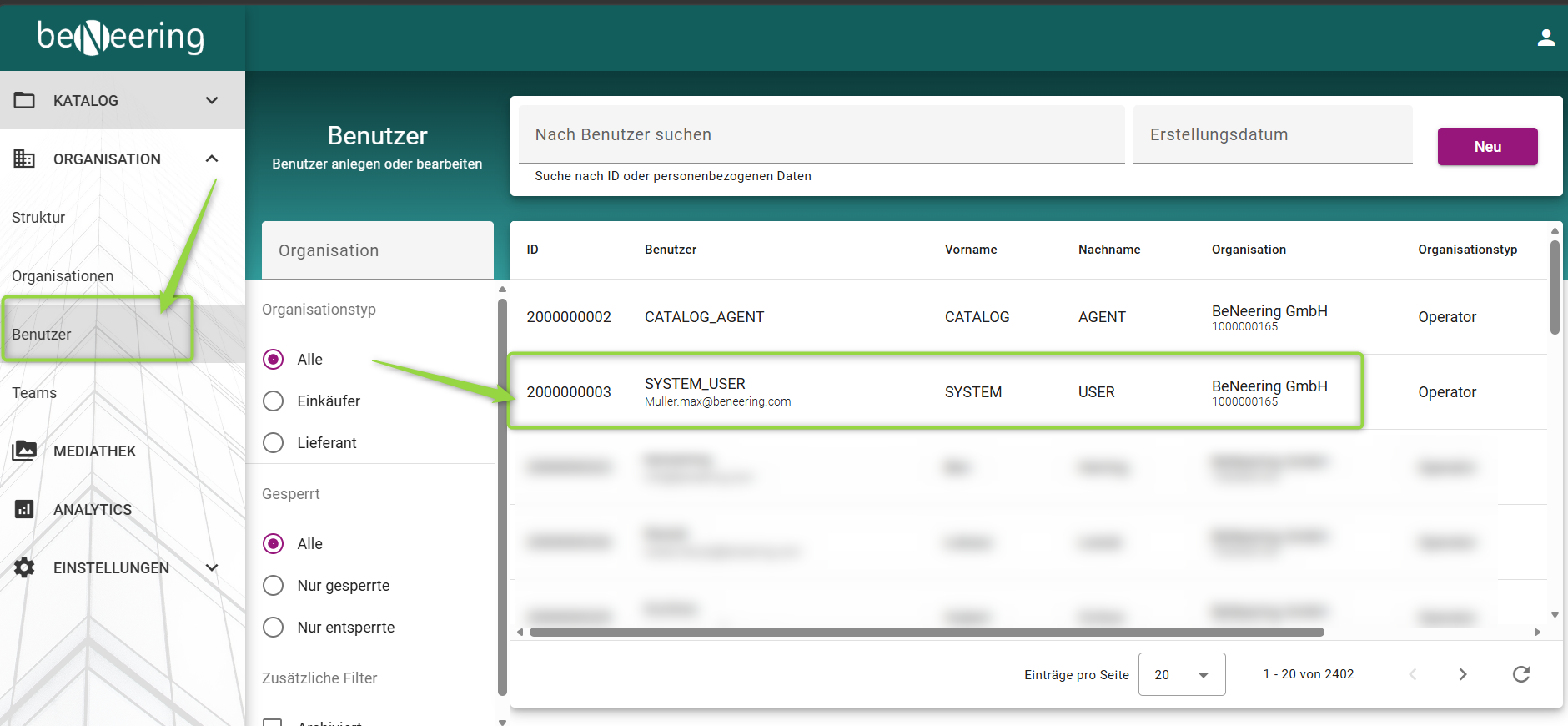
Der Administrator einer Organisation kann sowohl neuen als auch bestehenden Benutzern Rollen zuweisen. Gehen Sie dazu bitte zu „Organisation“
→ „Benutzer“ und wählen Sie den Benutzer aus, dem Sie die Benutzerrollen zuweisen möchten.
Weisen Sie dem Benutzer auf der Registerkarte „Rollen“ die erforderlichen Rollen zu. Nachdem die Rollen erfolgreich zugewiesen wurden, wird eine Systemmeldung angezeigt, die den Abschluss bestätigt.