1. Creating a Dialog Form
To create a new dialog form in the DCF editor:
-
Open the DCF editor.
-
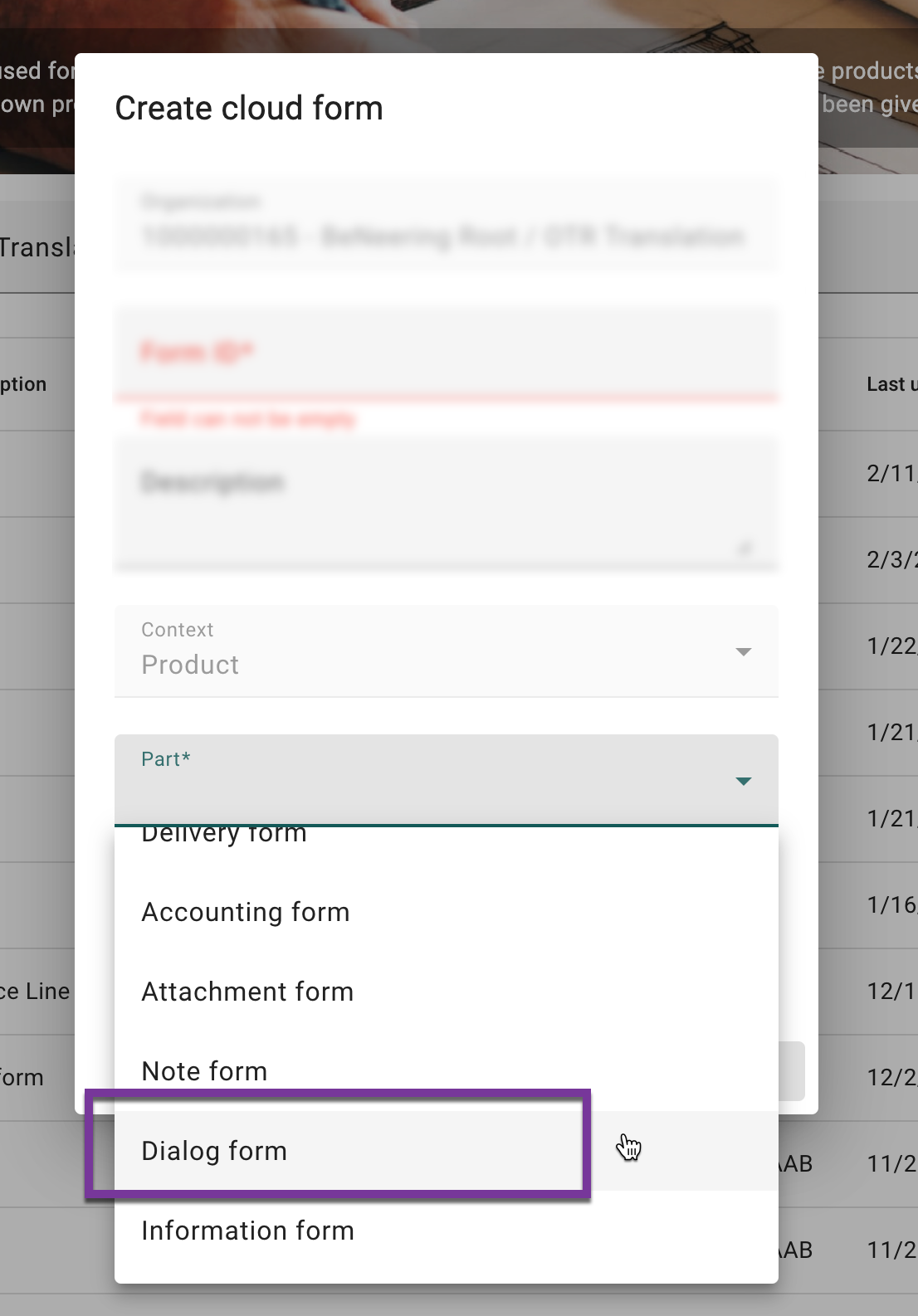
Create a new form and select Dialog form as the Part.
-
Save the form and ensure it is available within the appropriate organization.
Context Options: The dialog form can be created within either the CART or PRODUCT context.
To create a form with CART context you will need to write or download the form (JSON) and upload it.
2. Configuring a Button to Trigger the Dialog Form
To enable a parent form to trigger the dialog form:
-
Open the parent form in the DCF editor.
-
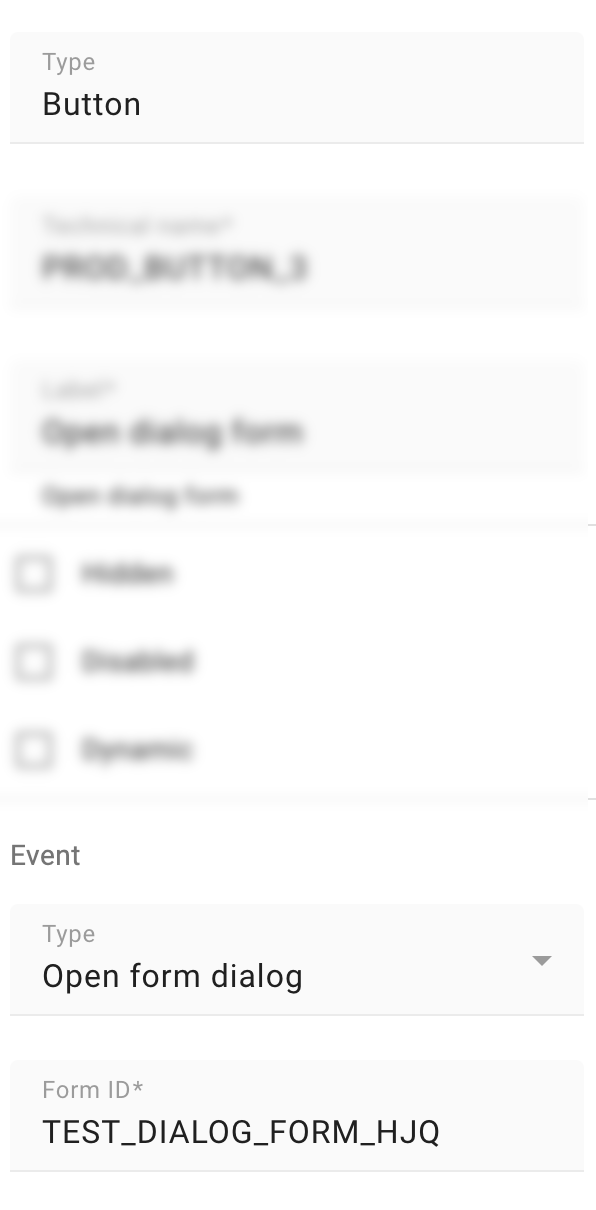
Add a button and set its type to Open Form Dialog.
-
Assign the Form ID of the dialog form.
-
Ensure that both forms belong to the same organization and share the same context (CART or PRODUCT).
3. Mapping Fields and Values
To transfer field values between the parent and child forms:
-
Edit both the parent and dialog forms.
-
Identify the fields that require value copying.
-
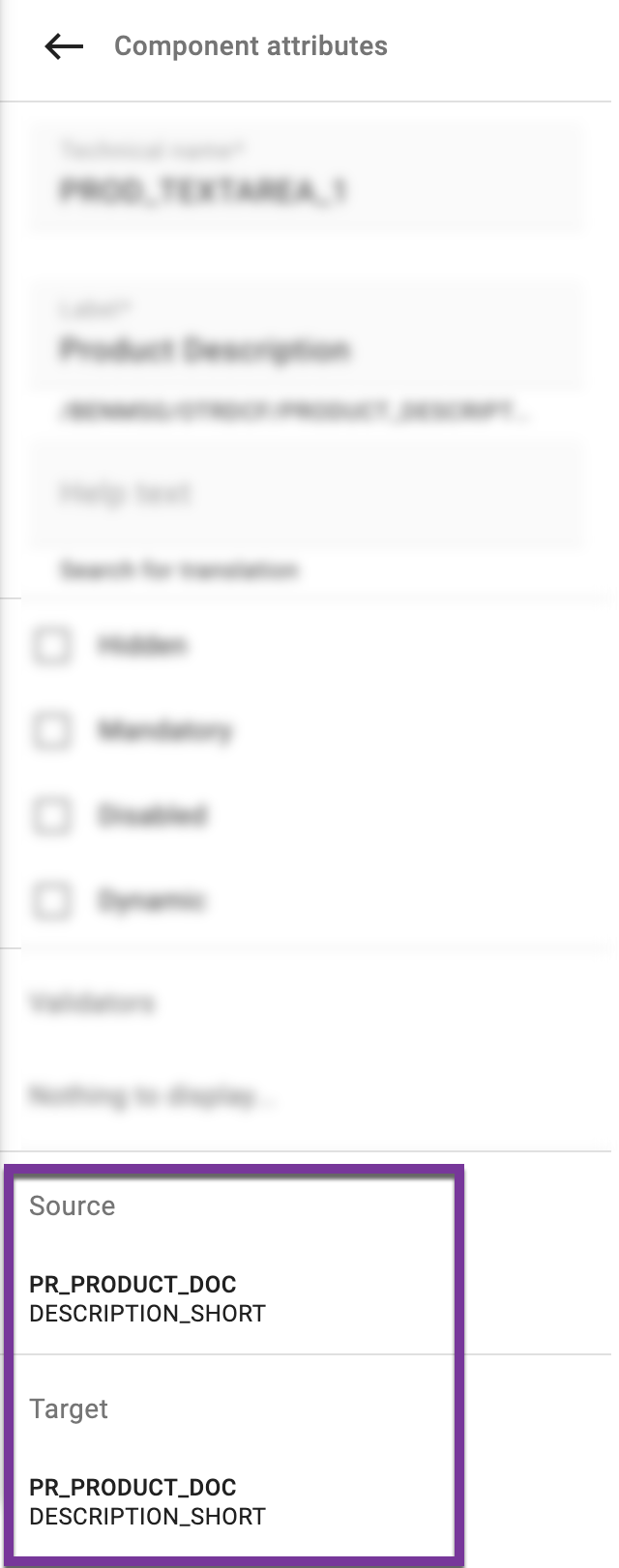
Set the Source and Target mapping for each field.
-
Use the field type PR_PRODUCT_DOC (PRODUCT context) and PR (CART context) assign the same value in both forms to ensure consistency.