
Forwarding Workflow Items to a Buyer Group
This document explains the enhanced Forward option available in the Inbox. With this update, you can forward workflow items not only to a specific user but also to a Buyer Group / Team. This ensures the document becomes accessible to all users assigned to that group.
Purpose of the Feature
The Forward to Buyer Group / Team option allows you to route a workflow item to the responsible purchasing group when you are not the correct processor or when the approval should be shared across multiple users.
This helps avoid delays and ensures the workflow item is visible to all relevant colleagues.
When to Use This Option
Use this option when:
-
The item should be handled by the responsible Purchasing Group
-
You want to make the document accessible to several users instead of only one
-
A single user is unavailable, and group-level processing is required
-
The task is better suited for team handling rather than individual routing
How to Forward a Work Item to a Buyer Group / Team
Step 1: Open your Inbox
Navigate to the Inbox where your workflow items are displayed. Forward" option is available from the workitem list and workitem detail.
Step 2: Select the Item
Click the workflow item you want to forward [Click on the three dots]
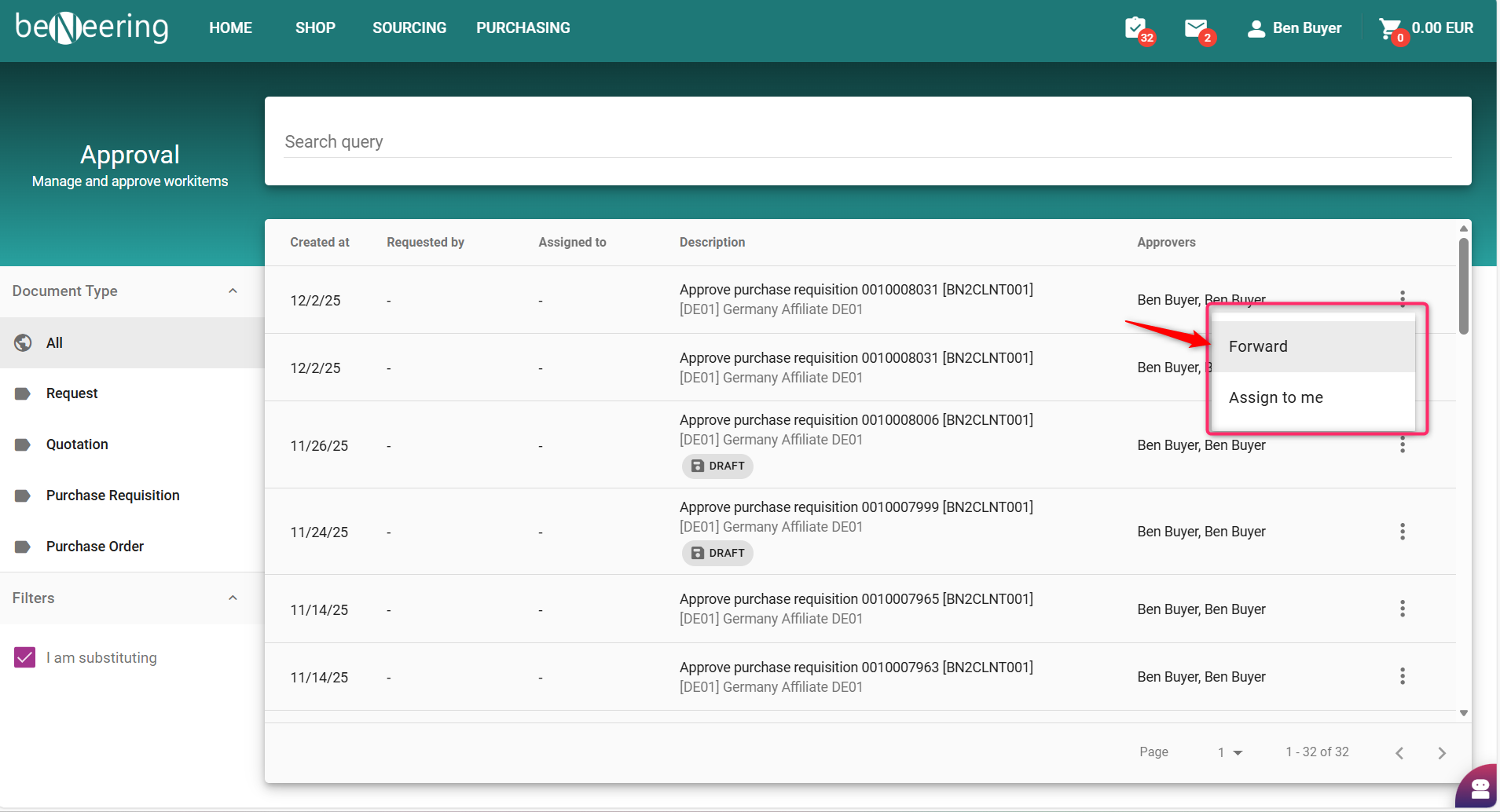
Step 3: Choose the Forward Option
Select Forward from the available actions in the toolbar.
Step 4: Select “Buyer Group”
In the Forward screen:
-
Enter Buyer Group/ Team Name
-
A list of available Buyer Groups/ Team is presented
-
Select the appropriate group
-
On selecting the relevant group, you will be presented with the members in the group
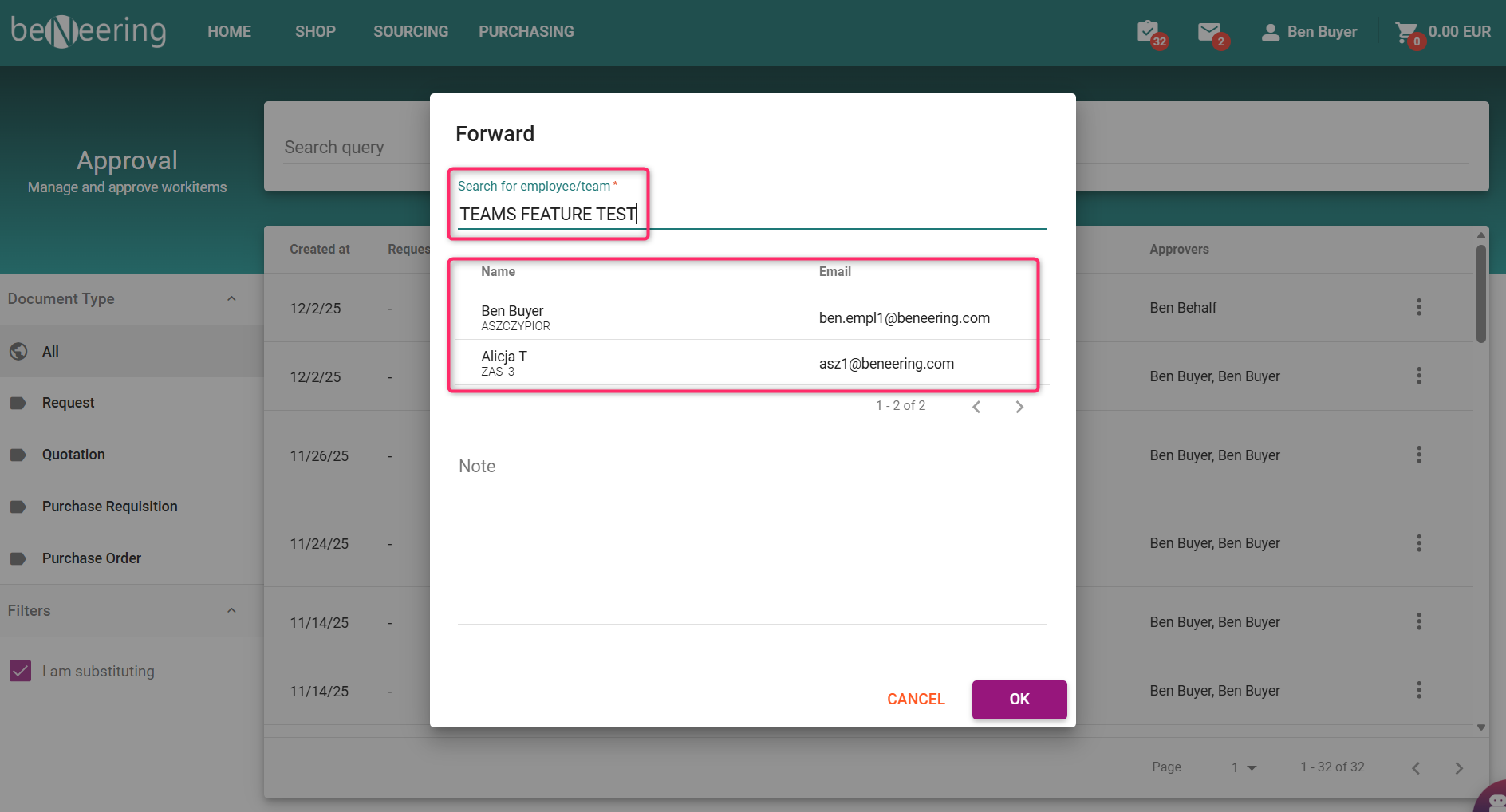
Step 5: Add a Note (Optional)
You may enter a short note to inform the receiving group about the context or next steps.
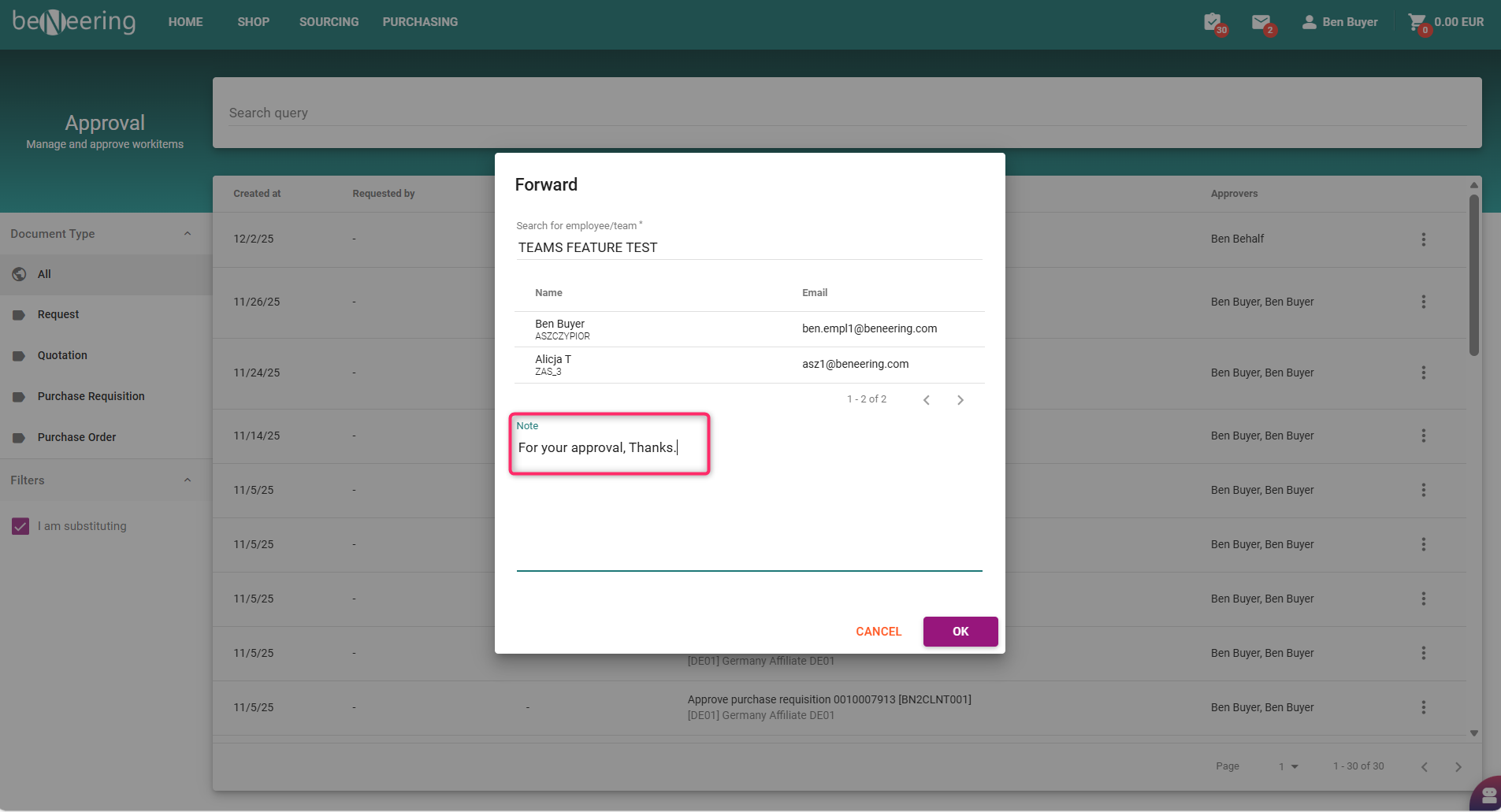
Step 6: Confirm the Action
Click OK to complete the forwarding.
Result of Forwarding
After forwarding the item:
-
All users assigned to the selected Buyer Group will see the document in their Inbox
-
Any member of the group can open, review, and process the item
-
The item will be removed from your own Inbox
-
The workflow continues without interruption
ℹ️ Additional Notes - The Buyer Group list is maintained internally. To create/ update or add members to the group, contact your internal team.