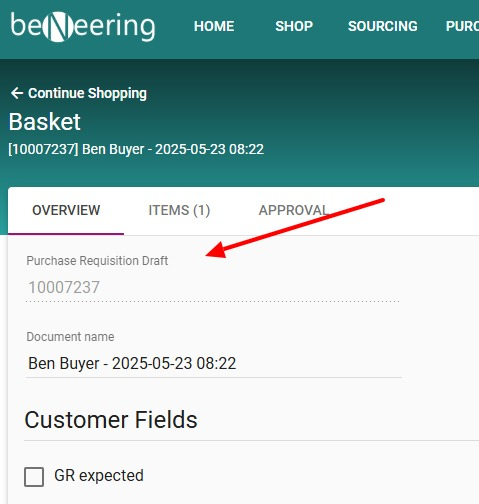
Step 1: Identify the Draft
-
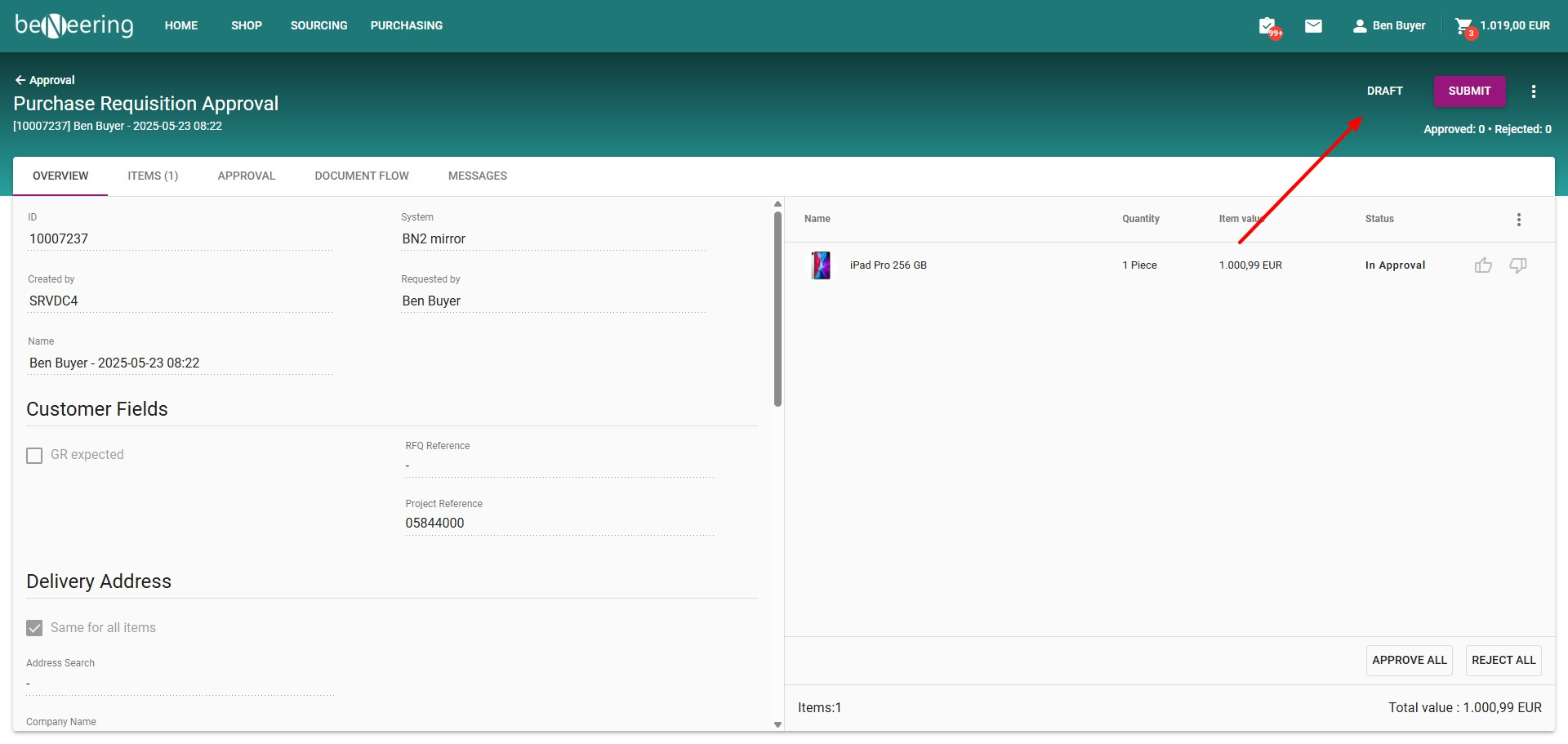
If a PR approval draft exists, it will be marked with a DRAFT badge.
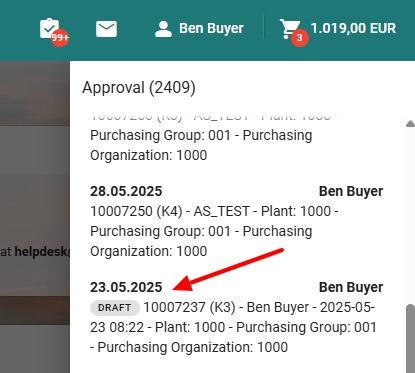
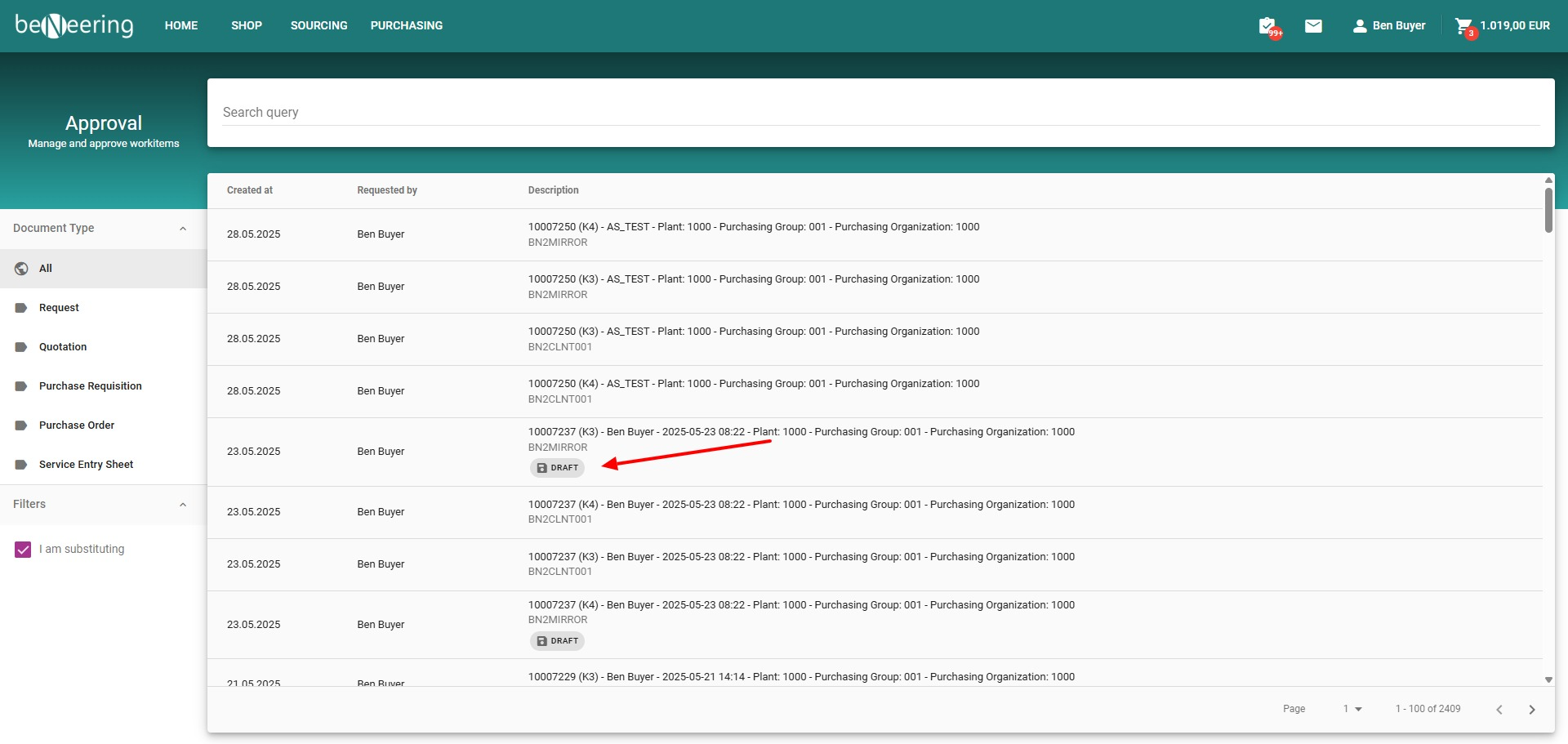
Step 2: Open the Draft
-
Click on the PR approval draft to open the Draft View.
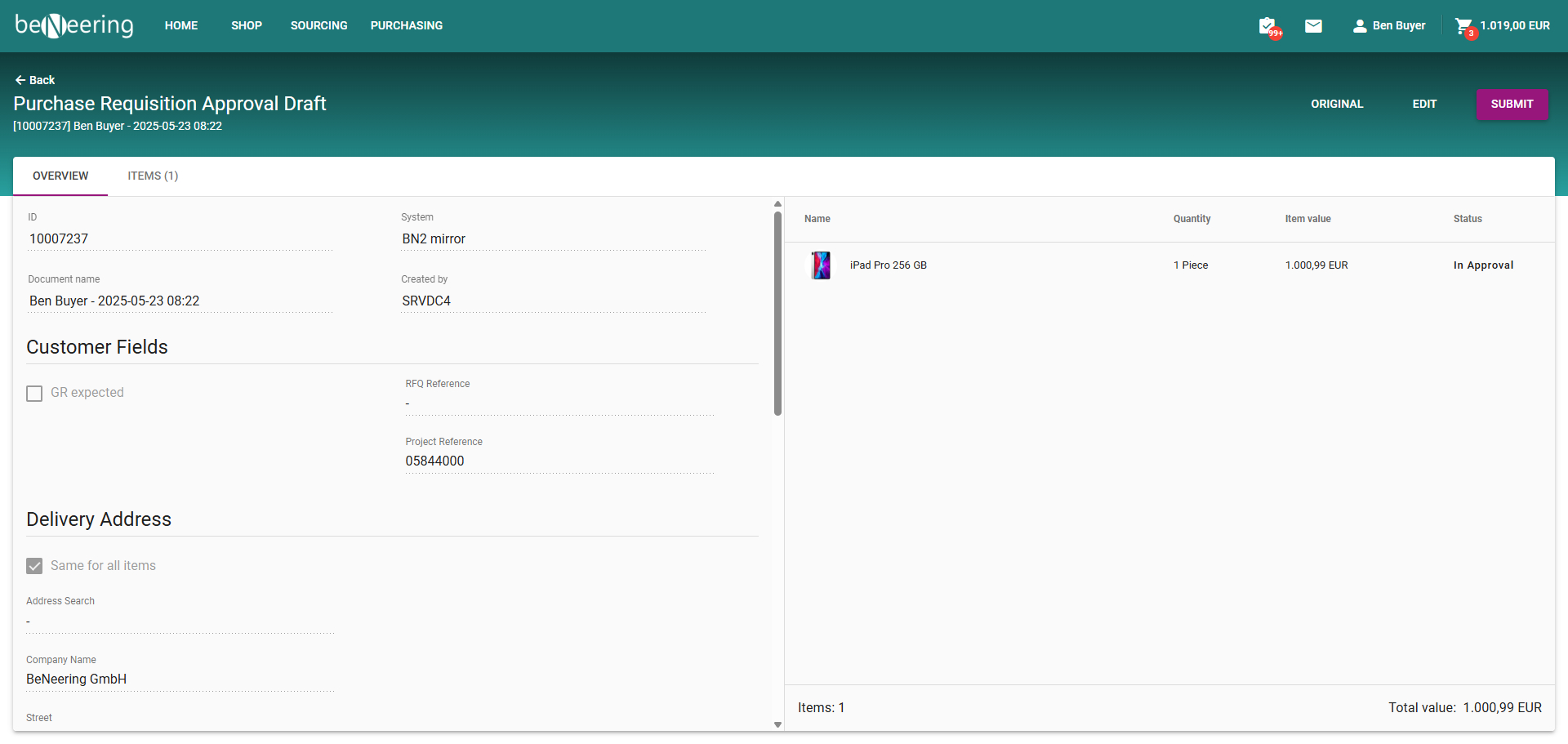
Step 3: Review or Switch to Original
-
In the Draft View, you have the option to navigate to the Original Document for comparison or reference.
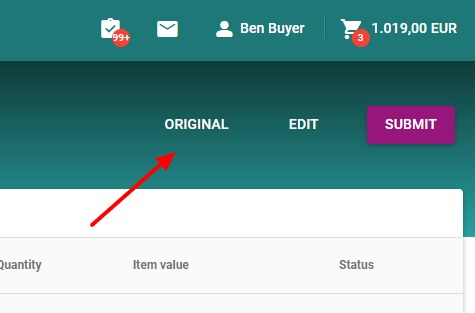
Step 4: Edit the Draft
-
You can edit the draft directly.
-
Important: Editing the draft will overwrite the current basket.
Step 5: Submit the Basket
-
When you're ready, submit the basket.
-
This action will overwrite the original PR approval with the contents of the basket.
Step 6: Navigate to Draft Anytime
-
You can return to the Draft View at any time during the process.
Step 7: View Basket Contents
-
In the basket, the document type will be displayed along with the draft status to help you track changes.