Roles define what each user can see and do in the BeNeering solution. They are used to control access to features, data, and actions based on a user’s responsibilities in the procurement process.
By assigning roles, organizations can ensure that tasks such as creating purchase requisitions, creating sourcing events, approving documents, managing suppliers and catalogs, or viewing reports are performed by the right people - supporting stronger governance, security, and compliance.
Roles in the buying application can be assigned to Org elements and to Teams. Or they can be delivered add-hoc with the Single-Sign-On procedure for a user.
Some of these roles can be assigned to a substitute, if your organisation is authorised for these roles. See also Assigning Substitutes
|
Module |
Function |
Assign to substitute |
Role concatenated |
Role Description |
|
Org Management |
BUYER |
|
ORGANIZATION_USER_ADMIN |
create and change users and assign roles to users |
|
|
ORGANIZATION_ORG_ADMIN |
create and change buyer and supplier organizations, assign roles to buyer organizations |
||
|
|
ORGANIZATION_TEAM_ADMIN |
create and change teams, assign employees for buying application, assign users for administration |
||
|
|
ORGANIZATION_INVITE_CATALOG_SUPPLIER |
invite new supplier to register for catalog management on BeNeering |
||
|
|
ORGANIZATION_INVITE_SOURCING_SUPPLIER |
invite new supplier to register for sourcing on BeNeering |
||
|
|
ORGANIZATION_INVITE_ORDER_SUPPLIER |
invite new supplier to register for order collaboration on BeNeering, e.g. suppliers uploading service entry sheets |
||
|
SUPPLIER |
|
ORGANIZATION_ORG_ADMIN |
change supplier organization including name, address and contact data |
|
|
|
ORGANIZATION_USER_ADMIN |
create and change supplier users |
||
|
Catalog Management |
BUYER |
|
CATALOG_ADMIN |
create and manage catalog container, catalog views and catalog approval |
|
|
CATALOG_APPROVER |
user can approve catalogs |
||
|
|
CATALOG_CONTENT_CREATOR |
upload catalogs, upload images, extend catalog vaidity, manage catalog enrichment |
||
|
SUPPLIER |
|
CATALOG_CLASSIFICATION |
maintain supplier specific source classification |
|
|
|
CATALOG_CONTENT_CREATOR |
upload catalogs, images and other mime objects |
||
|
MEDIA LIBRARY |
BUYER |
|
MEDIA_ADMIN |
upload, move, rename and delete mime objects |
|
SUPPLIER |
|
MEDIA_ADMIN |
upload, move, rename and delete mime objects |
|
|
Sourcing |
BUYER |
|
SOURCING_RFQ_LIST |
create sourcing event and invite suppliers to submit proposals |
|
SUPPLIER |
|
SOURCING |
supplier role in sourcing who can check for requests and submit proposals to the customer |
|
|
PURCHASING |
BUYER |
|
PURCHASING_DEMAND_OWNER |
access Demand List and edit details |
|
|
PURCHASING_DEMAND_MANAGER |
access Demand List, edit details, access demand center from where employee can add items to basket |
||
|
|
PURCHASING_RESERVATION |
access the Reservation List and details |
||
|
|
PURCHASING_BASKET_ADMINISTRATION |
support team can take over a basket from a user and process and transfer it manually, bypassing customer validation logic. ATTENTION: don't use this function if you are not familiar with this. |
||
|
|
PURCHASING_BASKET_EDIT_MANDATORY |
deactivate quick submit button in basket and force user to edit the basket first, before submitting |
||
|
Yes |
PURCHASING_PR_LIST |
access to list of purchase requisitions |
||
|
Yes |
PURCHASING_PR_EDIT |
edit purchase requisition |
||
|
|
PURCHASING_PR_LIST_ITEMS |
access to purchase requisitions items |
||
|
|
PURCHASING_ADVANCED_SEARCH_DISPLAY |
When assigned to a buying organization or team, you gain access to display all documents within your organization. Filters for company code, plant, and purchasing organization will be applied based on your user profile. |
||
|
|
PURCHASING_ADVANCED_SEARCH_EDIT |
When assigned to a buying organization or team, you gain access to edit all documents within your organization. Filters for company code, plant, and purchasing organization will be applied based on your user profile. |
||
|
|
PURCHASING_PR_POST_EDIT |
allow employee to edit purchase requisition after approval and purchase order creation |
||
|
|
PURCHASING_PR_HISTORY |
access purchase requisition history |
||
|
|
PURCHASING_PO_DISPLAY |
access purchase order in dispay mode |
||
|
|
PURCHASING_PO_EDIT |
edit purchase order |
||
|
|
PURCHASING_PO_LIST |
access the list of purchase order |
||
|
|
PURCHASING_PO_LIST_ITEMS |
access the list of purchase order items |
||
|
|
PURCHASING_GR_LIST |
access the list of goods receipts |
||
|
|
PURCHASING_GR_DISPLAY |
access goods receipt details |
||
|
Yes |
PURCHASING_CONFIRMATION_CREATE |
create confirmation |
||
|
|
PURCHASING_GR_CANCEL |
reverse button in goods receipt detail and goods receipt list |
||
|
|
PURCHASING_SES_DISPLAY |
access to Service Entry Sheets list and detail |
||
|
|
PURCHASING_SES_ACCEPTANCE |
accept Service Entry Sheet in SAP, revoke SES in SAP when in status accepted, delete SES in SAP when not in status accepted |
||
|
|
PURCHASING_SES_DOWNLOAD |
enable download for Service Entry Sheets |
||
|
|
PURCHASING_SUBSTITUTION_ADMIN |
administrate the subsitution of users |
||
|
|
PURCHASING_GLOBAL_FAVOURITES_ADMIN |
access global favourites as an administrator |
||
|
|
EMPL_SETTINGS_CREATE_EMPLOYEE |
in personal user settings, enable possibility to create new employee in the substitute tab |
||
|
|
EMPL_SETTINGS_ORGANIZATION_EDIT |
in personal user settings, employee can edit organization data like company code, plant and purchasing org |
||
|
|
EMPL_SETTINGS_DELIVERY_EDIT |
in personal user settings, employee can edit delivery adresses |
||
|
|
EMPL_SETTINGS_ACCOUNTING_EDIT |
in personal user settings, employee can edit accounting data, like cost center |
||
|
Yes |
SUBSTITUTE_SHOP_ON_BEHALF |
Only when assigning substitutes: give access to a person to shop on your behalf |
||
|
ORDER |
SUPPLIER |
|
ORDERING |
supplier get access to purchase orders received from customer, can confirm PO and he can post service entry sheets |
|
|
ORDERING_RECEIVE_EMAIL |
supplier will receive email nofication when new purchase order from customer is received on BeNeering |
||
|
APPROVAL |
BUYER |
Yes |
APPROVAL_DEMAND |
approve demand documents |
|
BUYER |
Yes |
APPROVAL_PURCHASE_REQUISITION |
approve purchase requisition |
|
|
BUYER |
Yes |
APPROVAL_PURCHASE_ORDER |
approve purchase order |
|
|
BUYER |
Yes |
APPROVAL_SOURCING_RFQ |
approve sourcing event |
|
|
BUYER |
Yes |
APPROVAL_SOURCING_RFM |
approve supplier proposal |
|
|
BUYER |
Yes |
APPROVAL_SERVICE_ENTRY_SHEET |
approve service entry sheet |
|
|
SETTINGS |
BUYER
|
|
SETTINGS_BUSINESS_PARTNER |
mapping buisness partner between customer's SAP and BeNeering Cloud, e.g. must have for Service Procurement |
|
|
SETTINGS_EMAIL_TEMPLATES |
edit email templates |
||
|
|
SETTINGS_CLOUD_FORMS_LIST |
give access to cloud forms list and detail view, but limitted to 'product' forms only |
||
|
|
SETTINGS_CLOUD_FORMS_ADVANCED |
give access to cloud forms list and detail view, including product forms and all other forms used to manage the system |
||
|
|
SETTINGS_CLOUD_FORMS_EDIT |
allow user to edit cloud forms |
||
|
|
SETTINGS_VALIDATION_RULES |
allow the assignment of rule packs and templates within the catalog management module |
||
|
AI |
BUYER |
|
AI_CHATBOT_ITEM_RETRIEVER |
access to use the catalog AI |
|
|
AI_CHATBOT_WIKI_CUSTOMER |
access to documentation created by customer |
||
|
|
AI_CHATBOT_WIKI_BUYER |
access to the help documentation created by BeNeering for the generic use of the platform |
||
|
|
AI_INTAKE_DOC_SCANNER |
use the document scanning function inside the intake asisstant |
||
|
|
AI_INTAKE_ITEM_RETRIEVER |
use the catalog AI function inside intake asisstant |
||
|
|
AI_INTAKE_FREETEXT |
use the guided freetext function inside the freetext assistant |
||
|
|
AI_TOOLS_SUMMARY_BASKET |
the basket name will constructed by AI, considering the summary of all items in the basket |
||
|
ANALYTICS |
BUYER |
|
ANALYTICS_DEFAULT |
access to various reports in the download center and access to generate new reports |
|
|
ANALYTICS_BILLING_REPORT |
access to billing report that is build per buying organization |
||
|
|
ANALYTICS_USER_LOG |
access to user specific reports |
How to assign role(s) to a user?
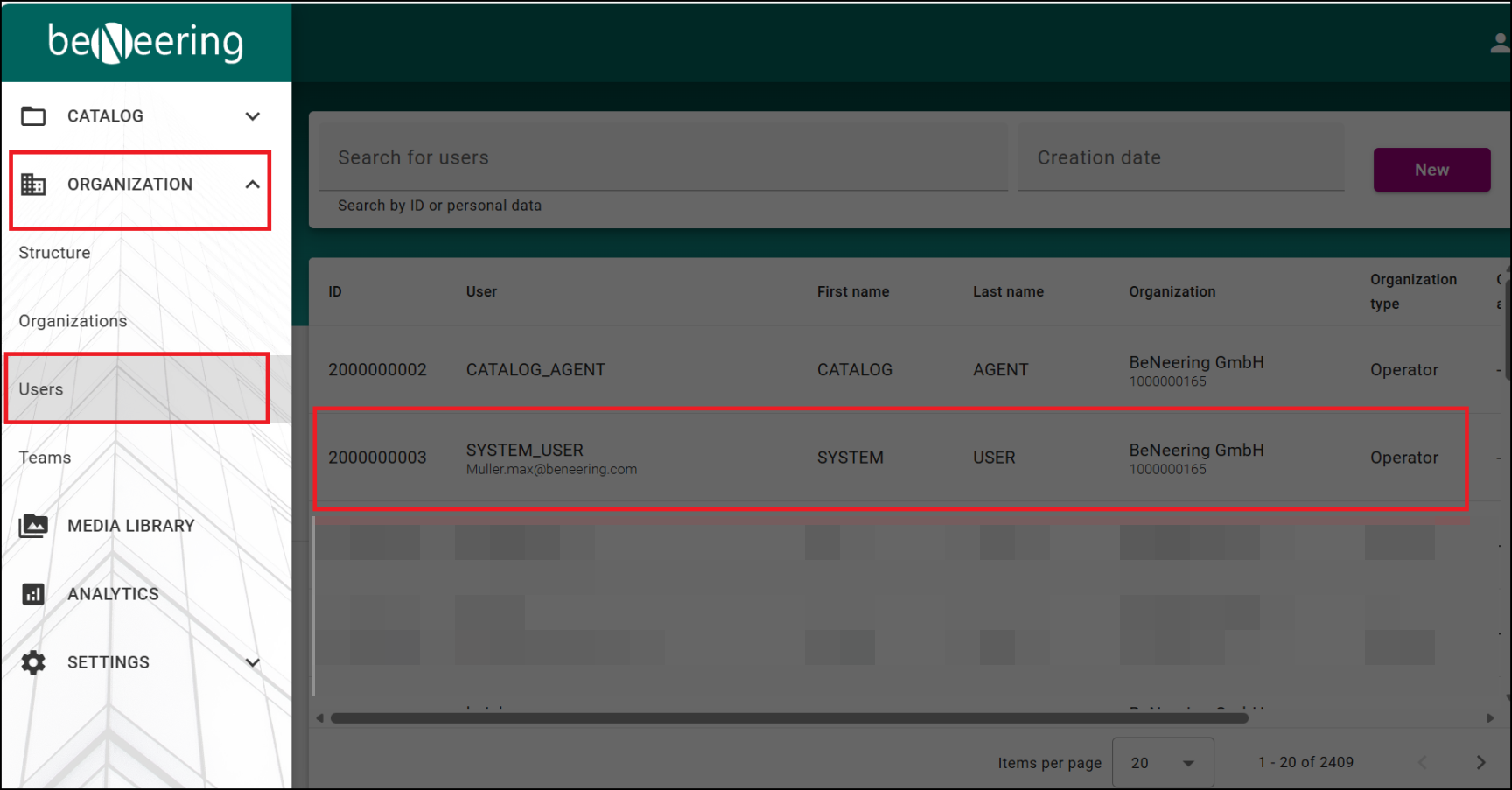
The administrator of an organization has the ability to assign roles to both new and existing users. To do this, please go to Organization → Users and select the user to whom you want to assign the user roles.
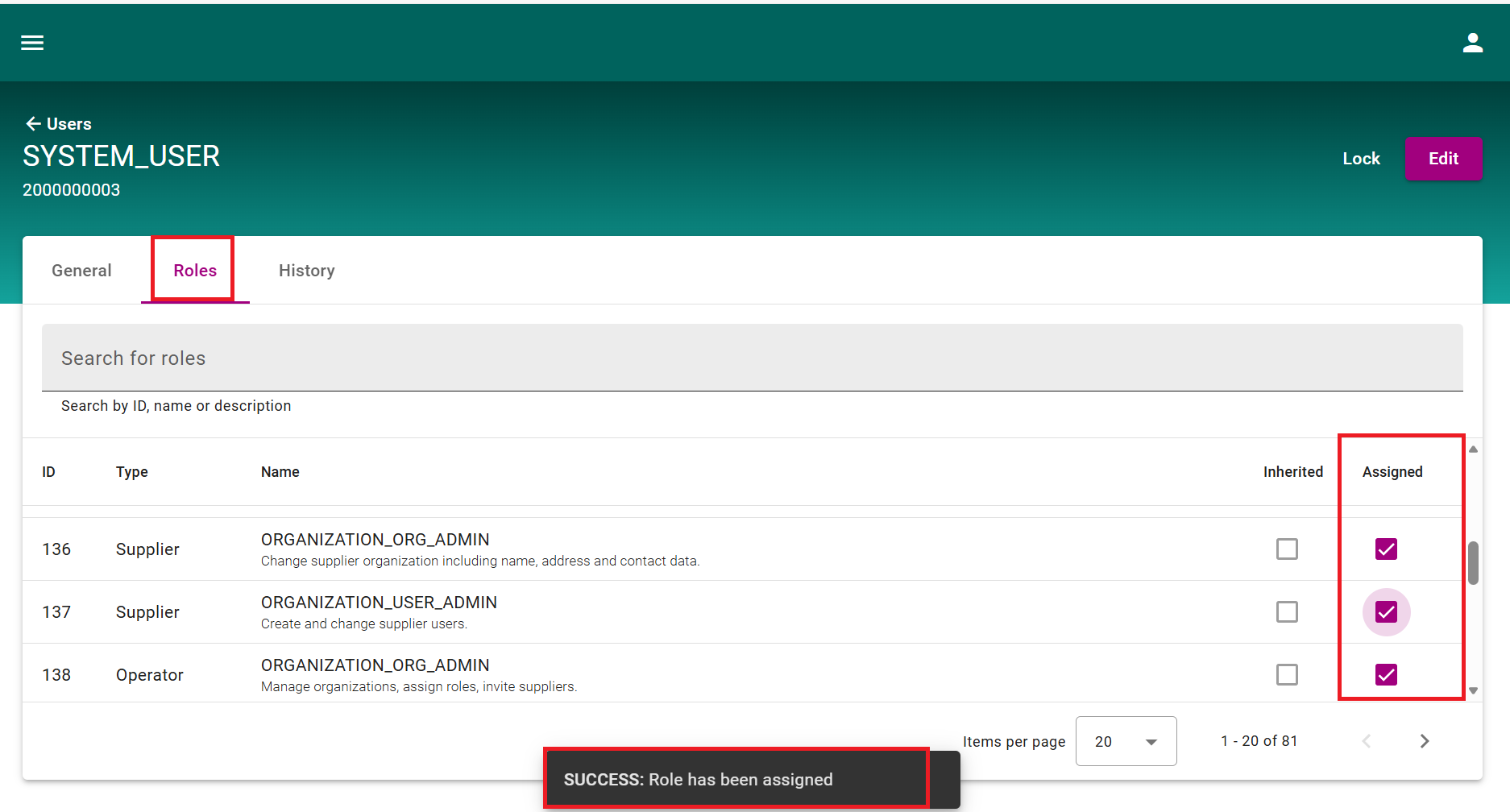
In the Roles tab, assign the required role(s) to the user. After the roles have been successfully assigned, a system message will be displayed confirming the completion.