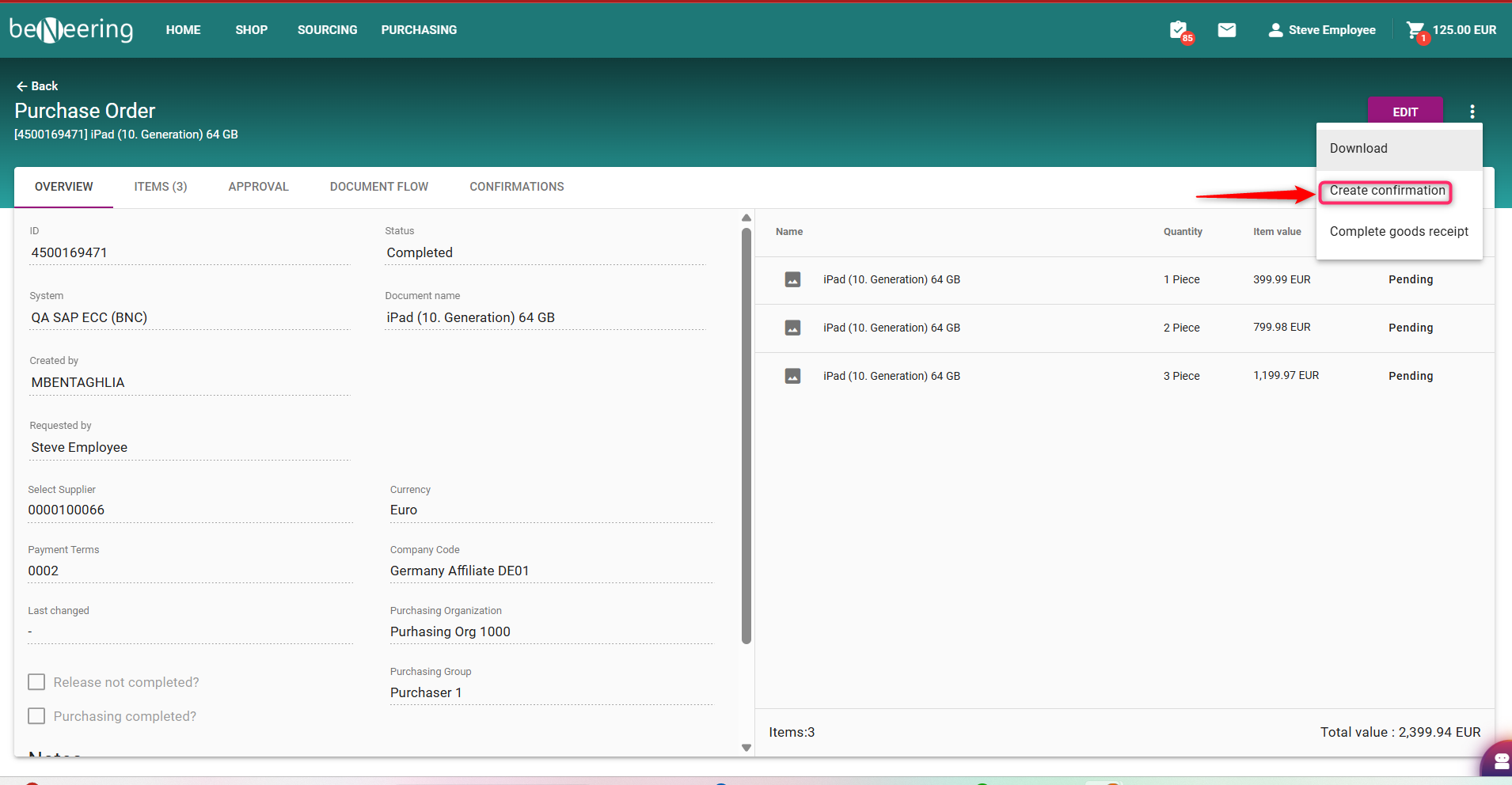
How to Use the One-Click Receipt Function
The new One-Click Receipt function allows you to confirm the receipt of goods (not services) with a single action, making the receiving process faster and simpler.
Step-by-Step Instructions
-
Log in to the BeNeering Cloud
-
Click on Purchasing
-
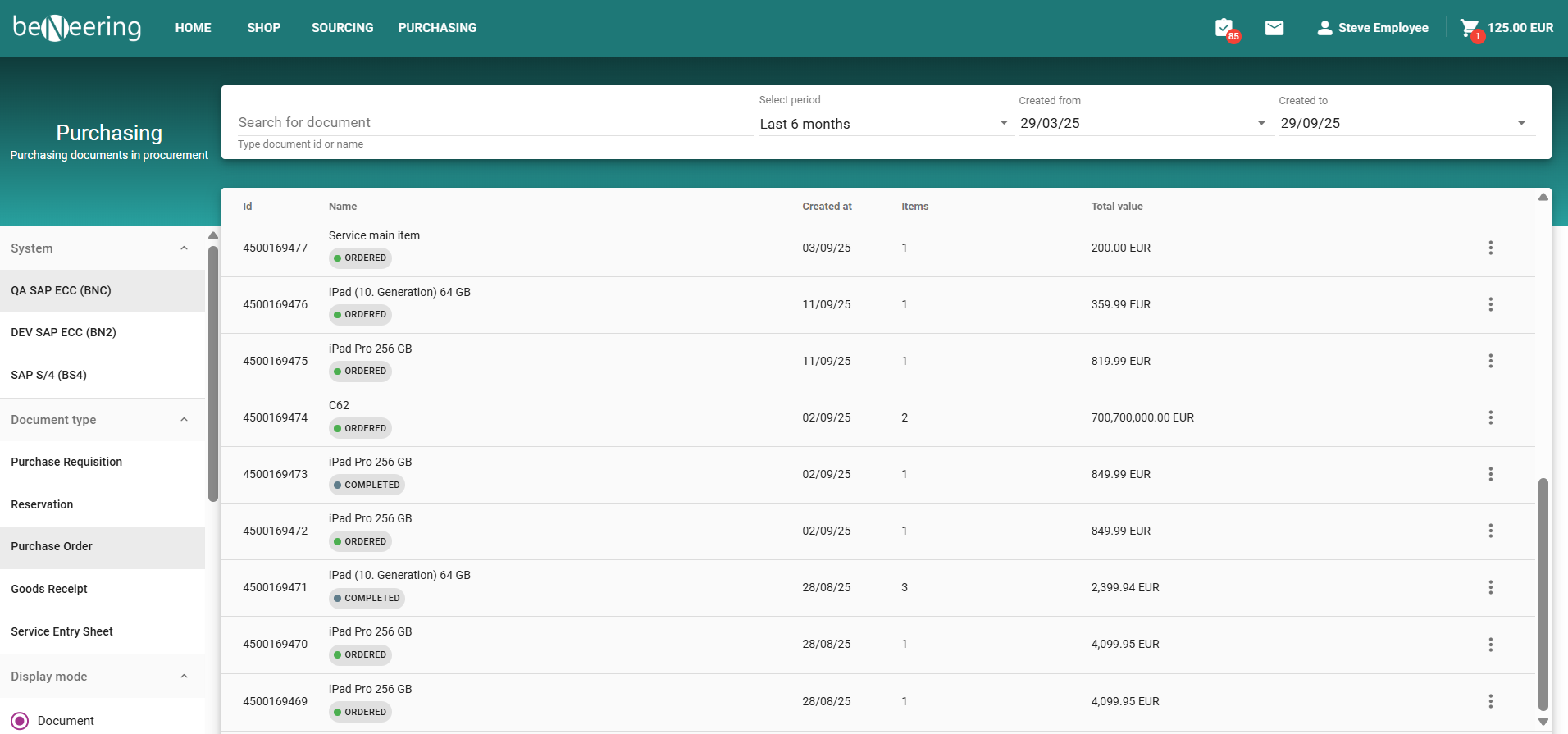
Navigate to the Orders / Purchase Orders section.
-
-
Locate the Relevant Order
-
In the list of Purchase Orders, search or filter for the order you want to receipt.
-
Ensure that you have received full ordered quantity
-
-
Open the Order Details
-
Click on the Purchase Order number to view its details.
-
Verify the line items, delivery status, and quantities.
-
-
Use the Delivery Complete - click the button to confirm receipt of all items in full.
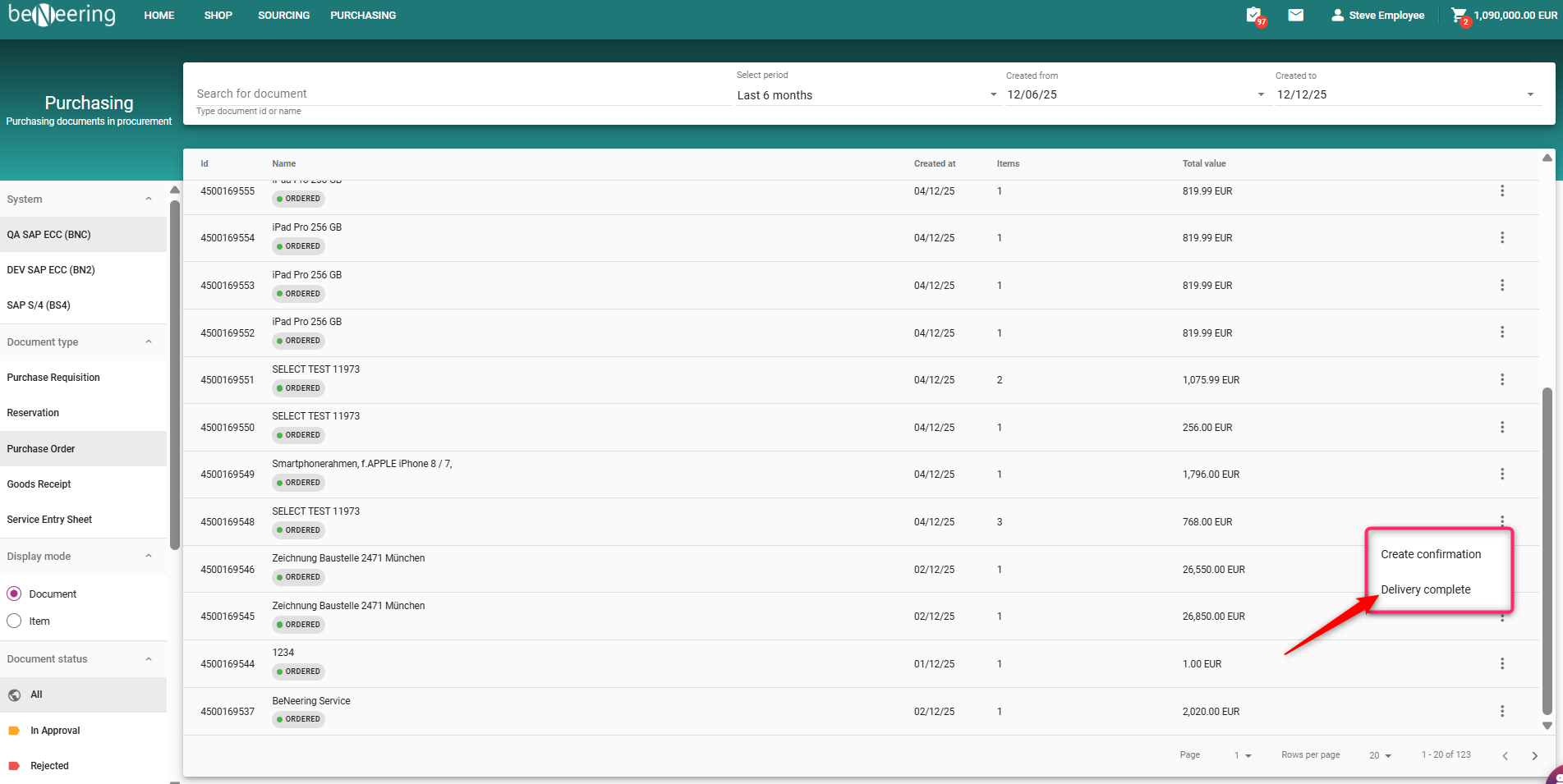
⚠️ Important: The One-Click Receipt assumes that the complete order has been delivered in good condition.
-
System Confirmation
-
The system will instantly generate a Goods Receipt confirmation.
-
A success message will appear on the screen.
-
The order status will change to Received.
-
✨ Tip: If you have received only a partial delivery, do not use the One-Click Receipt option. Instead, use the Create Confirmation function to record the exact quantities.