Delivery Address defines the physical location where ordered goods should be delivered. By default, this is usually the Plant or Storage Location. By default, this is usually the Plant or Storage Location. However, users can define a different delivery address if goods need to be delivered to another location, such as a department, project site, or external location.
How to Set Up a Delivery Address
As a user, you can manage your delivery addresses in your user settings. This ensures that goods are delivered to the correct location. You can:
-
Create a new delivery address
-
Edit an existing delivery address
-
Delete a delivery address
-
Set a delivery address as your default
Navigating to Delivery Addresses
-
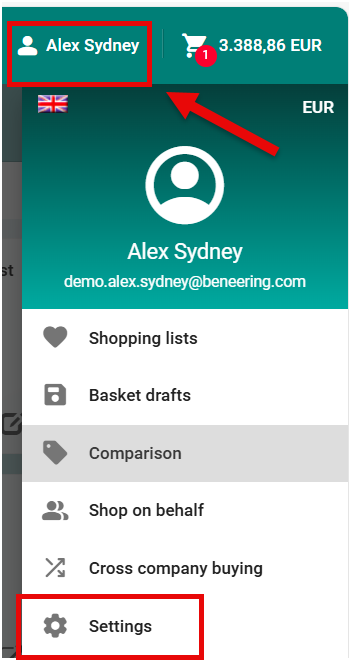
Click on your User Avatar in the top bar.
-
Select Settings.
-
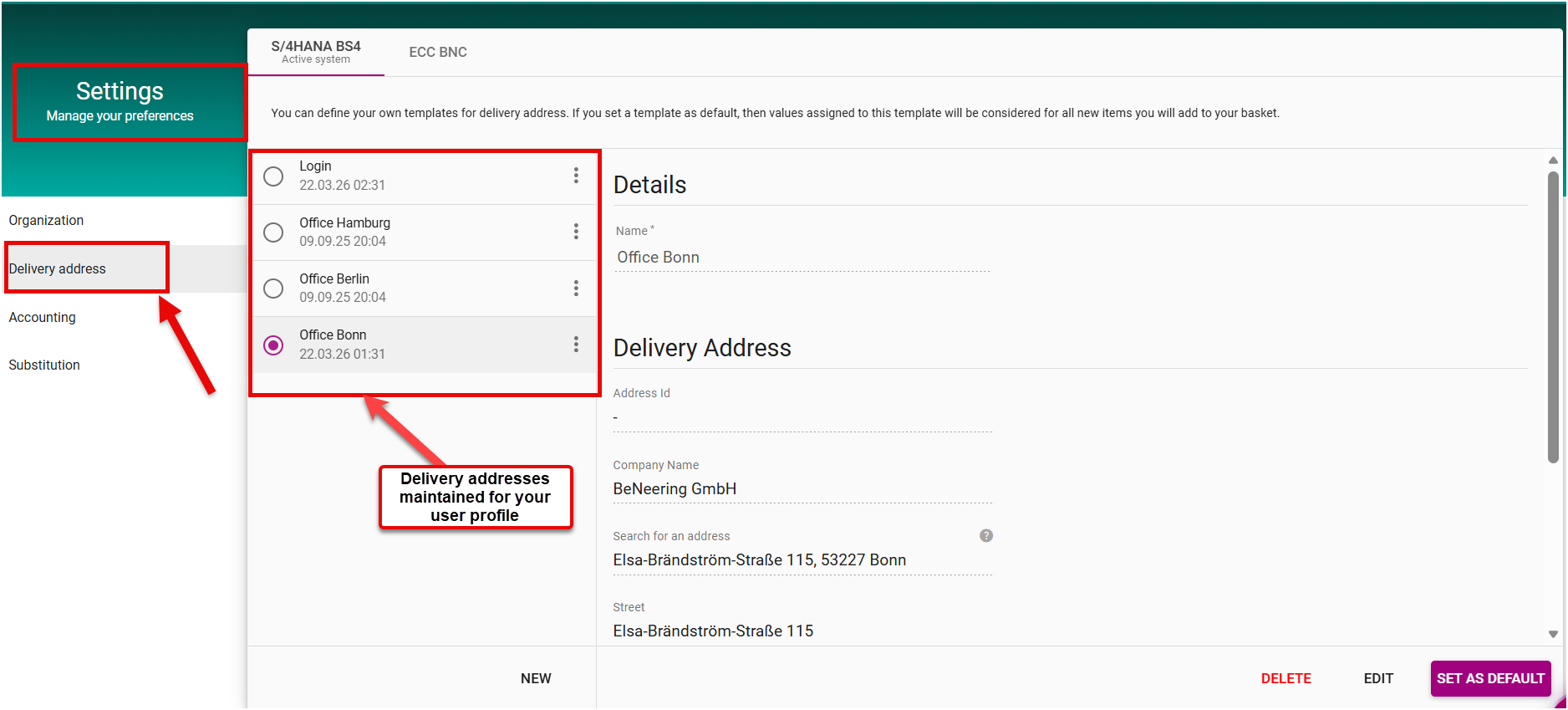
Open the Delivery Address section.
Here, you will see all delivery addresses maintained for your account. You can edit or delete existing addresses, or create a new one if your required location is not available.
Creating a New Delivery Address
-
Click New in the Delivery Address section.
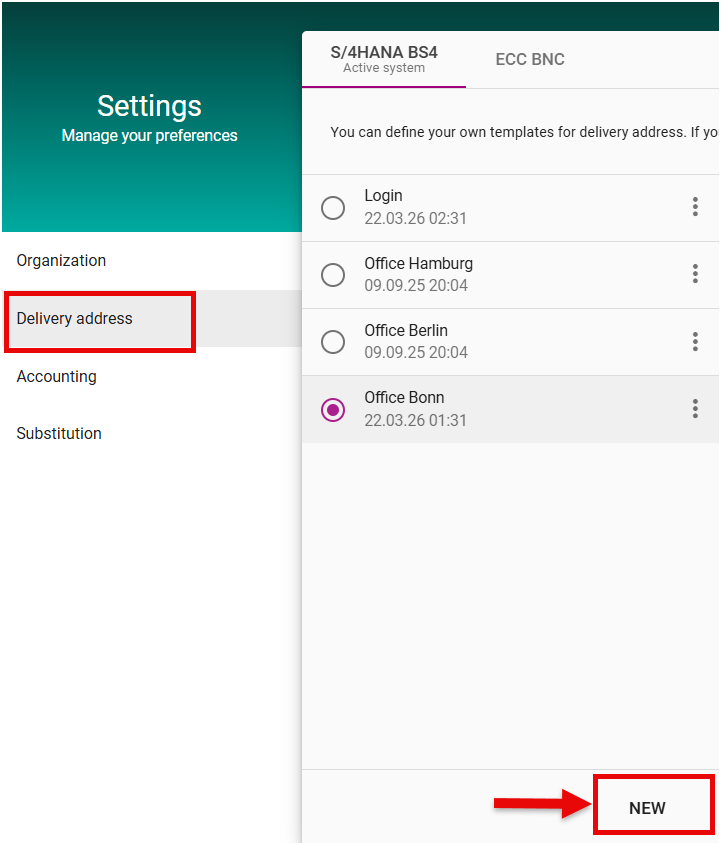
A window will open where you can enter the details for the new delivery address.
-
Name: Enter a name for the address. This field is mandatory.
-
Company Name: Enter the associated company name.
-
Address Search: Use the search field to locate and validate your desired address.
Important:
-
Only the Address Search field is editable.
-
All other fields, including Street, ZIP Code, City, and Country, are greyed out and automatically populated by the system after the address is validated.
-
Press Save to store your new delivery address.
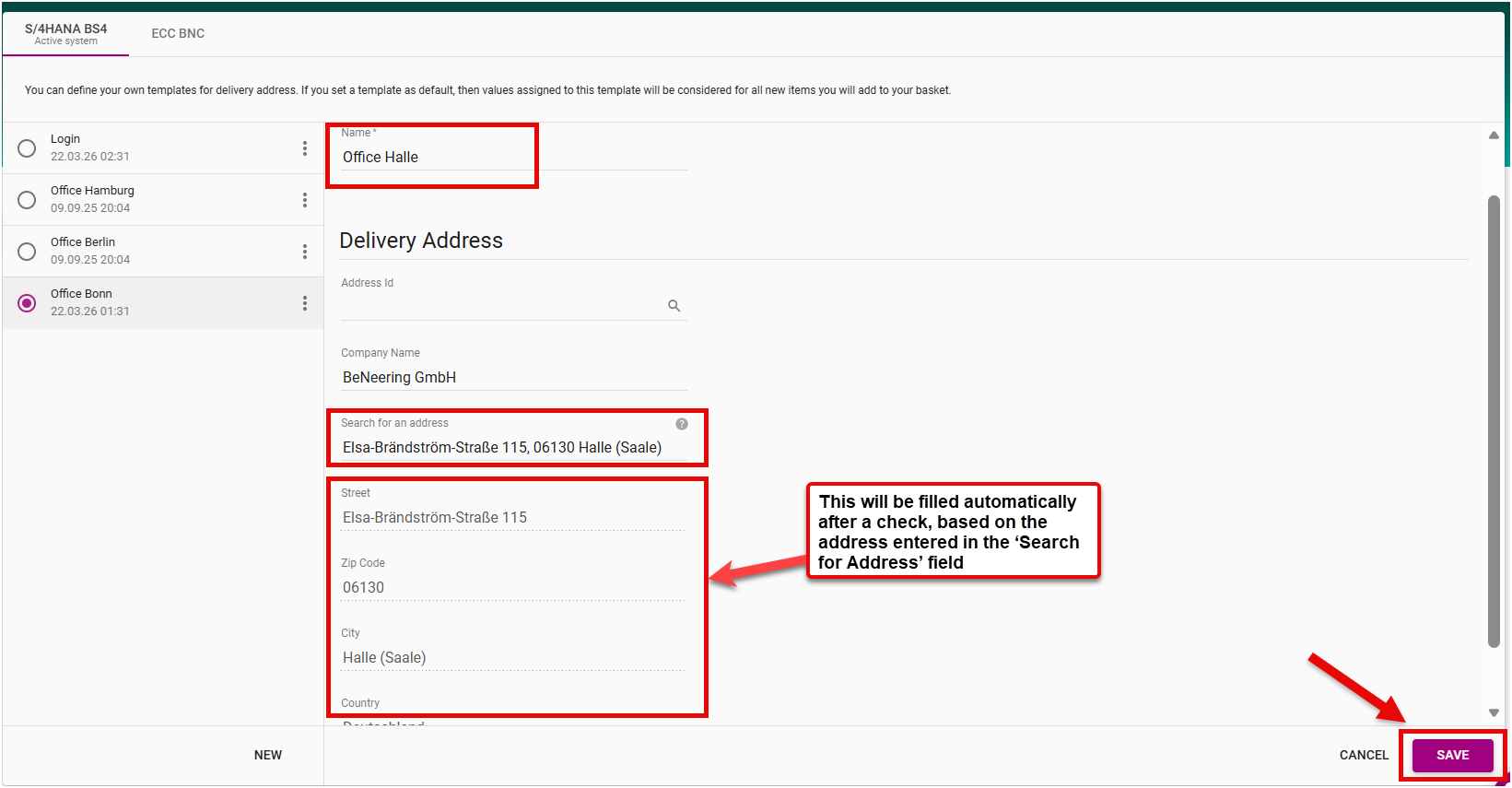
This ensures that only verified and standardized addresses are used, preventing delivery errors and ensuring consistency across all purchase requisitions.
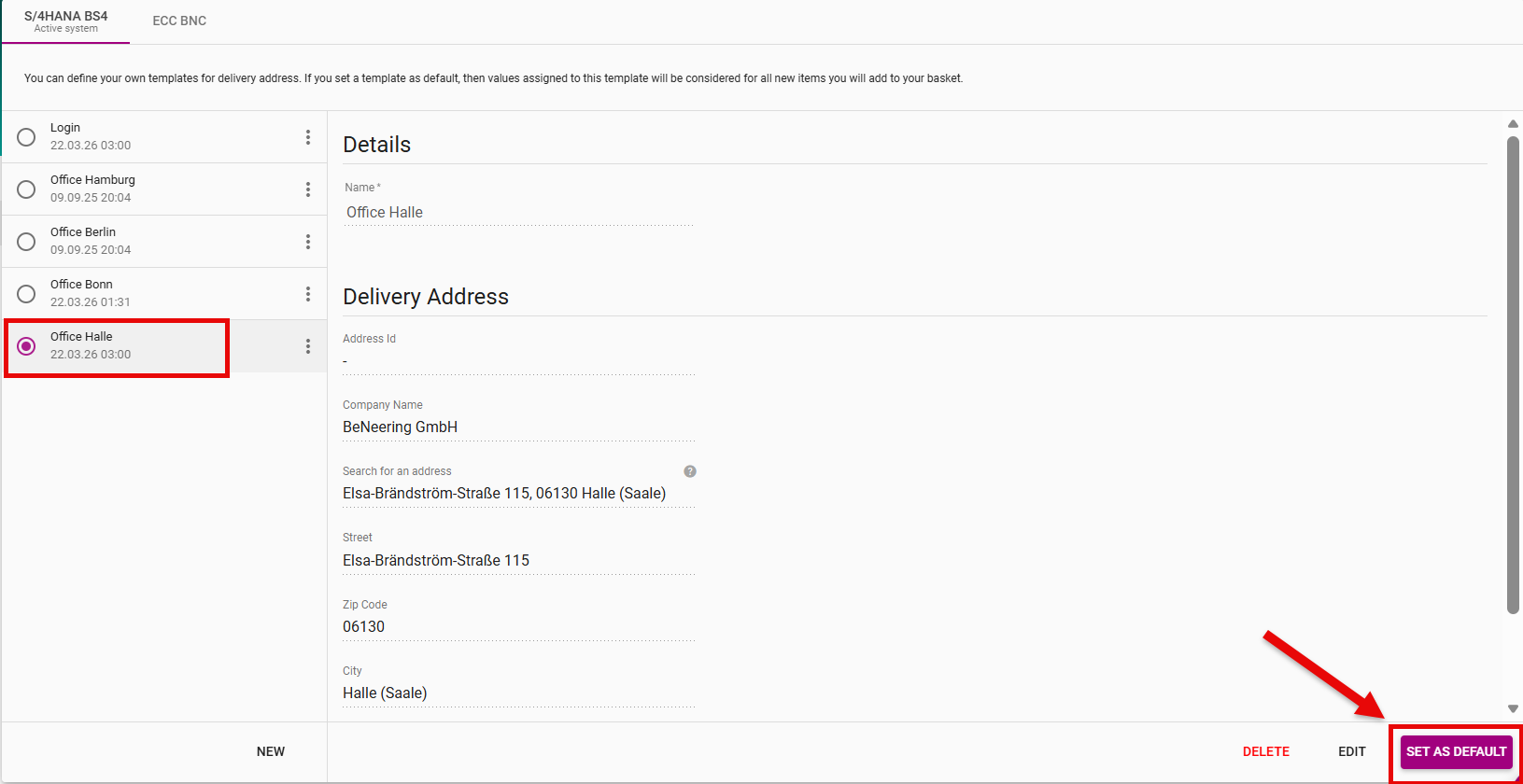
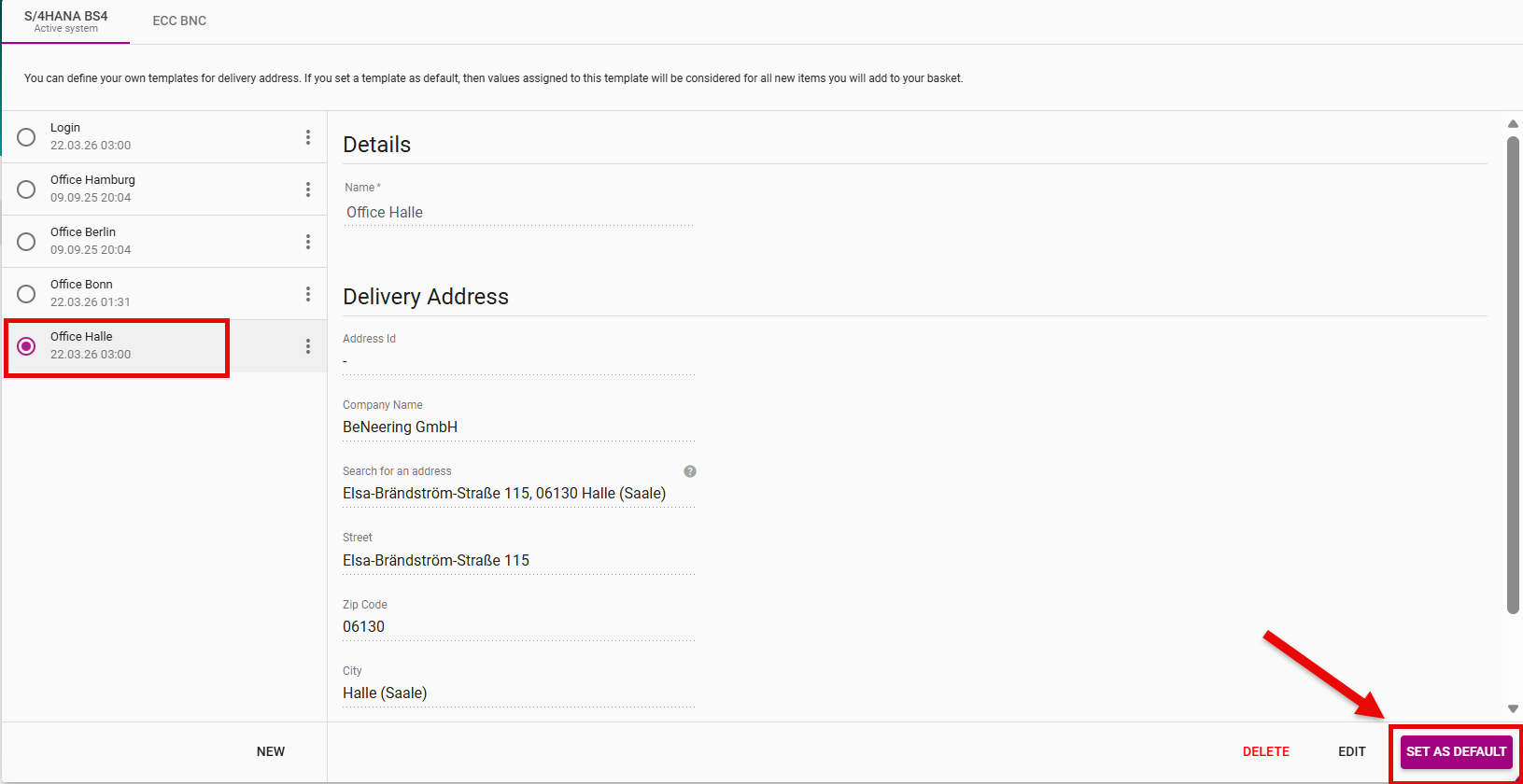
Once your new address, for example “Office Halle”, has been created, it will appear in the list of delivery addresses.
You can set an address as your default. This means that the selected address will automatically populate the Delivery Address section in your shopping cart, saving time and ensuring consistency.
To set a default address:
-
Select the desired delivery address from the list.
-
Click “Set as Default”.
From that point onward, the default address will be automatically applied to all new shopping carts unless you choose a different address manually.