The Intake Assistant is an AI-powered virtual assistant on the BeNeering Procurement Platform designed to help users create professional quotations/Proposals efficiently.
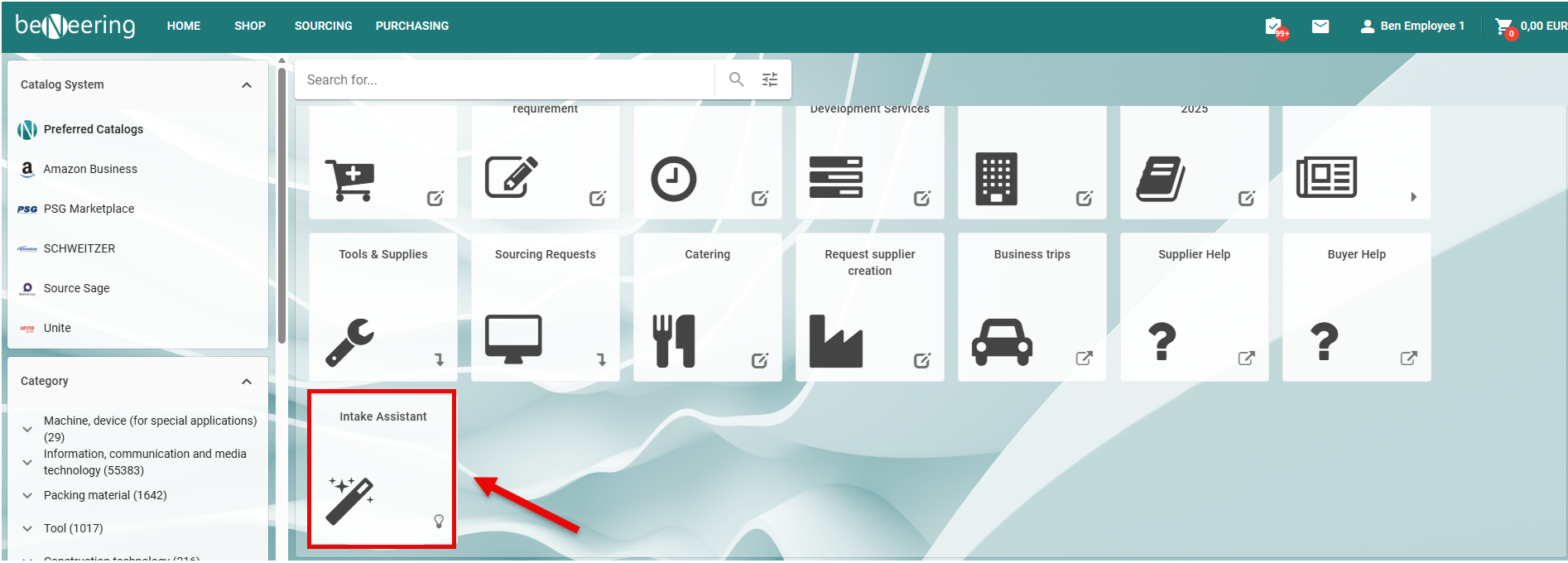
Intake Assistant Screen Overview
This is the main screen of the Intake Assistant inside the Beneering Procurement Platform. It helps users smoothly handle their procurement tasks by guiding them through uploading data, adding items, and building a shopping cart.
Chat Window (Left Side)
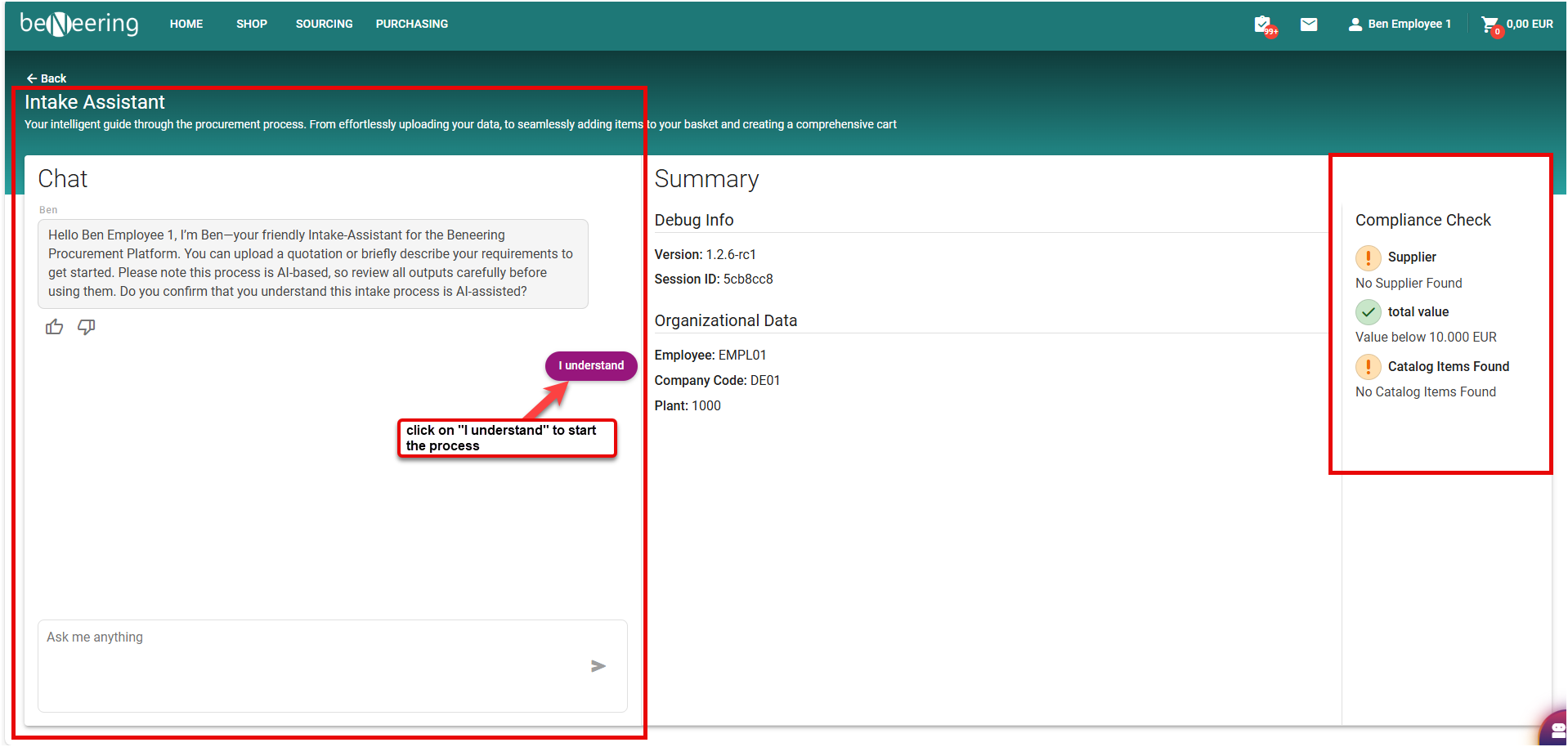
This is where the conversation happens. The assistant (named Ben) greets you and explains you can either upload a quotation file or just type your requirements before the process starts You have to confirm by clicking “I understand” or and after that yur can proceed with your proposal
-
Summary Panel (Center)
Here you find some technical info like the system version, session ID, and your employee, company, and plant codes. This helps keep track of the current session behind the scenes. -
Compliance Check (Right Side)
This area shows warnings and checks:-
Supplier Check: Alerts if no supplier is found, which may require your attention.
-
Total Value Check: Confirms that the total value is within limits (for example, below €10,000). The actual limit depends on your company’s configured thresholds.
-
Catalog Items Check: Indicates if no catalog items were detected in the input, helping you identify missing or unmatched products.
These checks help ensure that your quotation complies with company policies and procurement rules before submission.
-
how to create a Basket via the Intake Assistant Using a Proposal (Quotation) or Business Requirements Description
The Intake Assistant supports two main ways for users to provide quotation details:
Prerequirement: Users must confirm understanding before proceeding by clicking in the Chat the Button “I understand“.
Option A: Upload a Quotation File
-
The users can Upload the Quotation only as a PDF FILE
-
Process:
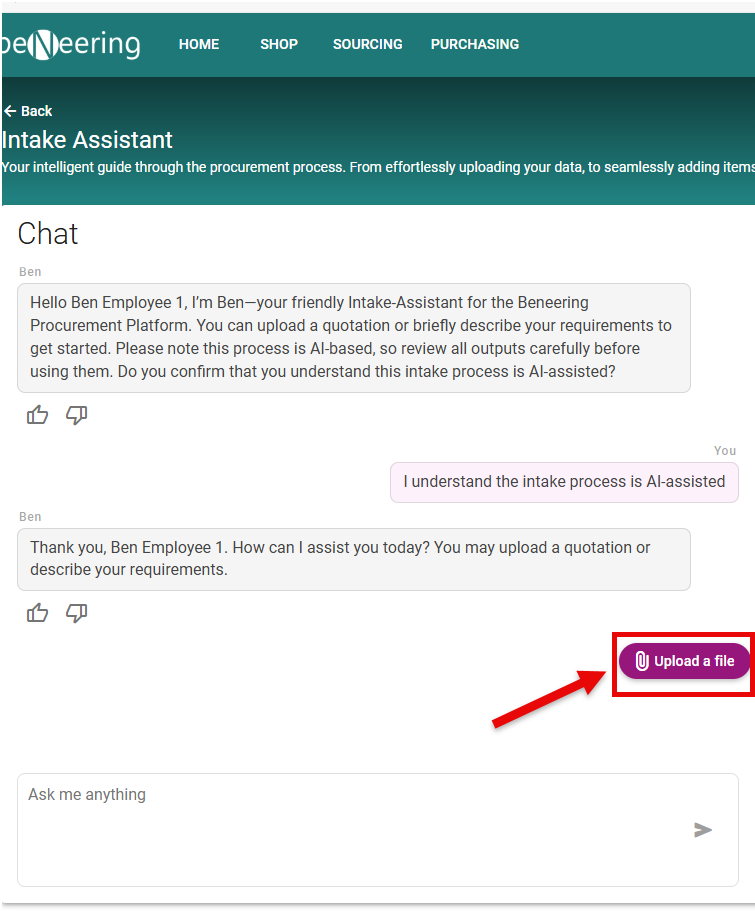
The user uploads the file by Clickung the Buttoon Upload file
-
The Intake Assistant extracts relevant information, such as products, quantities, prices, and client details.
-
The extracted data is structured for further processing or verification.
-
e. The user can then choose how to process the quotation
2. Quotation Processing Options
Once the data is captured (from either a file or text), the user can choose how to process it:
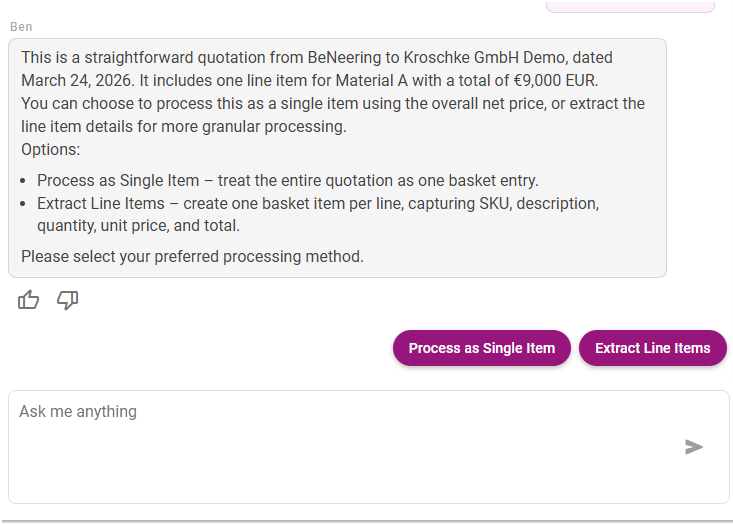
Option 1 : Process as a single Item
-
Treat the entire quotation as one basket entry.
-
Total net price is applied directly.
-
Useful for quick processing when line-item details are not required.
Option 2: Extract Line Items
-
Each quotation line becomes a separate basket entry.
-
Captures:
-
SKU / Material number
-
Description
-
Quantity
-
Unit price
-
Line total
-
Example:
-
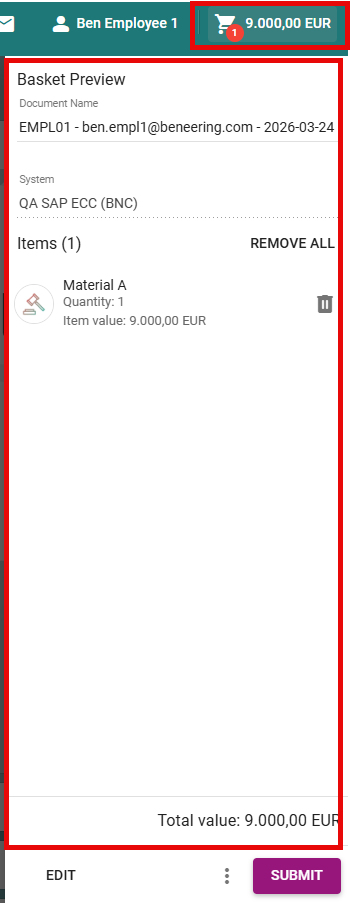
Quotation from BeNeering to Kroschke GmbH Demo, dated 24 March 2026, containing 1 line item for Material A, total €9,000.
-
User can choose to either:
-
Process as single item (total €9,000), or
-
Extract line item details for granular processing.
-
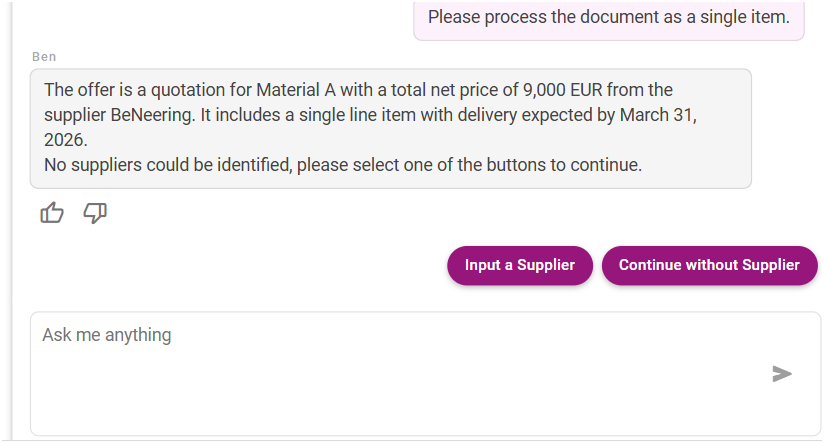
Confirm Supplier
-
The system tries to identify the supplier automatically.
-
If no supplier is found, type in the supplier’s name when prompted.
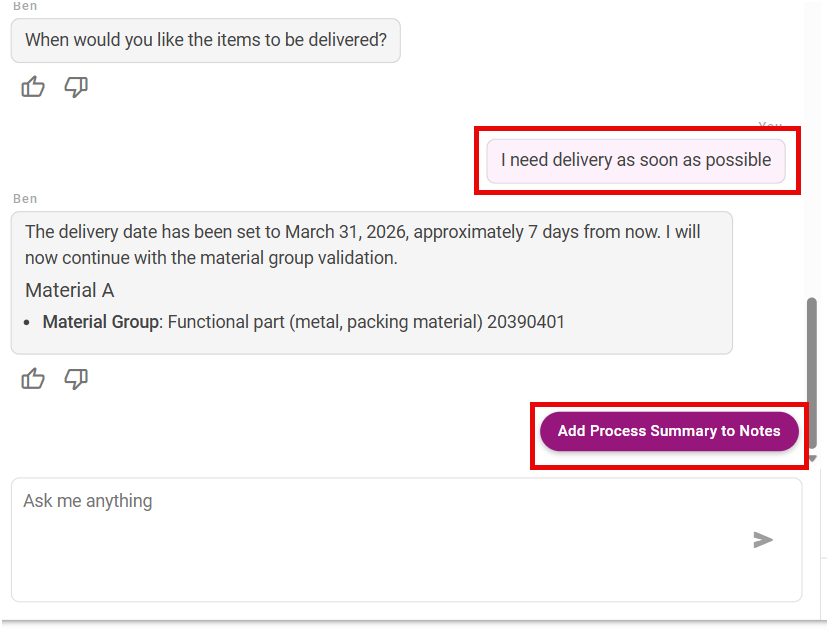
Select Delivery Details
-
You will be asked to provide a delivery deadline.
-
Select the appropriate date by clicking the corresponding button.
-
Add Process Summary (Recommended)
-
The Assistant will ask if you want to add a process summary to the basket notes.
-
Click “Add process summary to notes” to keep a record of the process (highly recommended).
-
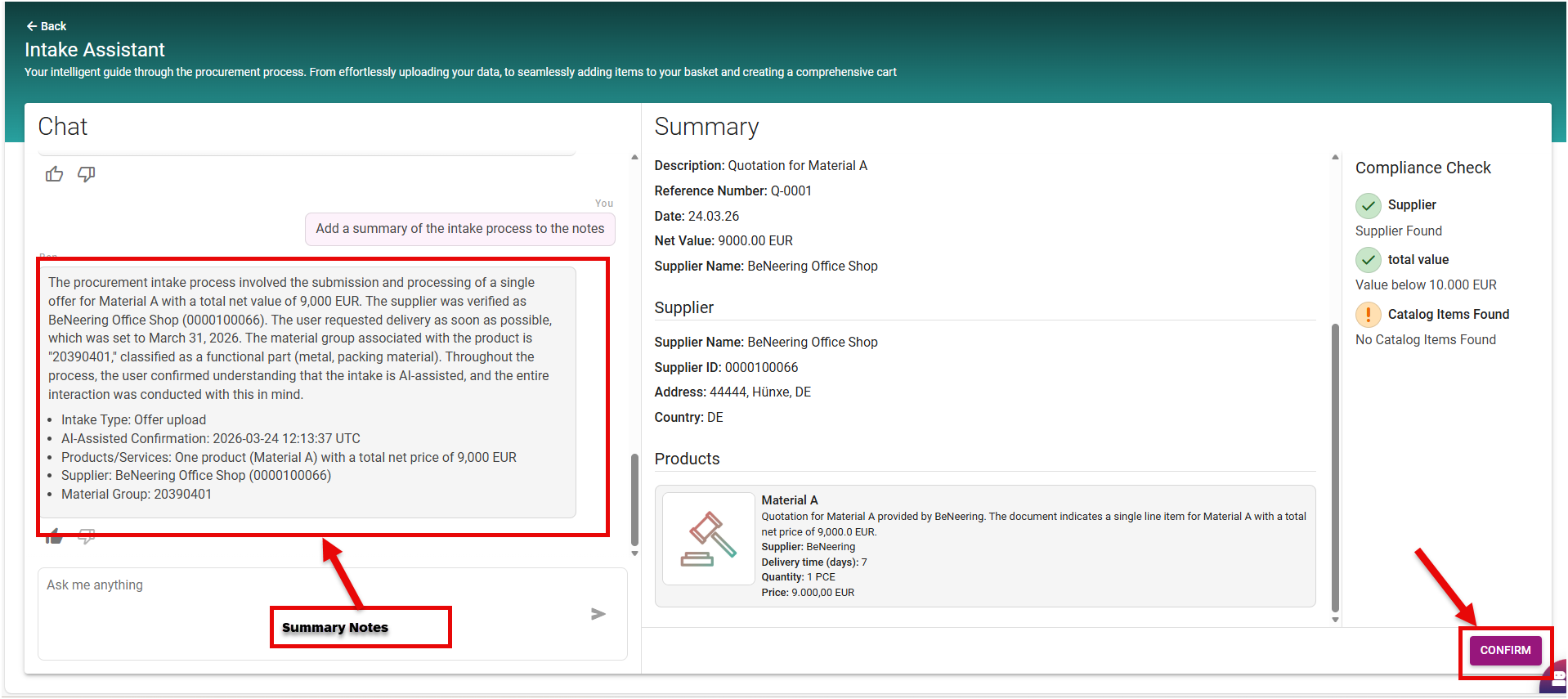
in intake assistant you can see in summary pannel the Quotations with all details Summary supplier details and Items details
Review Summary Panel
Check all details in the Summary Panel: supplier info, item details, quantities, and prices.
Confirm to Create Basket
If everything looks correct, press Confirm to generate a new basket.
Success Message:
Items generated via the Intake Assistant have been successfully added to the basket.

If your basket already contains items, the new quotation will be added to the existing basket
View Your Basket
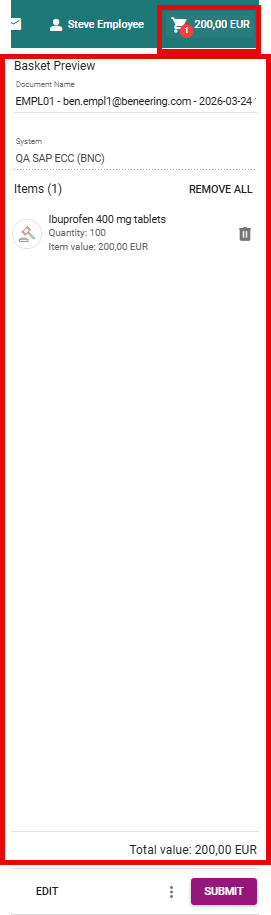
Click the Basket icon in the top-right corner to see all items processed via the Intake Assistant.
Option B: Describe your Requirements in Natural Language
-
Description: Users can type their requirements directly into the Intakte Assistant Chat
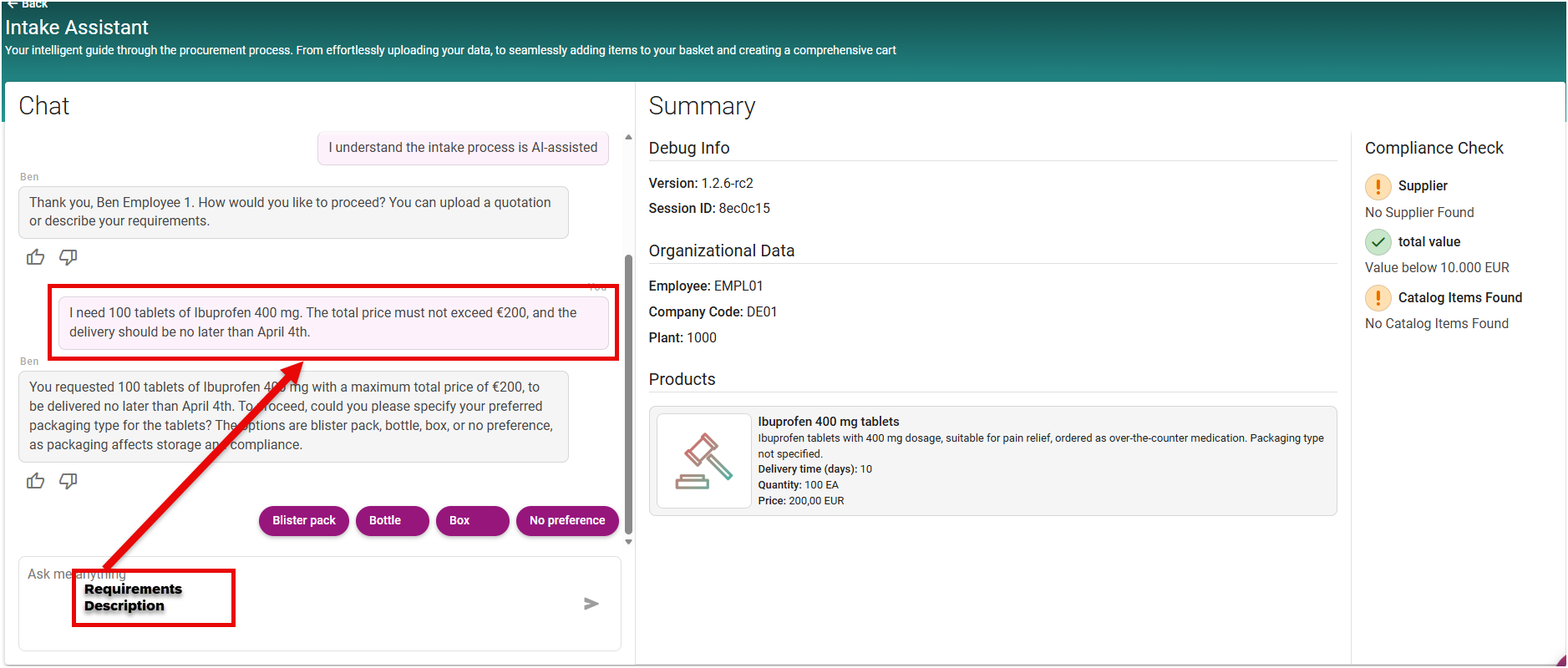
The Intake Assistant first analyzes the text and extracts all relevant information, such as materials, quantities, and pricing details.
If any required information is missing or unclear, the Assistant will guide the user through a series of follow-up questions to ensure that all necessary data is collected. This interactive approach helps users complete their request accurately without needing deep system knowledge.
Once all required information has been gathered, the system performs validation checks to ensure completeness and compliance with internal procurement rules.
The user is then presented with a structured summary of the request in the Summary Panel. At this stage, the user is responsible for reviewing all details carefully and confirming that the information is correct.
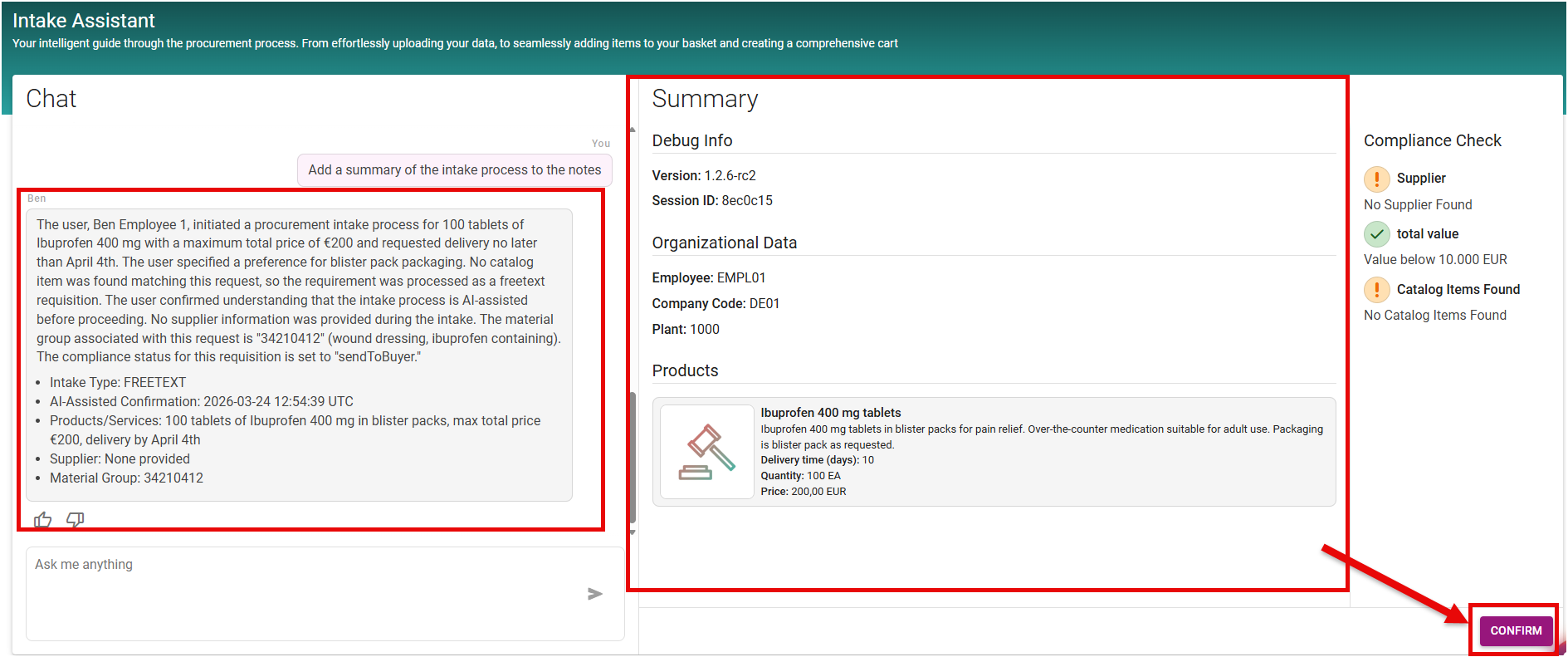
After confirmation, the system finalizes the process. A success message is displayed to inform the user that the generated items have been successfully added to the basket.

View Your Basket
Click the Basket icon in the top-right corner to see all items processed via the Intake Assistant.