
This document outlines the updated workflow for creating, editing, and parking Purchase Requisition (PR) drafts.
The enhancements improve navigation, strengthen autosave behavior, and ensure smoother workflow handling—especially when working from the Inbox Approval area.
Key Changes while working with Purchase Requisition Drafts
-
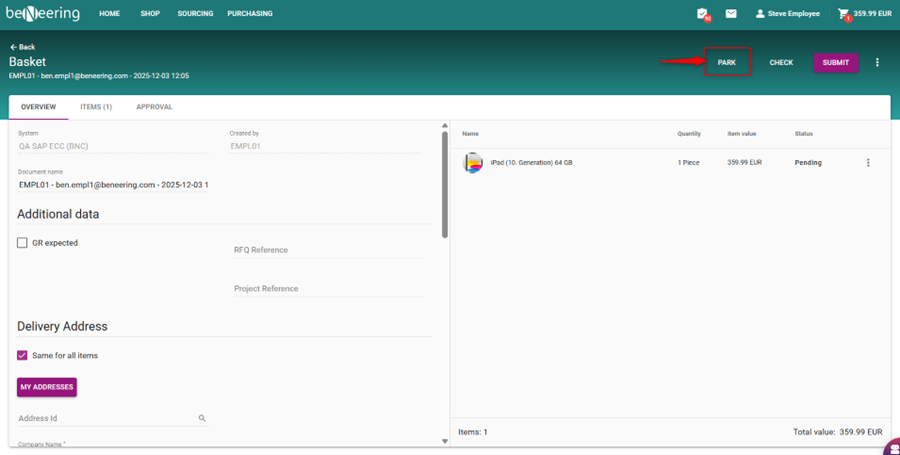
PARK Button (Replaces SAVE)
-
The SAVE button has been removed.
-
A new PARK button is now used to save or update a PR draft.
-
PARK clearly indicates that the document is stored as a draft.
1.1 Back Button Replaces Continue Shopping
-
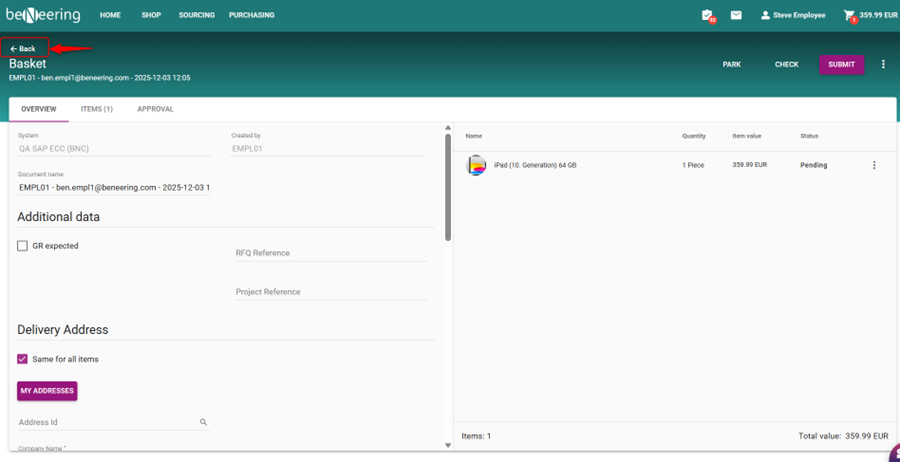
The old Continue Shopping option has been removed.
-
It is replaced with a Back arrow.
-
This Back arrow uses history navigation, returning you to your previous screen (PR List, Inbox, etc.).
1.2 Updated Draft Name and Basket Section
-
The draft name and Basket labels have been updated to match the new terminology.
-
The PR header now clearly shows Purchase Requisition Draft.
1.3 Park Function Replaces 3-Dots Menu Option
-
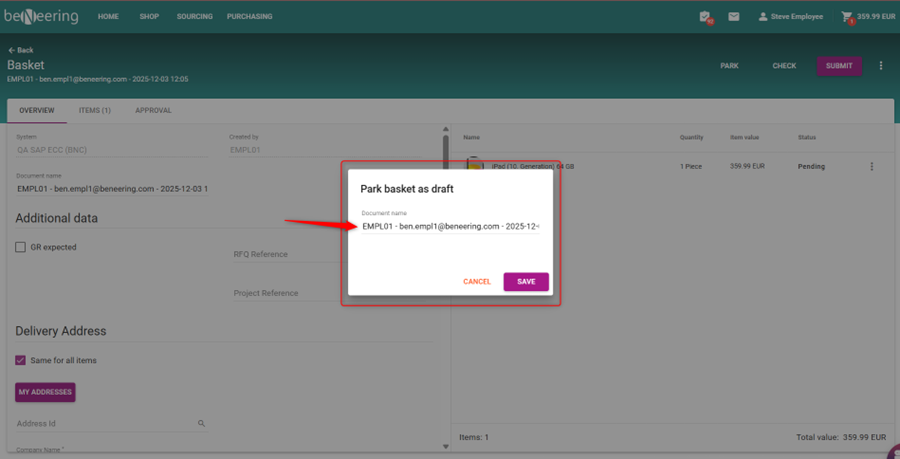
The old Park as Draft option inside the 3-dots menu no longer exists.
-
The PARK button is now the primary and only save function.
-
Working With PR Drafts
2.1 Opening a Draft
You may open a draft from:
-
The PR List
-
The Inbox Approval section
-
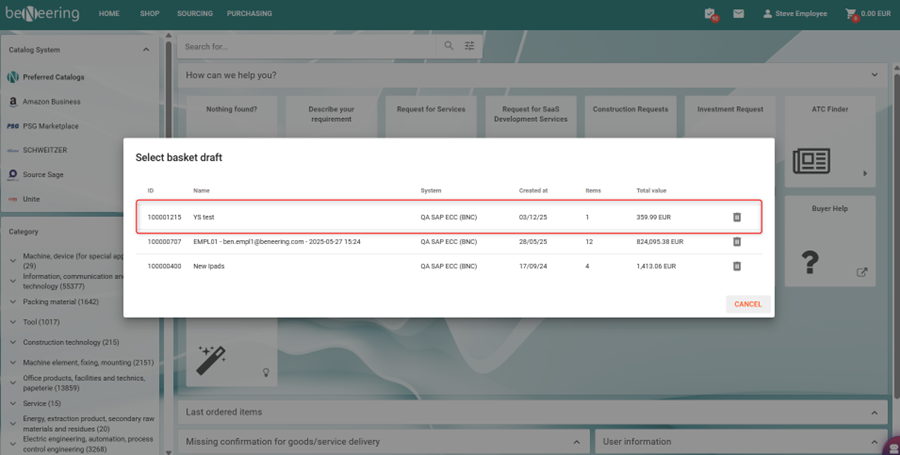
The Basket Drafts menu
2.2 Editing a PR Draft
-
Make changes to the header (name, description, etc.).
-
Modify item details (material, service, address, pricing, etc.).
-
Autosave ensures all changes are continuously stored.
2.3 Navigating Away Using the Back Arrow
-
You may leave the draft at any time using the Back arrow.
-
This returns you to the appropriate previous screen (Inbox or PR List).
-
Your changes remain saved via autosave.
2.4 Parking the Draft
Click PARK to:
-
Save/update the PR draft
-
Move it to the Basket Drafts section
-
Trigger a success confirmation
-
Exit the editing mode correctly
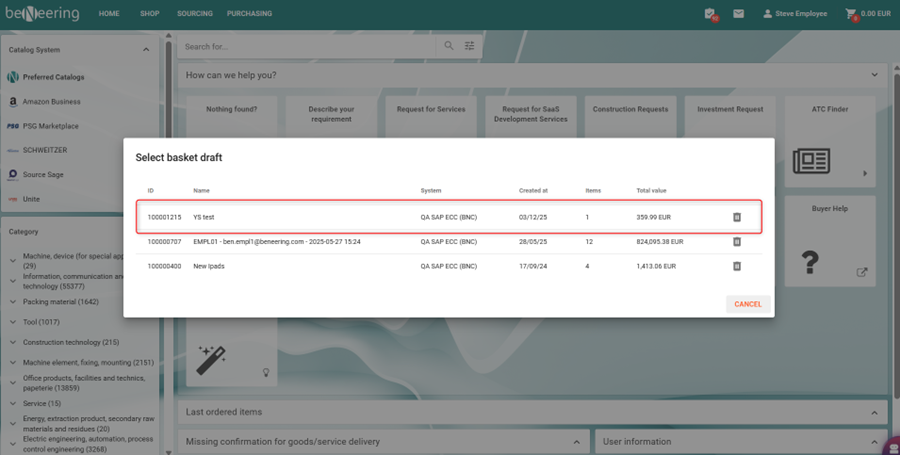
2.5 Reopening Drafts
Drafts saved or autosaved appear in:
-
Basket Drafts
-
Inbox (if workflow-related)
Simply click the draft to resume editing.
-
Benefits of the New Behavior
✔ Easier, clearer navigation
✔ No more unexpected redirects to Home
✔ All changes automatically saved
✔ Unified PARK action for saving drafts
✔ Correct behavior when working from Inbox
✔ Updated terminology for clarity
-
Summary
These enhancements make PR drafting smoother and safer:
-
Consistent navigation
-
Always-saved edits
-
Correct workflow routing
-
Clearer button names
-
Simplified user actions